Quick start
On a fresh Ubuntu, Debian, Fedora or Alpine host. macOS works too for running a controller in development.
By the end, one manually triggered GitHub Actions job will have completed on your machine and its ephemeral runner will have been removed. Start with one host, one pool and a workflow you trust.
New to runner fleets? Understand the basics first. This tutorial has five steps: install, choose a deployment, connect GitHub, create a pool and run a job. Native setup completes the account, App and pool in the terminal; container deployments complete them in the web UI. The UI is where you can operate either fleet afterwards. Other ways in collects the Docker Compose, CLI and API equivalents.
Before you start
- A Linux host you can reach. A small cloud VM, a home server or a spare
machine. Jobs run in Docker or Podman by default; without either, the
processbackend runs them straight on the host, with no container isolation. Use Docker or Podman for runners in this first-job tutorial. - A GitHub organisation, or a repository on your own account, that you own. Creating the GitHub App and installing it takes an owner's rights, so if that is not you, have the owner on hand for step 3.
- A controller address. An address GitHub can reach enables webhooks to the controller, and an App's webhook address is fixed when the App is created. A cloud VM's hostname or a tunnel does it. If the controller can only be reached from your own network, Zoomies falls back to polling GitHub, which reacts in tens of seconds instead of at once; step 3 says how.
- A trusted repository with permission to add a workflow. Use a small manual test first; read security before accepting untrusted pull-request workloads.
Just looking?
Open the live demo to explore a running fleet in your browser without installing anything or signing in. It uses public view: visitors can read the fleet, while settings, Eli and changes require sign-in.
To explore a throwaway fixture fleet on your own machine, including Eli, run the local demo:
That downloads the binary to a temporary folder, checks it the way an install
does, and runs zoomies demo from there: a controller on this machine only,
with a fleet already in it (pools, hosts, runners and a morning's worth of
jobs) and nobody to sign in as. It opens the address in your browser, asks for
no sudo, writes nothing outside the temporary folder, and deletes both when
you press Ctrl-C. --port picks the port. If the binary is already installed,
zoomies demo does the same without the download.
Try Eli too: under Settings → Eli AI Assistant, edit the built-in demo provider and enable Let Eli read this fleet through this provider. Open Eli and ask about “the fleet” to see its tools read the fixture data without an API key. With the switch off the demo provider only echoes your question. Eli explains normal model setup and the separate PR repair workflow.
1. Install
The script is POSIX sh, and it is written to be read before it is run, which
is the way we would rather you did it:
What the installer checks, and what it asks first
It works out your OS and architecture, your distribution and init system,
whether Docker or Podman is present and whether its socket is actually
reachable, whether that socket is rootless, which compose command you have,
whether ports 8080 and 443 are free (where ss or netstat exists to tell
it, and it says so when neither does) and whether Zoomies is already
installed, in which case it upgrades in place and says so.
The download must verify. It is checked against the release's
checksums.txt, and every way that can fail (a mismatch, no entry for this
asset, no hashing tool on the host, a checksums file that could not be
fetched) refuses the install rather than warning about it. A private mirror
that publishes no checksums is the one supported exception, with
--allow-unverified.
Before it changes anything it prints what it is about to do (the version,
where the binary goes, whether it needs sudo, and what it leaves alone)
and asks once. --yes and --non-interactive skip the question.
Everything it discovered is handed to zoomies init, so the interactive
setup never asks a question the script already answered.
Not installing on a host you own? A platform that builds with Nixpacks -- Coolify, Dokploy, Railway, Zeabur -- can deploy the controller from the source instead, with agents joined from machines that have a container runtime. See Deploying on a PaaS.
2. Choose how it runs
zoomies init offers only what your host can do:
The binary under systemd, with a hardened unit. Leanest, starts fastest, and needs no container runtime for the controller itself. Setup finishes here, including the GitHub App, your administrator and your first pool.
Writes a docker-compose.yml and a fully populated .env, then brings it
up. Easiest to upgrade and to move to another host. It is the default
whenever you have a compose command.
A single container. Fewest files, but you manage the run command yourself.
The containerised options move the last three steps to the browser
A container keeps its database in a volume the installer cannot open, so on the compose and docker paths the administrator, the GitHub App and the first pool are created in the browser afterwards rather than in the terminal. The closing summary prints all three with their exact addresses, and the Overview repeats them as a checklist that ticks itself off as you go -- ending, once a pool exists, with a test workflow to run.
Then setup walks the rest: a dedicated service user and directories, an encryption key (which it will tell you to back up, and say exactly what is lost without), the runner backend (preferring a rootless Docker or Podman socket, and spelling out the consequence of each alternative) the bind address and TLS, the address GitHub will use to reach the controller, and your first account.
Before continuing: open the UI address printed in the closing summary. On a native install, sign in with the account you created. On a container install, follow the first-account link and the setup-token instructions in the summary, then sign in. Keep the encryption key in a protected backup location separate from the database; it is needed to recover stored secrets.
What setup does for you, in more detail
Whichever you choose, the containerised deployments leave nothing to fill in.
A controller's answers are stored in its database before it first starts,
where the Settings page changes them; the .env holds only what opens that
database and what Compose reads itself. Every variable in it carries a
one-line comment saying what it is for, the file is 0600 because it holds
your encryption key, and it is written atomically so an interrupted install
never leaves a half-written file that compose would then read.
Re-running the installer over an existing deployment is an upgrade, not a reinstall: it keeps the existing encryption key (minting a new one would make every stored secret undecryptable) and backs the old file up beside it.
Setup does not assume the service account can reach the container socket, it
checks. The account's access is worked out from the socket's own owner and
mode rather than from a group called docker, which is the wrong group on a
Podman socket or a distribution that names it something else; the account is
added to whichever group that is; and the check runs again afterwards, so
an install only reports success it has verified. Where joining a group cannot
help (a socket with no group permissions at all) it says so and names the
two ways out, instead of leaving you with a fleet that comes up unable to run
anything.
3. Connect GitHub
Zoomies creates the GitHub App for you through the manifest flow. It opens your browser at a pre-filled form (and always prints the URL as well, so a headless host still works). For container deployments, open Installations → Connect GitHub in the UI; native setup offers the same flow in the terminal.
For a first runner, you can decline migration pull requests and Kennel Club's optional repository checks. Choose migration access now if you plan to use the wizard next: GitHub requires the owner to accept additional permissions when you add them later. The details below explain each grant.
GitHub App permissions and optional features
| Permission | Why |
|---|---|
organization_self_hosted_runners: write |
register and remove runners (org targets) |
administration: write |
the same, for a repository target (a single repository, which is also how a personal account is used) |
actions: write |
read workflow jobs and let operators cancel workflow runs from Zoomies; set github.allow_workflow_cancellation: false to request read-only access instead |
metadata: read |
required by GitHub for any App |
workflow_job event |
the webhook that makes scaling instant |
That is the whole list, and none of it is access to your repositories' contents.
Before it opens GitHub, Zoomies asks one more question: Also let Zoomies open migration
pull requests? The answer is no unless you say otherwise. Yes adds three more
permissions (contents: write, pull_requests: write and workflows: write)
so the migration wizard can rewrite runs-on and open one pull
request per repository. Nothing else in Zoomies writes to a repository, so a
fleet that never migrates never needs them. Decide now if you can: adding a
permission to an App that already exists is held by GitHub until the account's
owner accepts it on the installation, and until then the wizard cannot read a
workflow at all (how to add them later).
For an organisation App it asks a second: Also let Kennel Club check repository
settings? Again the answer is no unless you say otherwise. Yes adds
administration: read, which the repository settings
checks need and GitHub offers no
narrower form of. A repository App is not asked, because administration: write
already includes it.
It then asks Also let Kennel Club read repository files?, and again the answer
is no unless you say otherwise. Yes adds contents: read, which Kennel Club's
checks of workflow files, instruction files and file names need on private
repositories. That is read access to code, which is why it is a question and not
part of the list above; the migration wizard's contents: write includes it, so
an App that asked for the wizard needs no second grant. Without it the checks
that read files still run on public repositories and show a private repository
as not granted.
Create the App, install it on your organisation -- or, for a repository target, on your own account scoped to that repository, which is how a personal account is used -- and the credentials come back to the installer automatically. The private key is sealed with your instance encryption key before it touches the database, and is never returned by the API.
Check: Installations lists the App's organisation or repository target. If native setup already connected it, continue with that installation.
No public address?
GitHub delivers webhooks to the controller's external URL, and the App is created with that address in it for good. A controller on a laptop or a home network has none GitHub can reach. Both the installer and the Connect GitHub dialog say so and offer to create the App anyway; Zoomies then polls GitHub for queued jobs, which starts runners in tens of seconds rather than at once. If you would rather have webhooks, where the controller goes says how to give it an address without opening a port.
4. Your first pool
A pool says what labels your runners answer to and how many may exist.
On a native install, zoomies init offers to create it once GitHub is
connected. On a container deployment, use Pools → Create a pool and select
your installation. The installer and pool editor derive names and capacity
from the host, so copy the label your own pool shows. This is an example
installer pool on an Ubuntu 24.04 amd64 Docker host with four runner slots:
| Name | zoomies-linux-x64 |
| Labels | zoomies-linux-x64 (what your workflows put in runs-on) and zoomies, which every pool answers to |
| Platform | What the host is: Ubuntu 24.04, amd64. It picks the runner image, and it keeps this pool off hosts running something else |
| Backend | Docker (rootless if available) |
| Size per runner | One share of each host; the machine divided by its slots, as a real limit. A pool made in the pool editor also starts with Elastic CPU on Observe only; the installer's pool starts with it off |
| Min / max | 0 / 4; nothing idle when nothing is queued; the maximum starts at the room those hosts have and stops following once you type your own |
| Idle timeout | 5m |
| Ephemeral | yes |
| Docker in jobs | none |
Decline it, or set pool.skip in an answer file, and the Pools page starts
empty; nothing runs until a pool exists. Either way, set a finite maximum to
limit this pool's concurrent runners. Host capacity and CPU and memory limits
also constrain placement; a pool maximum does not add machines.
Check: the pool is enabled, belongs to the right installation and has an
eligible host with room. Copy its test workflow or its runs-on label for
step 5. If it has no eligible host, read the reason on its page before
triggering a job.
The defaults are the ones to run your first job on. How a pool is sized, Elastic CPU, the operating system and Docker in jobs can all wait until it has run: they are under After your first job.
5. Run something
Start with a small Linux test that does not check out your code. In a trusted
repository the App can see, add .github/workflows/zoomies-test.yml on the
default branch. Replace zoomies-linux-x64 with your pool's label, or copy
the complete workflow from the pool's page:
name: Zoomies test job
on: workflow_dispatch
jobs:
  hello:
    runs-on: zoomies-linux-x64 # Replace with your pool's label.
    steps:
      - run: |
          echo "Hello from $(hostname)"
          uname -a
          sleep 5
Then open the repository's Actions tab, choose Zoomies test job and press
Run workflow. (The Overview's checklist and the pool's own page print this
file with your pool's label already in it, and a copy button.) It is a whole
workflow rather than a fragment on purpose: GitHub refuses a file with no
trigger, and workflow_dispatch means it runs when you press the button and at
no other time.
Zoomies sees the workflow_job webhook, starts a runner, and you watch the
whole thing happen on the Overview page without refreshing, including the
scheduler's reasoning, in its own words:
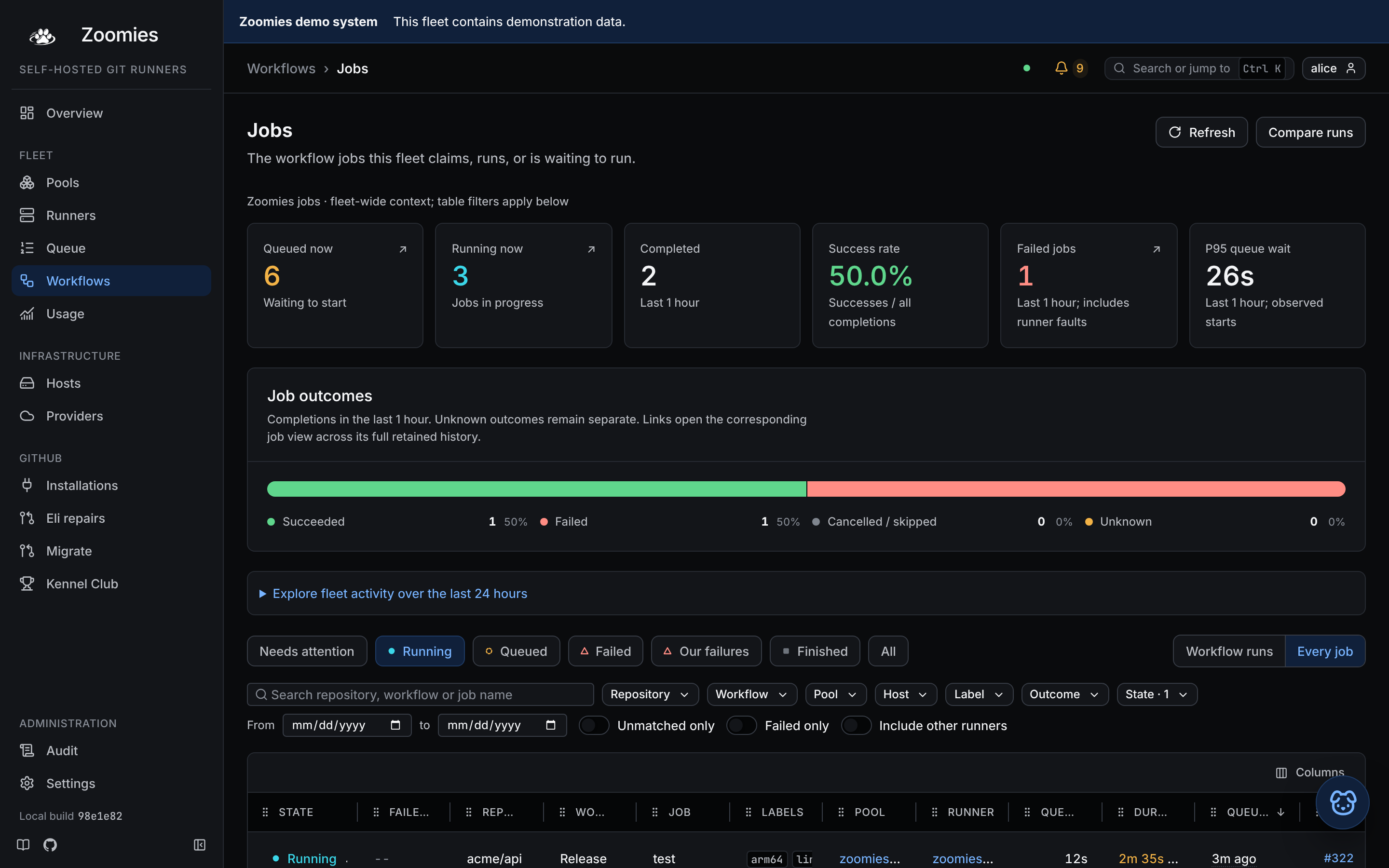
When the job starts, the setup checklist gives way to a line saying which runner took it, and when it finishes, to how long it waited for a runner and how long it ran. The Jobs page keeps the record: how long each job waited, how long it ran, which runner took it, and, for anything that failed, the step it failed at.
You have a working first fleet when:
- GitHub shows the test job completed successfully.
- Zoomies Jobs links it to a runner on your host.
- The ephemeral runner is removed after the job, and the host's slot becomes available again. Finished containers can remain briefly for log retention; they are cleaned up after the report and configured retention window.
If the job waits, use the queued-job guide. If setup fails, use troubleshooting. Get this test working before moving an existing build.
In a workflow you already have, the one line that changes is runs-on:
jobs:
  build:
    runs-on: zoomies-linux-x64 # was: ubuntu-latest
    steps:
      - uses: actions/checkout@v4
      - run: make test
One label is enough to reach a pool, and runs-on: zoomies works too, because
every pool answers to that as well. The labels to give a
pool says why they are branded, and
what to write before anyone has decided which pool a repository belongs in.
Every one of those rows is also a flag on zoomies pools create, and
--dry-run gives the pool editor's own verdict without creating anything:
zoomies pools create --name zoomies-linux-x64 --labels zoomies-linux-x64 \
  --installation ins_k3f9qz2m --os ubuntu --os-version 24.04 --max 4 --dry-run
After your first job
Keep the default runner working before adding optional features. These are the settings worth a look now that a job has completed. Advanced operations connects them to measurement, capacity planning, monitoring and recovery.
Size per runner
This is the row that decides how many jobs run at once, and the default answer is
to leave it to the host: each runner is given one slot's share of whichever
machine it lands on, as a real limit rather than a promise, so the same pool is
sized correctly on a 16-core box and on a 64-core one. There is no “unlimited”
(a runner with no limit takes whatever the machine has while the fleet still
counts it as one slot) and a pool whose jobs need a particular amount of machine
everywhere can say so instead, on the advanced path. Its sliders open on the
figures the whole fleet starts from, under Settings → Configuration
(runners.default_cpus, runners.default_memory_mb).
Elastic CPU
This is the row to come back to. A pool sized by its host can observe: on every heartbeat the controller works out how much of the host's spare CPU a busy runner could have been lent, with every other runner's guarantee and the next queued job's room held back, and publishes the answer to Prometheus without moving anything. A pool made in the pool editor starts there; the installer's pool starts with it off, and Edit on the pool's page turns it on. Switch it to Automatic boost once the numbers say there is room, and a job that was compiling inside two cores gets the rest of the machine until something else wants it. Elastic CPU zoomies is the whole of it.
Operating system
The other row worth a look. It picks which zoomies-runner variant the pool
boots, the catalogue lists what is published, and
it stops the scheduler putting these runners on a host running something else.
Leave it as Any and the pool takes the controller's default image and any host
that fits otherwise. See Naming and platforms.
Docker in jobs
This stays none until a workflow needs a daemon (a docker step, a
container: or a services: block) and then dind is the one to choose. That
one setting is enough for the pool: it is switched to a runner image with a Docker
client as it is saved. Each slot is then a runner and a daemon, which needs about 2 CPU
and 4 GB of the machine, so a host left at its default capacity of half its CPUs can
be too thin for it. If the host is, the pool says so and names the capacity to set
(zoomies hosts edit <host> --capacity N). Jobs that build container
images says what it costs.
The names the pool editor offers
The pool editor does not make you invent the first two rows. It opens with a name
already in the field (the brand and the shape of the pool, so
zoomies-ubuntu-2404, or a name from the kennel before a host has connected)
and a label derived from that name, so the pool is reachable by a workflow before
you have typed anything. The dice beside the field roll another name; type over
it and the editor leaves the name and the label alone from then on. Every name it
offers starts with zoomies-, which is what tells you a runner in GitHub's own
settings is one of yours.
Moving the rest of your repositories
Editing every workflow by hand is the part nobody does. Migrate in the
navigation reads the workflows in the repositories your App can see, rewrites
their runs-on lines, shows you the exact diff, and opens one pull request per
repository. See Migrating repositories.
Adding another host
Hosts → Add a host does the whole thing on one page. It comes filled in -- the address your browser reached the controller on, the labels your pools already select hosts by, capacity left for the agent to decide -- and hands you one line to paste into a shell on the new machine:
curl -fsSL https://zoomies.sh/install.sh | sh -s -- \
  --mode agent \
  --controller https://zoomies.example.com \
  --join-token zoojoin_...
On a Windows machine, choose Windows on that page instead. It hands you a PowerShell command to paste into a window opened as administrator:
& ([scriptblock]::Create((irm https://zoomies.sh/install.ps1))) -Mode agent -Controller 'https://zoomies.example.com' -JoinToken 'zoojoin_...'
It checks it is on Windows PowerShell 5.1 or 7 and later, on x86-64, and in an
elevated window, then asks once before it downloads the binary, checks it
against the release's checksums, installs it, joins and starts the
zoomies-agent service. Nothing is installed if any of that fails. To read it
before you run it, save it with irm https://zoomies.sh/install.ps1 -OutFile
install.ps1 and run .\install.ps1 with the same parameters. Windows is not
yet qualified; the Windows worked
shape says what runs where.
Leave the page open. It watches for the host and says the moment it has
joined: what the machine is, which backends it offers, and which pools can
place runners on it. If the binary is already on that machine, the same page
offers the shorter zoomies agent join form, and the CLI can mint a token too
with zoomies hosts join-token create.
Join tokens are single-use and short-lived. The agent connects outbound only, so the new host needs no inbound firewall rule.
Hosts and pools takes it from here: what a host brings with it, cordoning one for maintenance, when a second pool is worth having, and the rules that decide which host a runner lands on.
Other ways in
The UI is a client of the REST API, and so is everything else, so nothing on this page needs a browser. Where the same thing lives elsewhere:
| In the UI | Elsewhere |
|---|---|
| The installer's questions | zoomies init with --answers, or the repository's docker-compose.yml and a three-line .env |
| Installations → Connect GitHub | The native installer does it on the console; there is no CLI form, because the manifest flow needs a browser |
| Pools → Create a pool | zoomies pools create, or POST /api/v1/pools |
| Hosts → Add a host | zoomies hosts join-token create, then zoomies agent join on the new machine |
| Settings → Configuration | zoomies.yaml, a ZOOMIES_* variable, or zoomies config set with the controller stopped |
| The Overview, the Jobs page, a runner's log | zoomies status, zoomies jobs list, zoomies runners logs --follow |
The command line lists every command, and the API every route with the role it needs.
Unattended installs
Every prompt has a flag, and there is an answer file for the rest:
zoomies init --print-answers writes a commented template. In non-interactive
mode a missing required answer is an error naming the key and what it is for,
never a silent default.
One key is never on in a template: update_helper: true adds the update
helper, which is a grant of root to
a request the service writes. The update helper runs zoomies upgrade as root for a validated request, so that the web UI can update this host (and on the controller's host, zoomies updates apply can too). Only the host's owner installs it, and sudo zoomies updates helper remove takes it away. Left out or false, nothing is
added and the run prints how to add it later.
If something is wrong
Very little of it should be a mystery. The UI, zoomies status and
GET /api/v1/problems are three windows onto one list of problems, and on a
healthy fleet that list is a single quiet line.
Troubleshooting is the page for the rest: the commands to run first, the five things that go wrong on a first run, and what a job sitting in the queue is telling you.
Next
- The UI: find jobs, runner logs and fleet health.
- Hosts and pools: add a machine or a second runner recipe.
- Backup and restore: protect the database and its matching key.
- Advanced operations: measure, tune, monitor and automate the fleet.
- Documentation hub: find the guide or reference for your next task.