The UI
A tour from signing in to operating a fleet, asking Eli for help and repairing failed PR checks. Everything on the fleet pages is live (every page updates in place from the controller's event stream, so you never have to press refresh, though the same button sits at the top of each one for when you want to be sure) and nothing is reachable from the UI that is not reachable from the REST API. A browser that has chosen nothing opens in Mission Control and the dark theme; Settings → Appearance changes either, including to follow your system. The screenshots below follow this site's light or dark and show the Classic style. Start with Signing in, Overview, Jobs, Ask Eli or Eli repairs.
The fleet in them is the demo fixture the Playwright suite runs against: two
pools, three hosts, a dozen runners across every state the controller knows,
and a morning's worth of jobs. zoomies demo runs a throwaway controller with
the same fleet in it (nothing installed, nobody to sign in as) so you can
walk through these pages yourself before connecting GitHub.
ZOOMIES_SEED_DEMO=true writes it into an empty controller of your own.
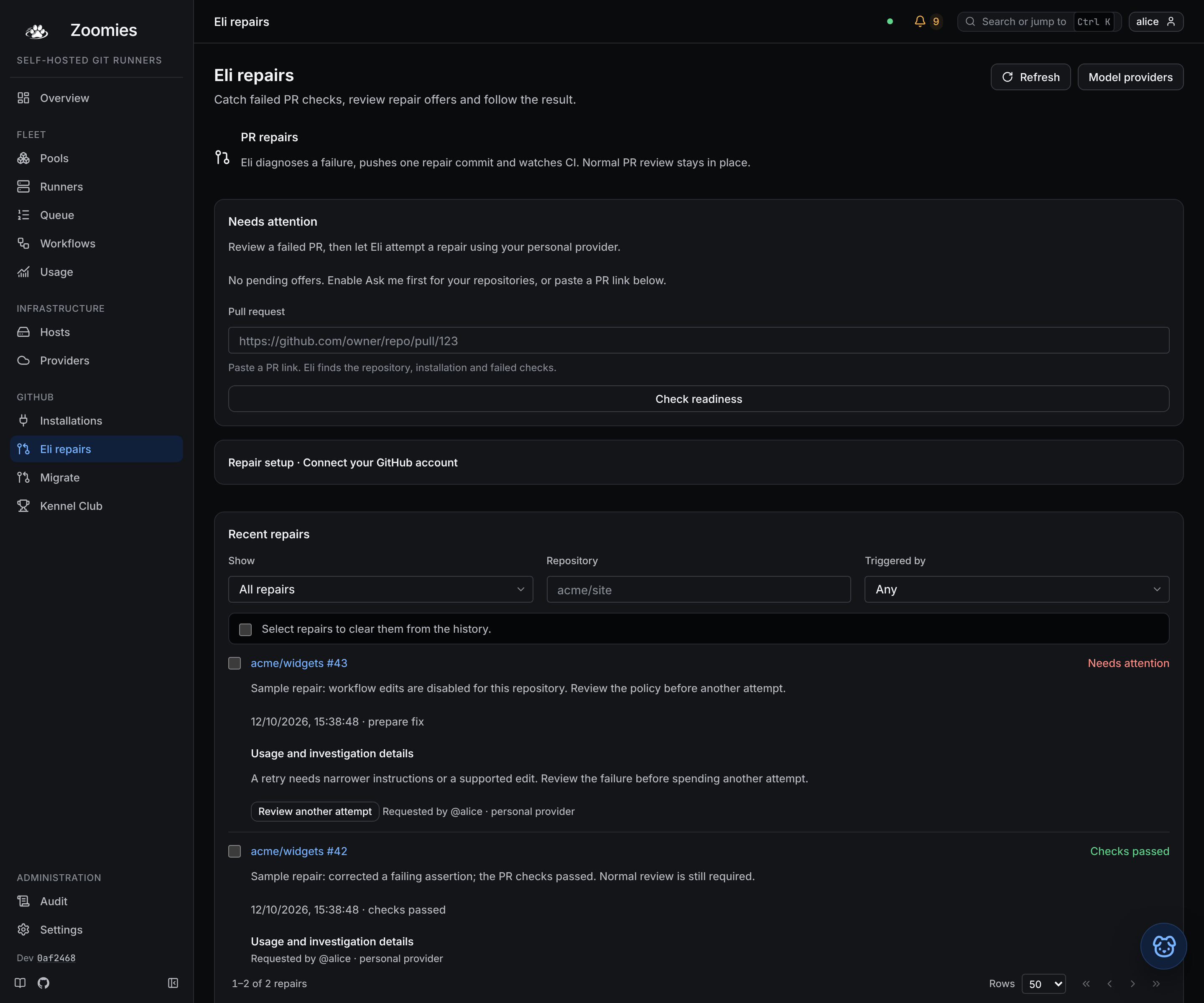
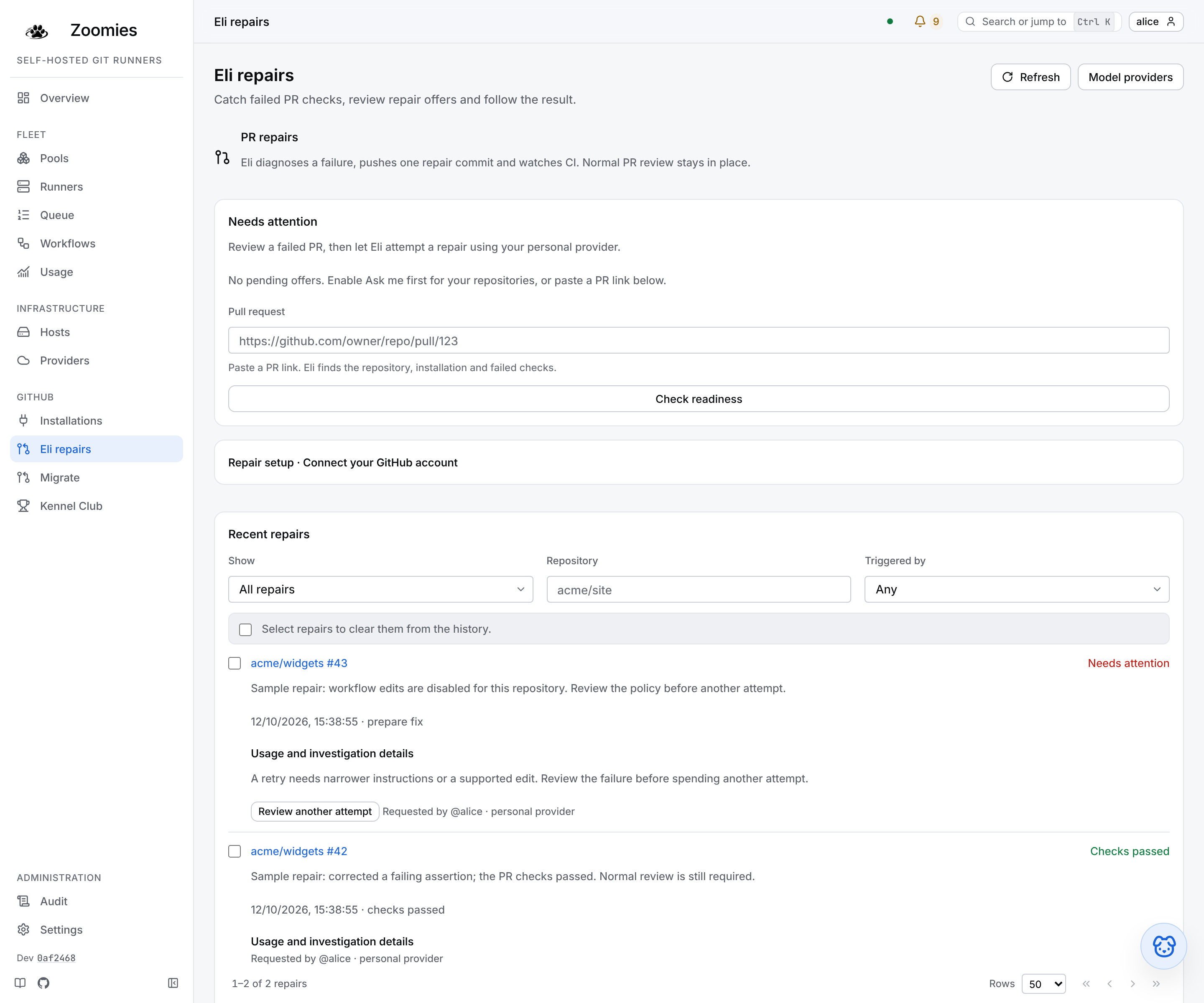
The repair history uses additional sample records, labelled in the images;
they illustrate outcomes without making model calls or changing a GitHub PR.
The Eli conversation uses the built-in demo model and a real fleet lookup.
Signing in
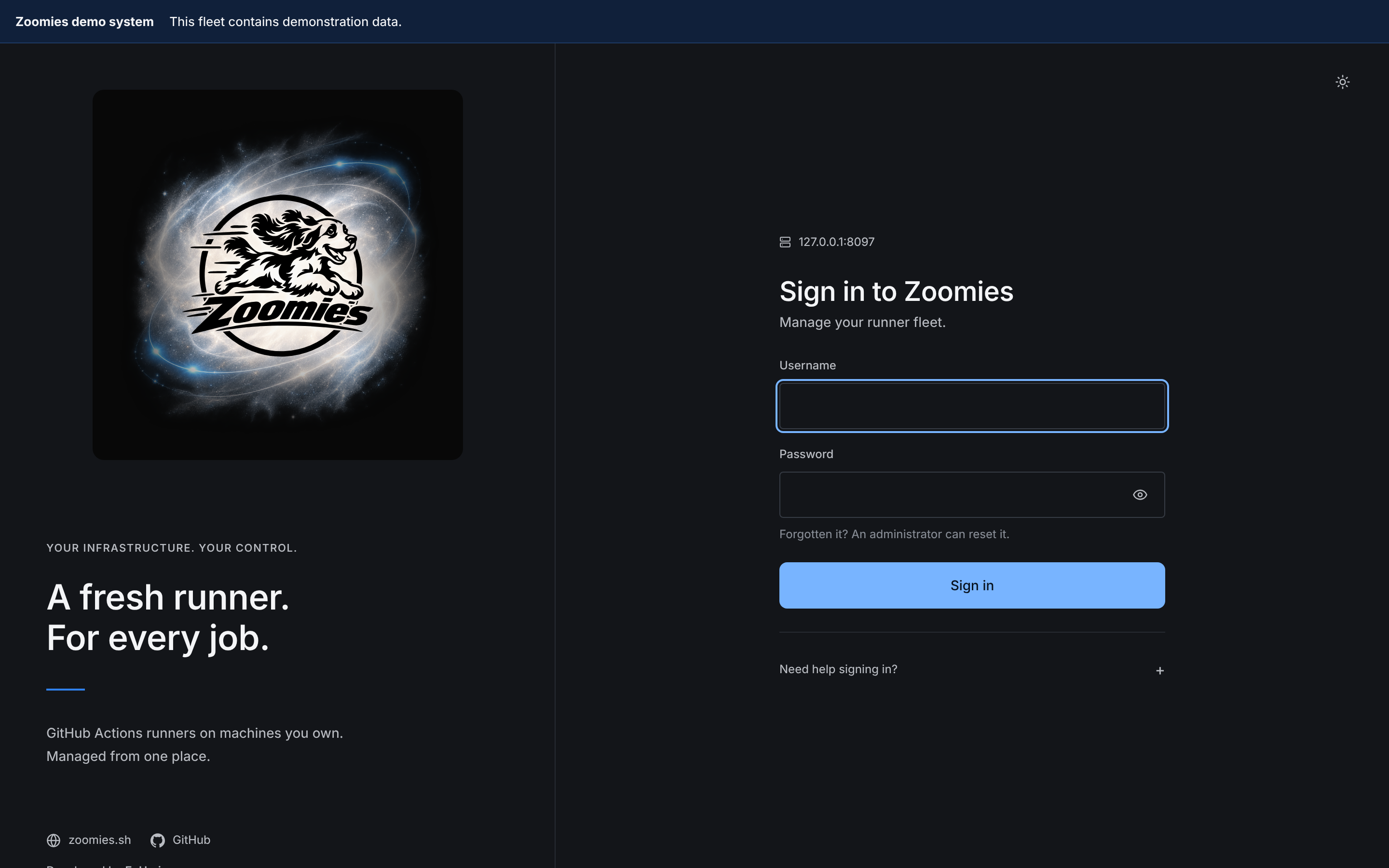
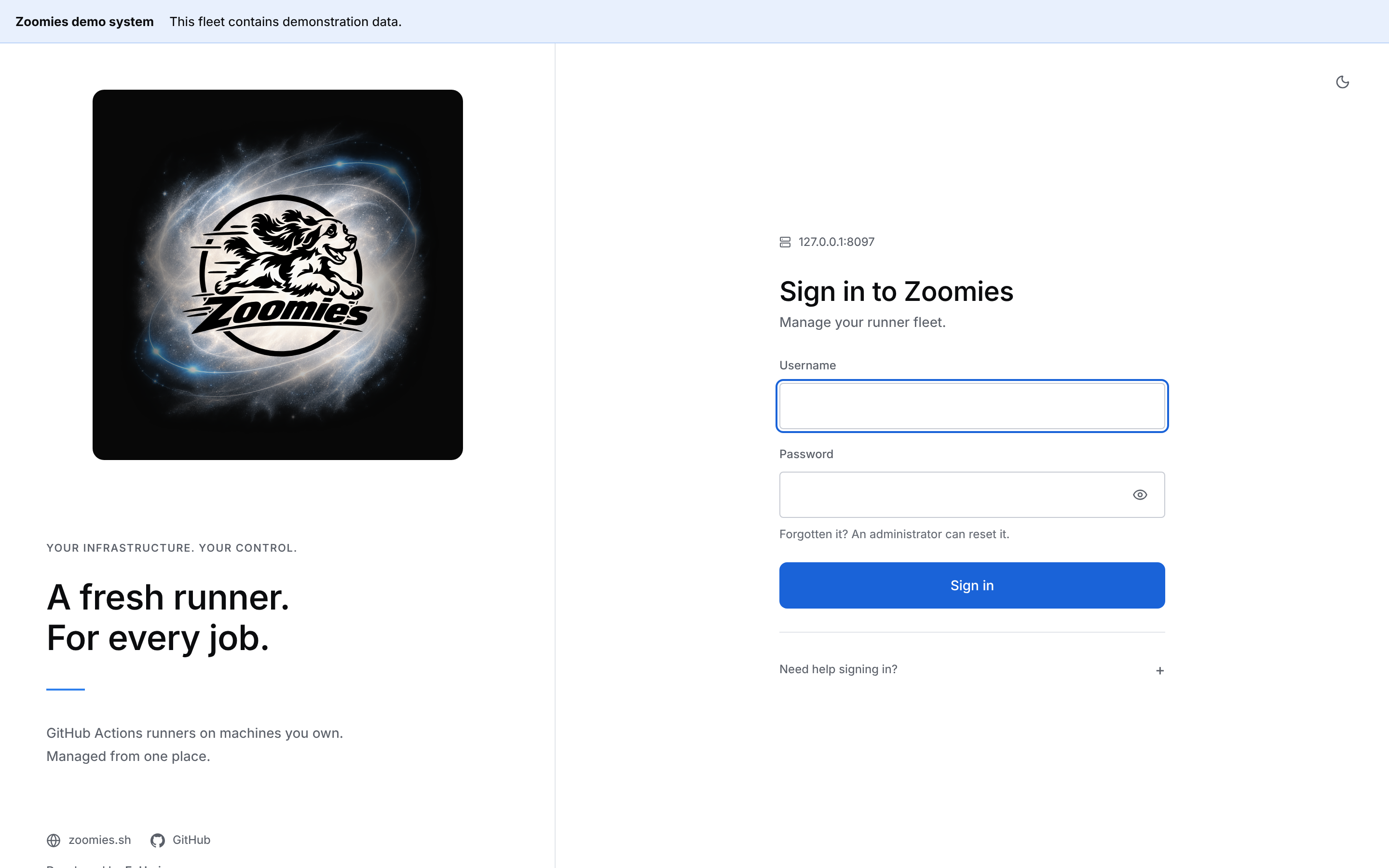
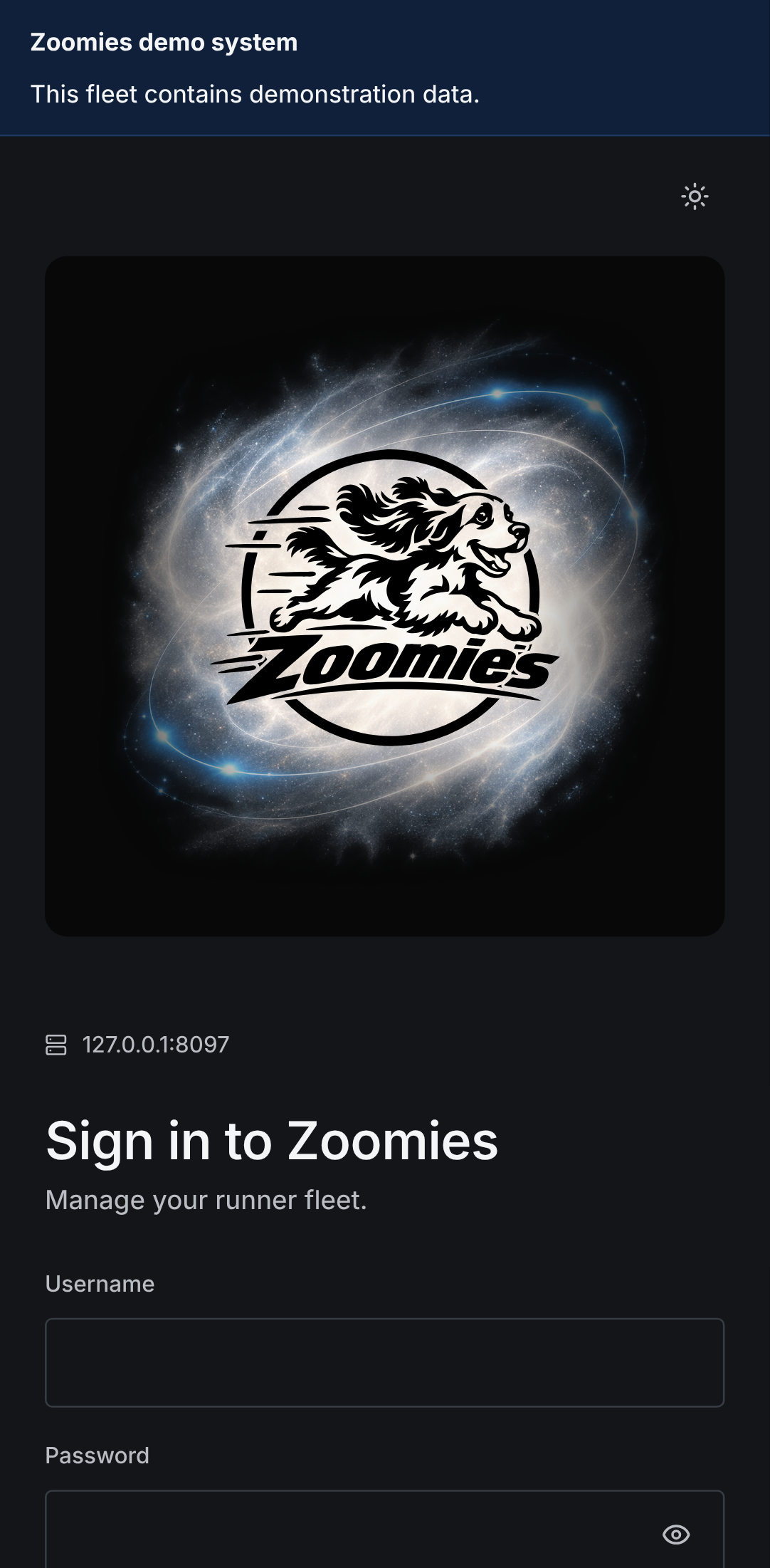
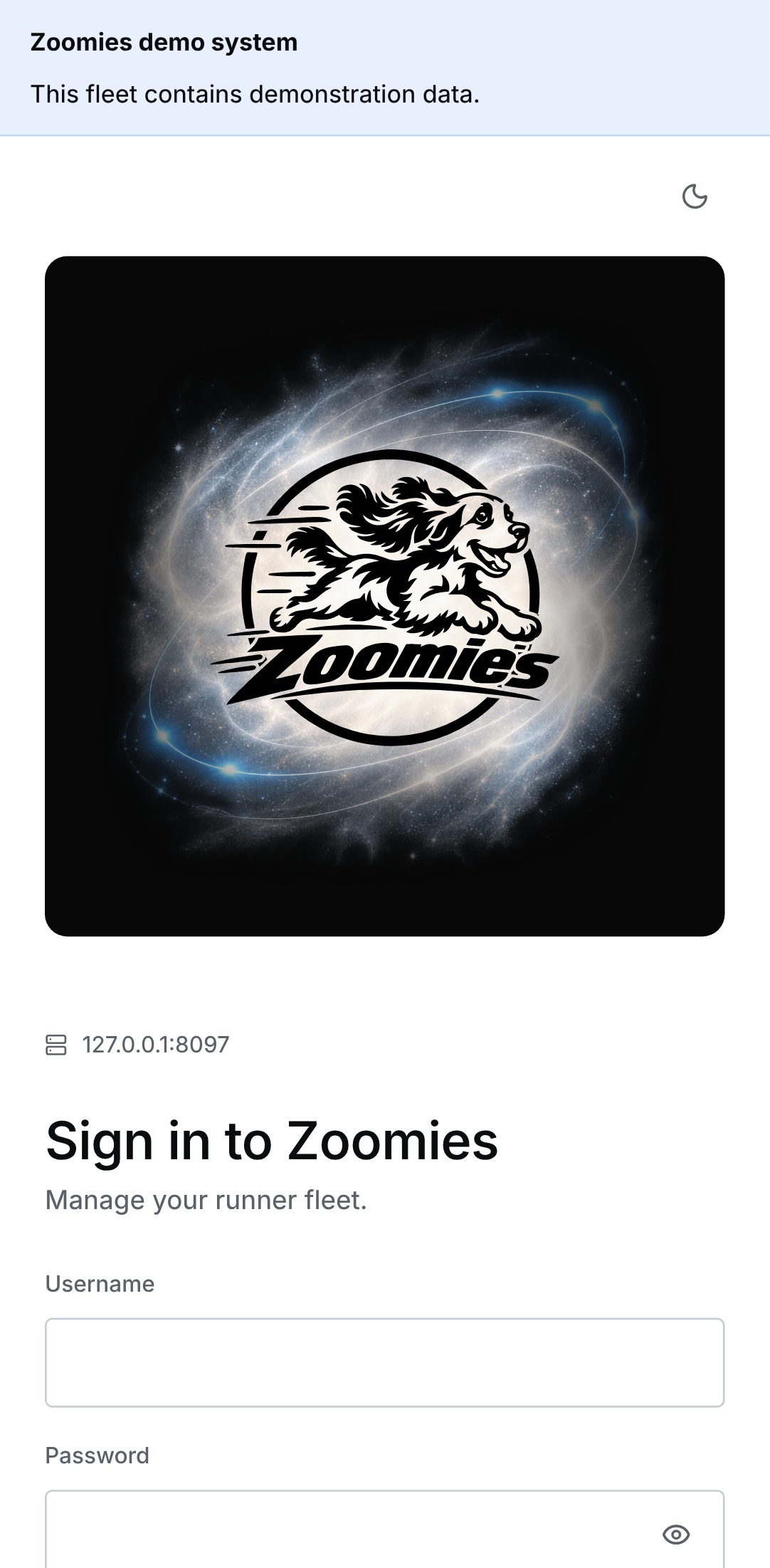
Before any of them, the page everyone meets first, and often the only one met by people who did not install the controller. The form is on the right, under the address of the instance being signed in to, so telling a staging controller from a production one does not rest on reading the address bar. On the left, the full logo sits on a rounded Zoomies Black stage in either theme. Below it are A fresh runner. For every job., a short description, and links to zoomies.sh, the source on GitHub and EyUp.io, who make it. A failed sign-in says which kind of failure it was (wrong credentials, too many attempts, or a controller that cannot be reached) and caps lock is called out before it costs an attempt. On a phone the full logo keeps its rounded black stage above the form, the introductory copy is hidden and the links move below it.
Overview
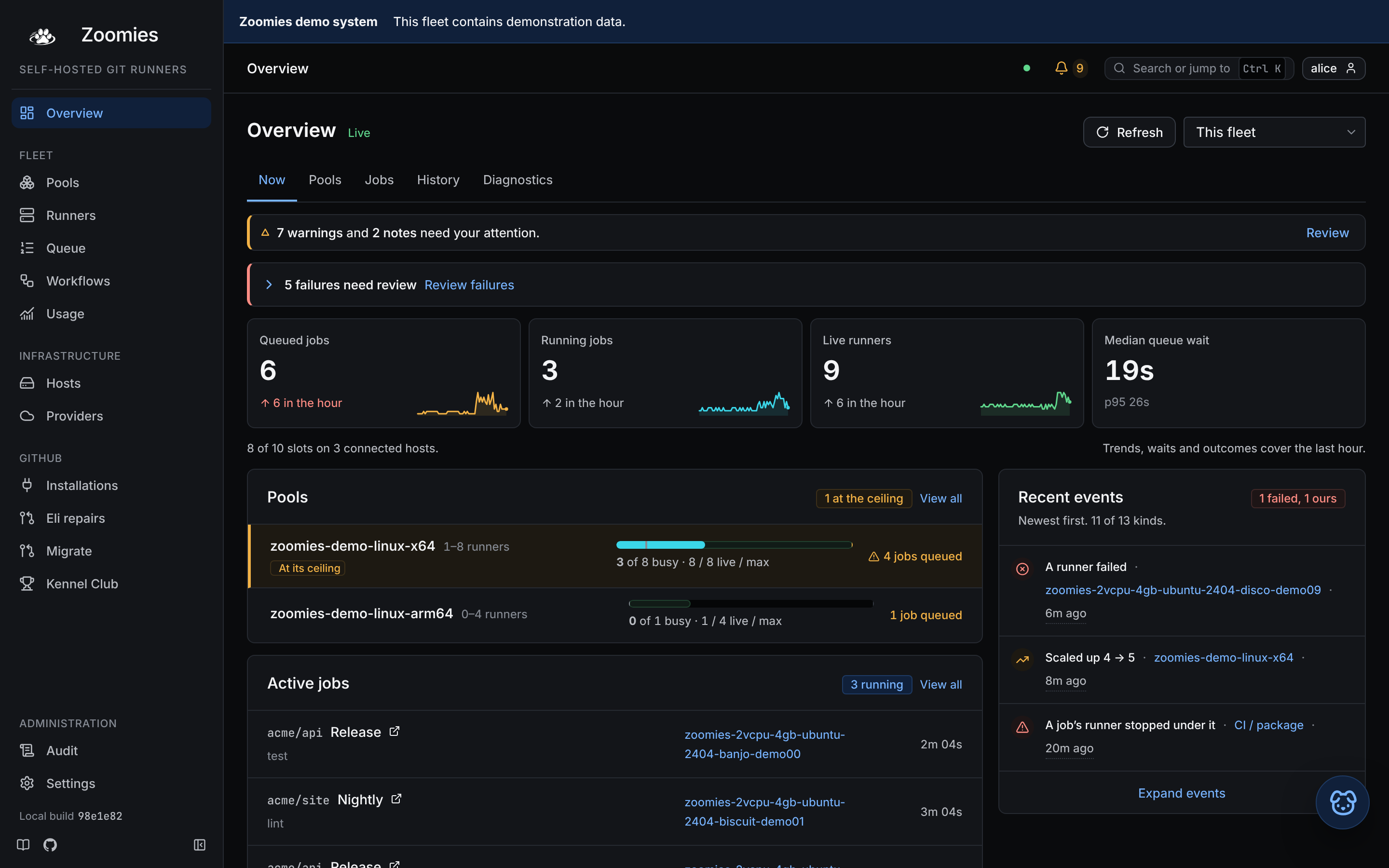
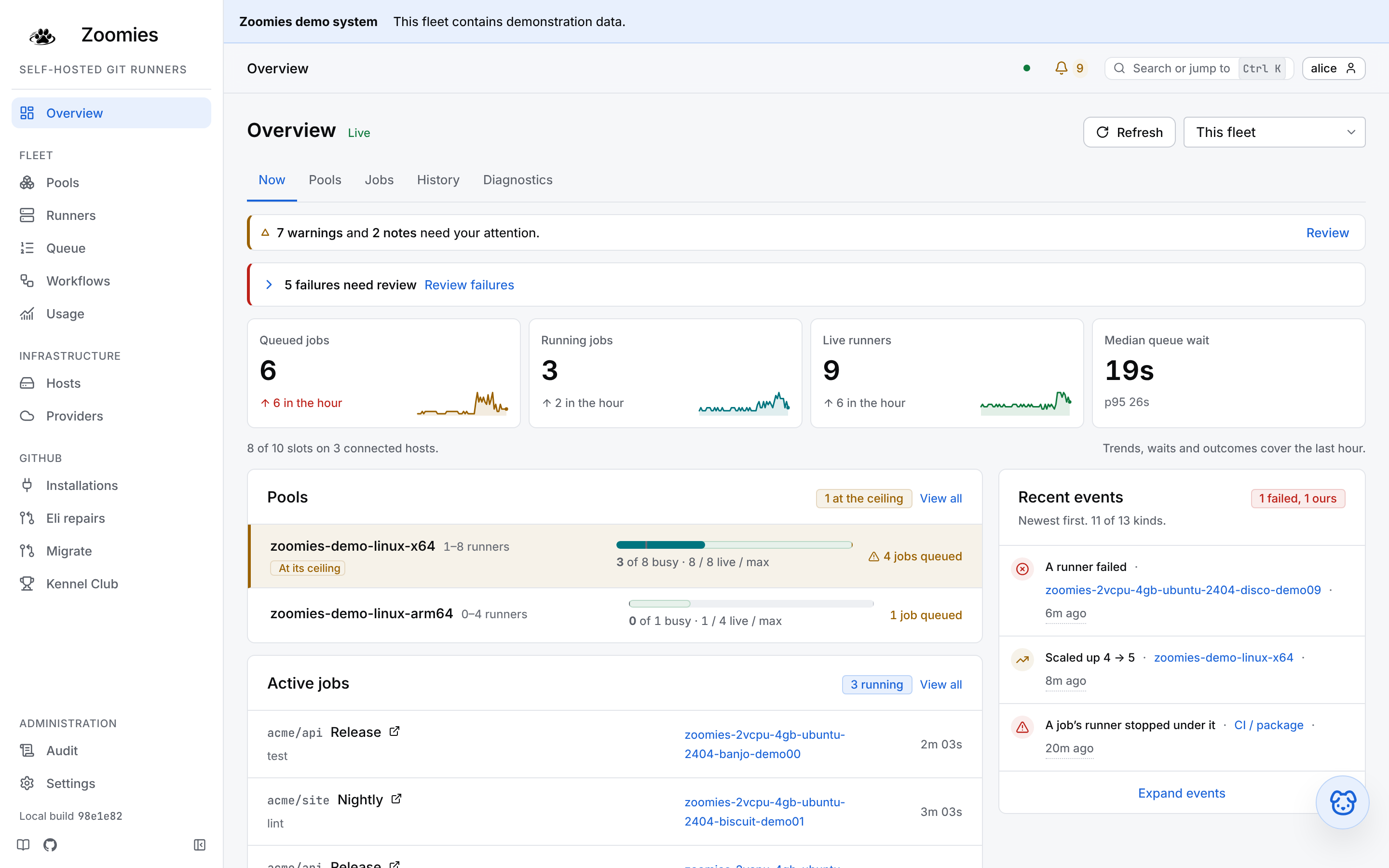
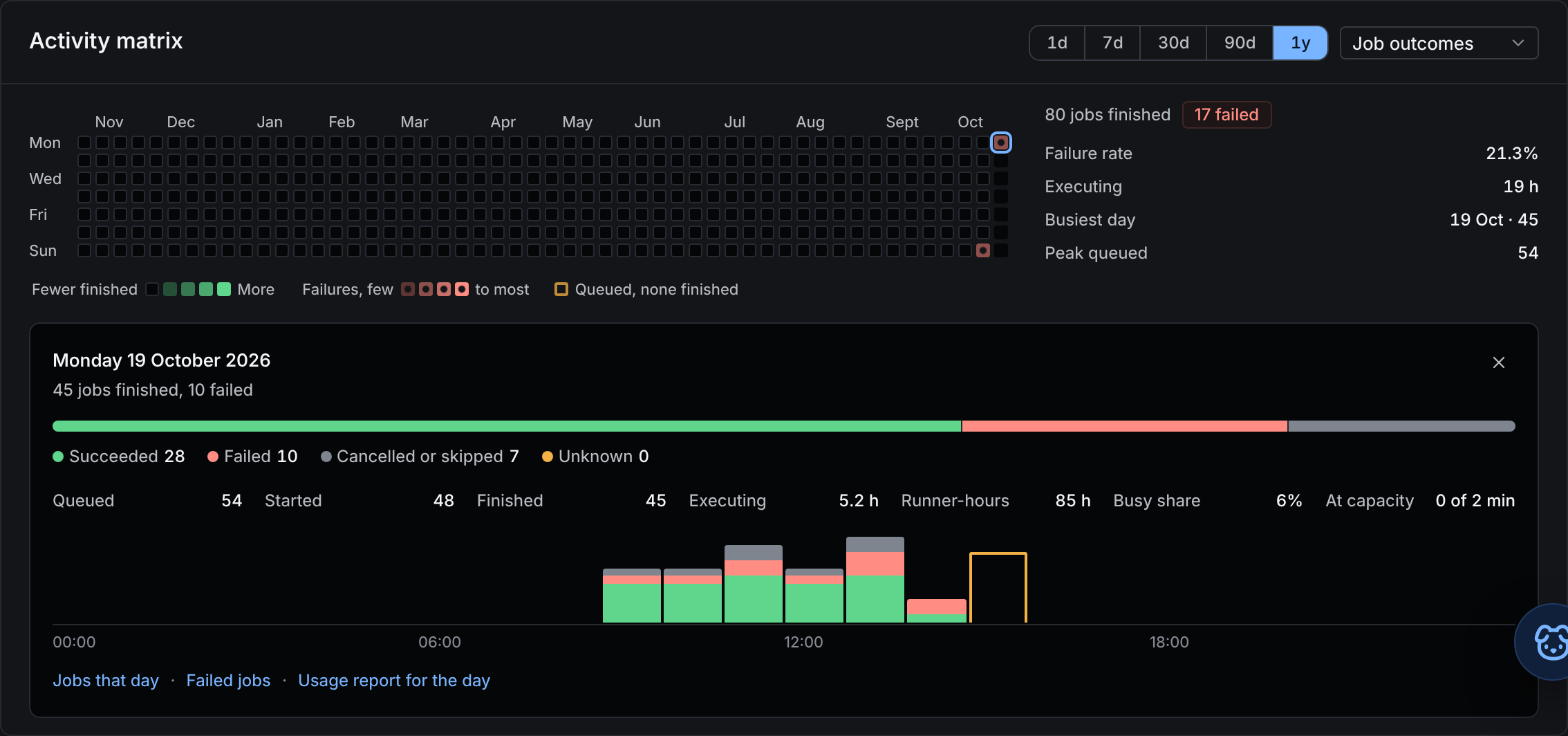
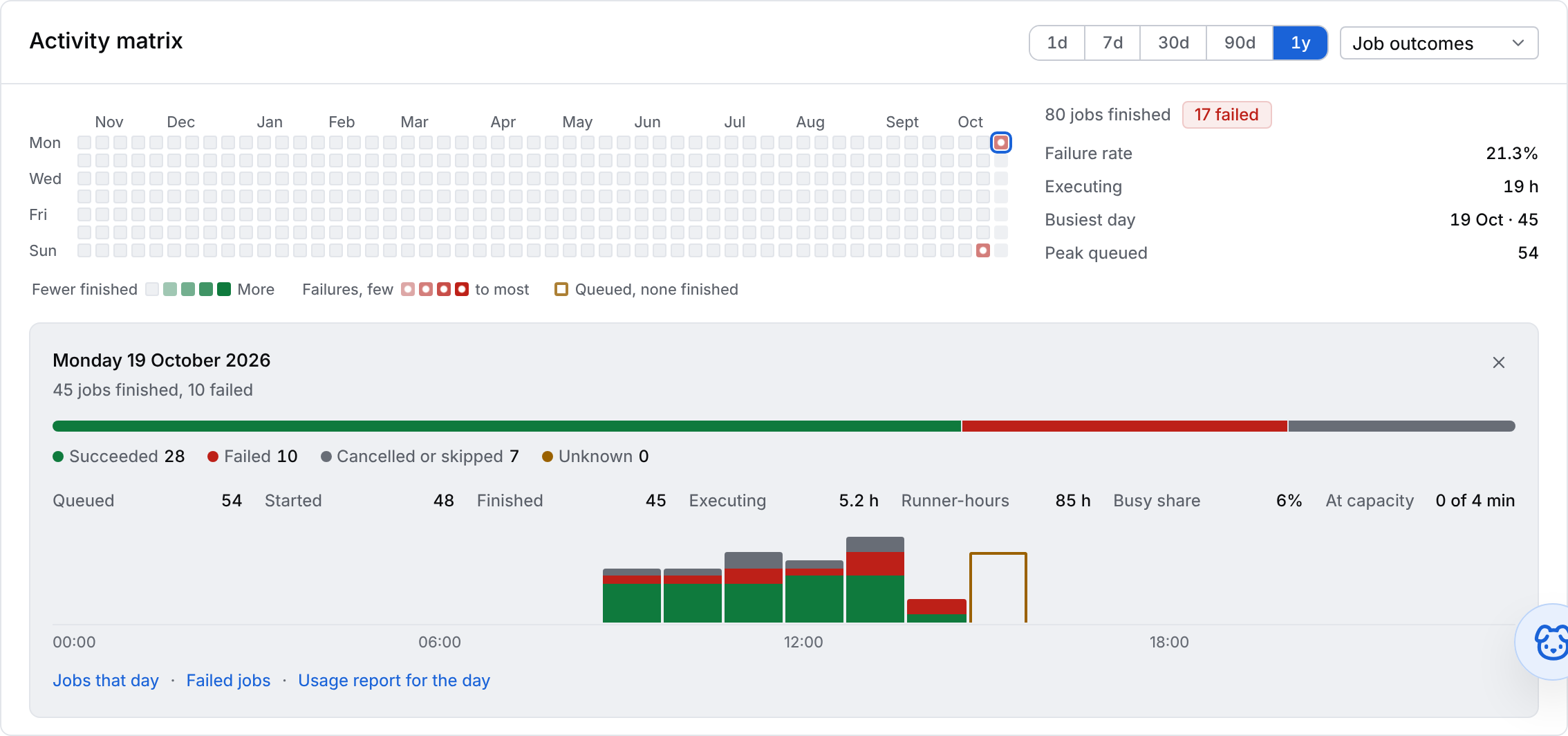
The page that has to earn the second monitor. Mission Control, the default, puts problems, unread failures and the four numbers ahead of history; this section and its screenshots describe the Classic order, which opens on the activity matrix, showing today by the hour: a row of twenty-four squares coloured by what finished, greener as more jobs finish and red the moment any fail. Widen it to the year and the same band becomes the fleet's days laid out the way a contribution graph is; a column per week, a row per weekday, the month named above the week it begins in. Hover a square and it says everything it holds: how many jobs were queued, started and finished, how they ended, the runner time they used and the pool-minutes spent at capacity. Select one and the day opens under the grid, hour by hour, with links to that day's jobs and its usage report. A select recolours the same squares by queued jobs, runner time or how often a pool was blocked on capacity, so a queue that backs up every Monday is a shape rather than a table, and the quick ranges (1d, 7d, 30d, 90d, 1y) cut the window: today and the last week are drawn by the hour, a row of twenty-four squares per day, which is the punch card that shows when the fleet is busy. The last 30 and 90 days are the calendar with each day cut into squares side by side (six of four hours, or three of eight) so a month fills the band rather than sitting in five columns at the left of it, and shows whether the work lands in the morning or overnight. Select one of those and its day opens hour by hour with the square's own hours picked out. It opens on today, and the range you choose instead is remembered. Every range is drawn whole at the width of the screen, its squares sized to fit (a year is twelve months on a phone too) and the grid is one tab stop: the arrow keys walk it, Enter selects.
Under it, four numbers with an hour of shape behind them (queued jobs, running jobs, live runners, and the median queue wait with its p95) then how long runners take to start and to register. Then each pool's busy runners against its live ones with the floor and ceiling marked, what is running this moment, and a feed of what has happened to the fleet lately: the scheduler's decisions in its own words (scaled zoomies-demo-linux-x64 4 → 5: 1 job queued) beside how each job ended and the step it stopped at, a runner that failed and a runner that came up ready for work, a runner lent spare CPU, Squirrel spotted, maximum zoomies, or slowed because its host is under pressure, a host that went quiet, a host whose operating system has begun to need attention or is waiting for a reboot (one line when that changes, and none for a host's first report, which is only a baseline), a machine a provider is renting, a pool somebody changed, and what the controller changed on its own about size classes and automatic pools with its reason, maximum runners 5 → 10: host build-2 joined. What went right is in it as much as what went wrong. Which of those it carries is yours to choose, one switch per kind on Settings → Events, and the panel counts what it is showing rather than quietly leaving the rest out. When the fleet itself needs a person it is one line and a Review button, never a list that pushes the fleet below the fold. The exception is the failures nobody has read, because each is a separate job with a separate thing to do about it: Recent failures shows the newest two of what failed in the last week and nobody has marked as known or replaced with a later attempt, with the whole count in its header and a link to the rest on the Jobs page's Needs attention view. A row opens the job's drawer and Fix with Eli opens the repair page for it, except on a failure of a run no pull request started, which Eli cannot repair and is not offered. An operator can also mark a failure as known, which takes it off the list and changes nothing else: it keeps its row in the failed view, a re-run that passes is what settles it, and the toast carries an Undo. The Other runners switch says whether these numbers count only the jobs this fleet ran or every job GitHub reported on an installed repository, and the panel and its link to the rest follow it; the default is this fleet's own work, because that is the question an operator is usually asking.
A new instance is different. It opens on a checklist in place of the matrix, which has nothing to draw yet: create the first account, connect GitHub, add a host if Zoomies has none of its own, create a pool and point a workflow at it. Each step is ticked from the fleet's real state and offers the one action that advances it. Once a pool exists the last step also hands over a complete test workflow with the pool's own label already in it, which touches nothing in your repositories: add it to any repository the App can see and press Run workflow. When the job starts the checklist gives way to a line saying which runner took it, and when it finishes, to how long the job waited for a runner and how long it ran. Only this fleet's own jobs count; a job on a hosted runner elsewhere in the organisation neither ticks a step nor retires the list.
The problems drawer
Reachable from the count in the top bar on every page. Cordoned or silent hosts, failed registrations, a queued job no pool will run, a job whose runner stopped under it, a provider that could not be reached or a machine that never became a host, and every configuration setting that weakens the default posture, worst first, each saying what is true, why it matters and what to change, with a link to the page where you change it: the provider, the machine, the pool or the runner it is about, each of which has one.
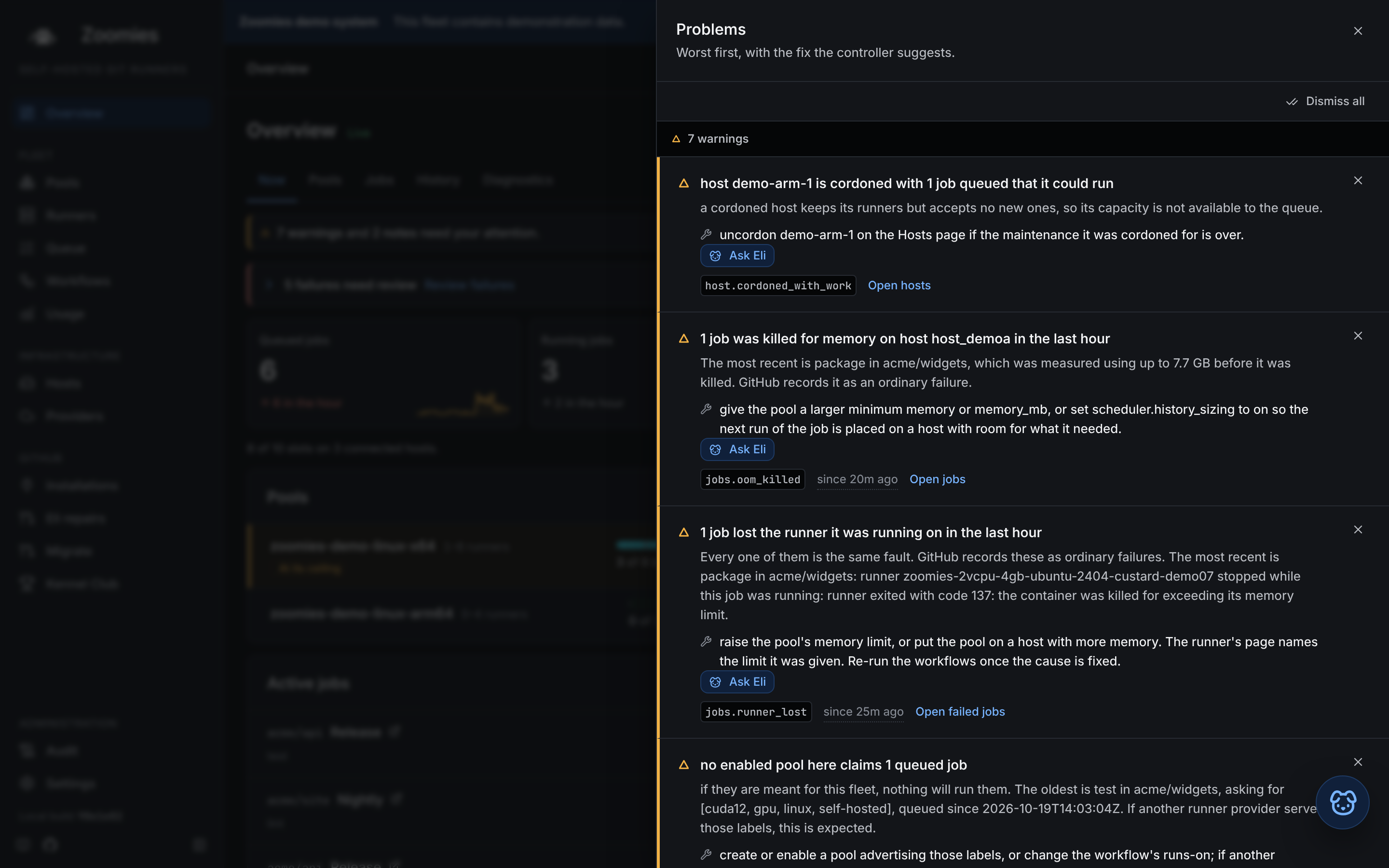
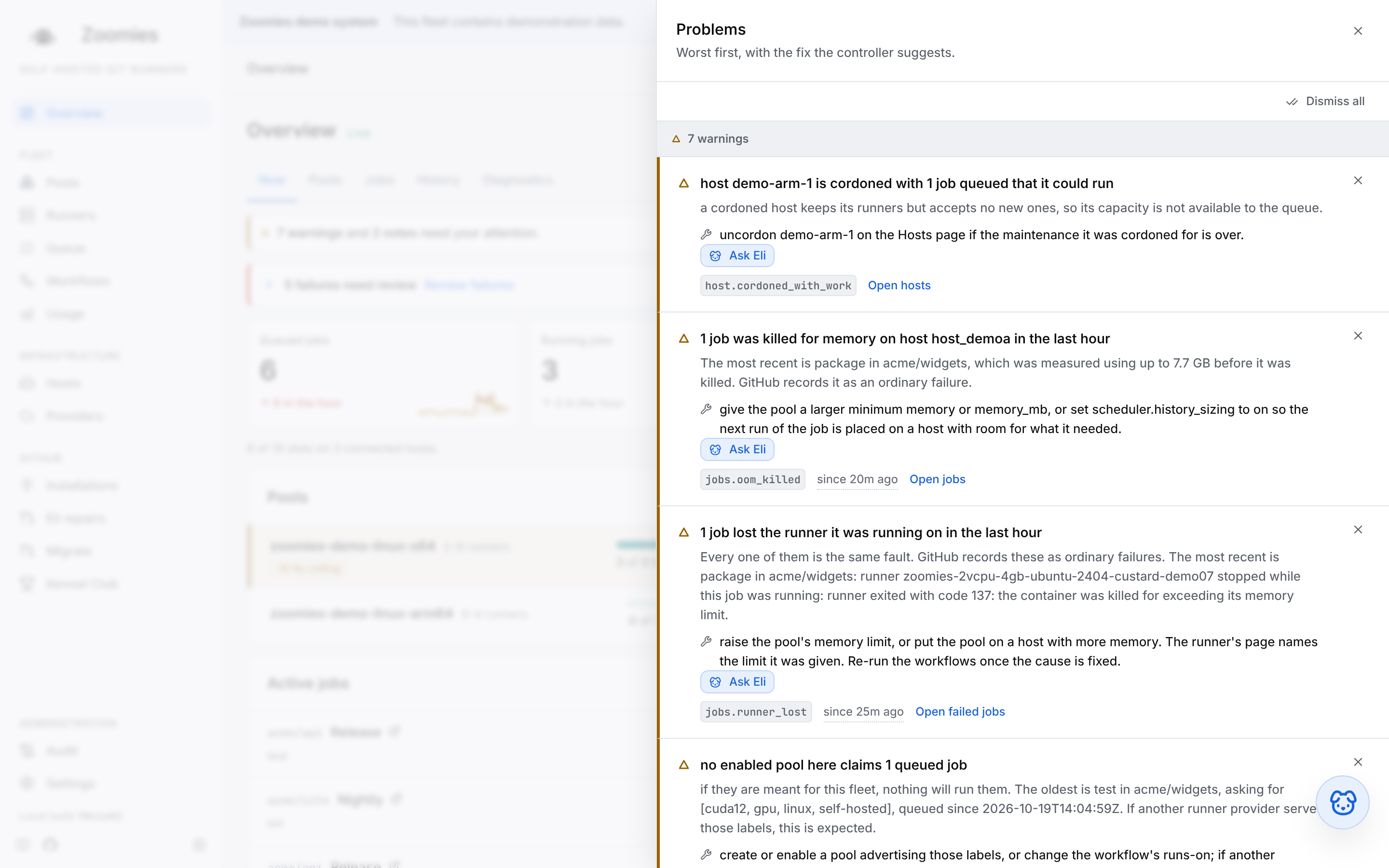
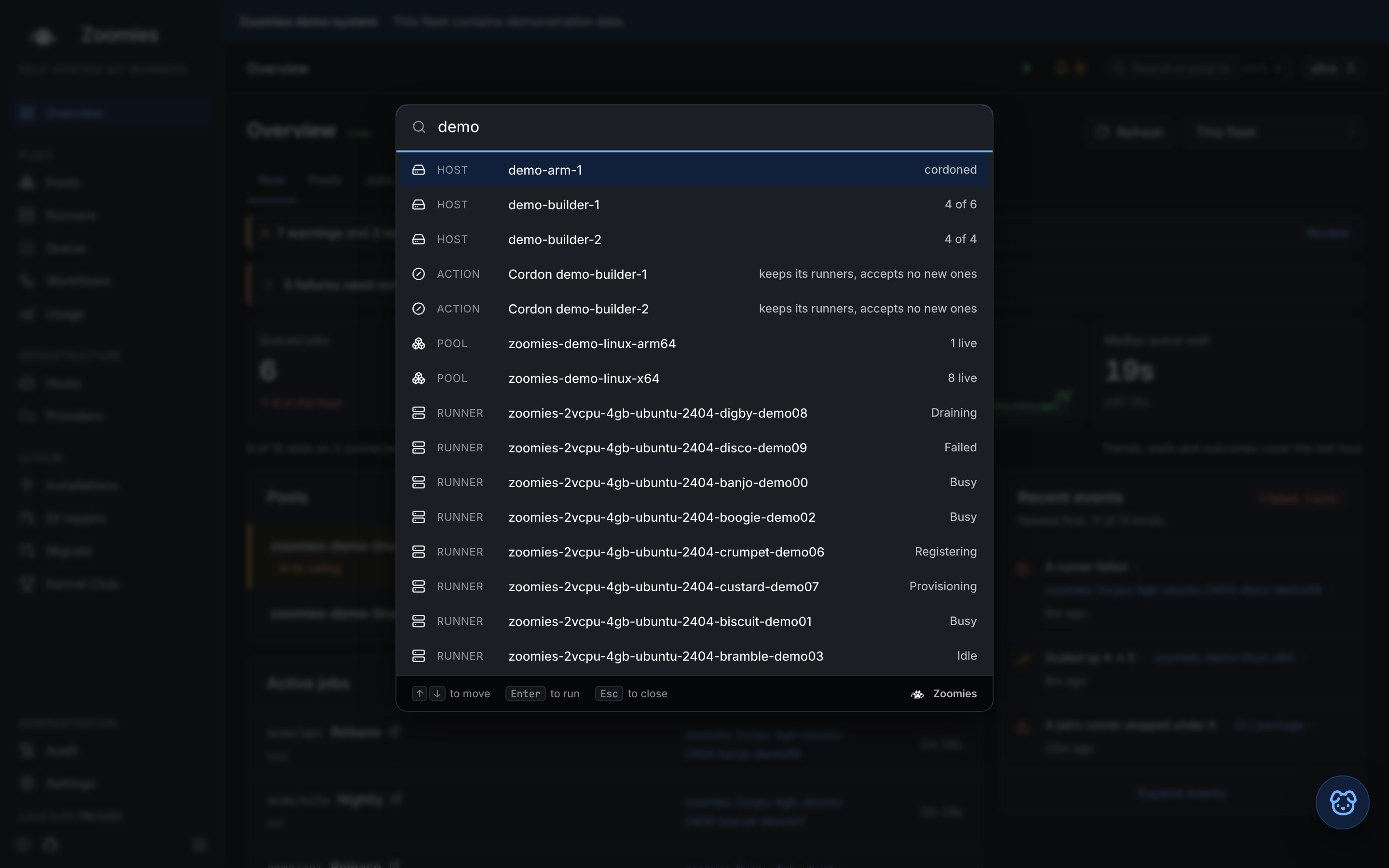
The command palette
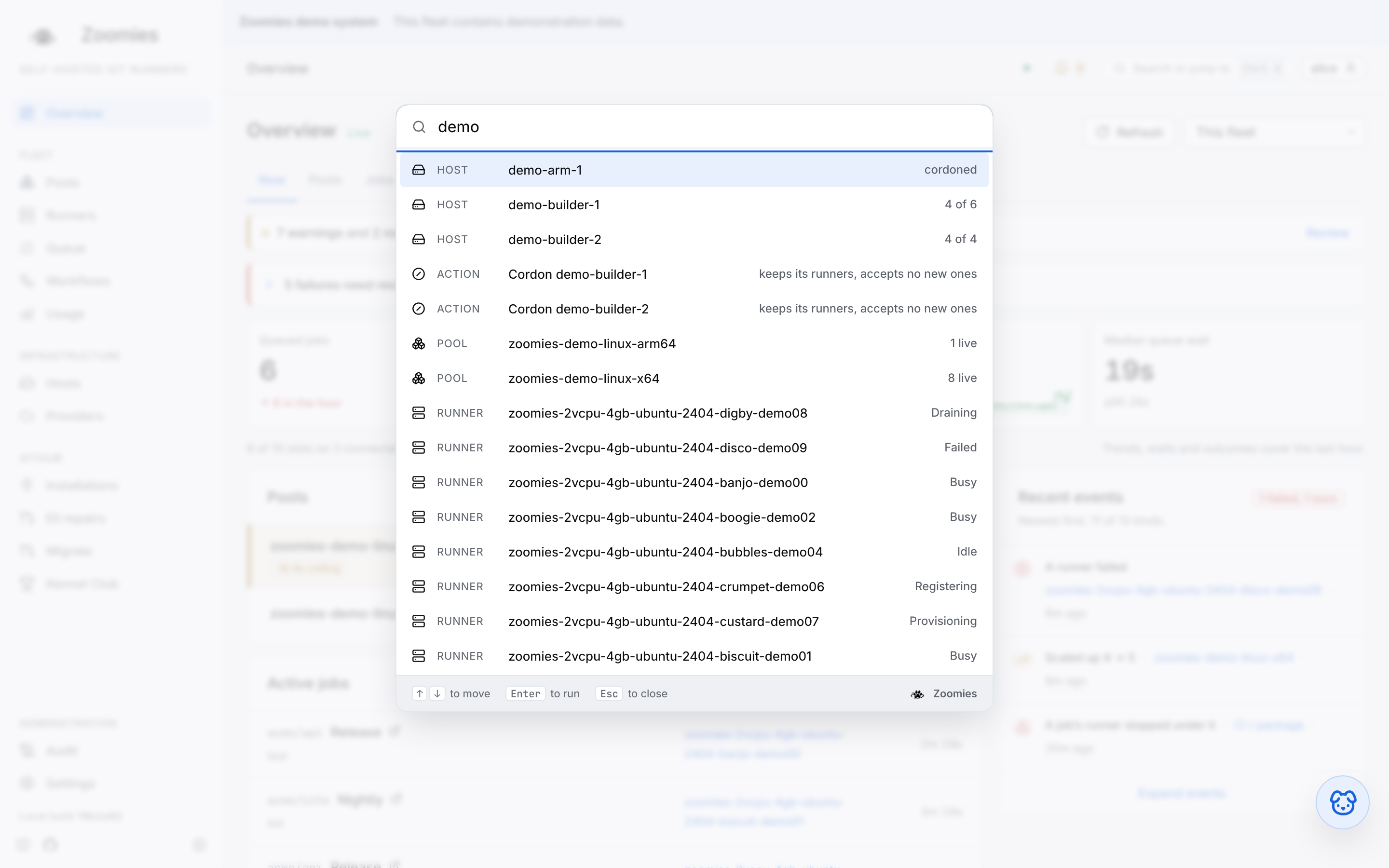
Ctrl+K (⌘K on a Mac) jumps to any page, pool, runner or host by name, and
runs the quick actions (drain a runner, cordon a host, create a
pool) without leaving the keyboard.
Pools
What runners to make. Each pool's labels, GitHub target, backend, floor and ceiling, idle timeout, whether its runners are ephemeral and whether jobs get a Docker daemon, and a risk badge on any pool that trades some of the default safety away, so the trade is visible from the list.
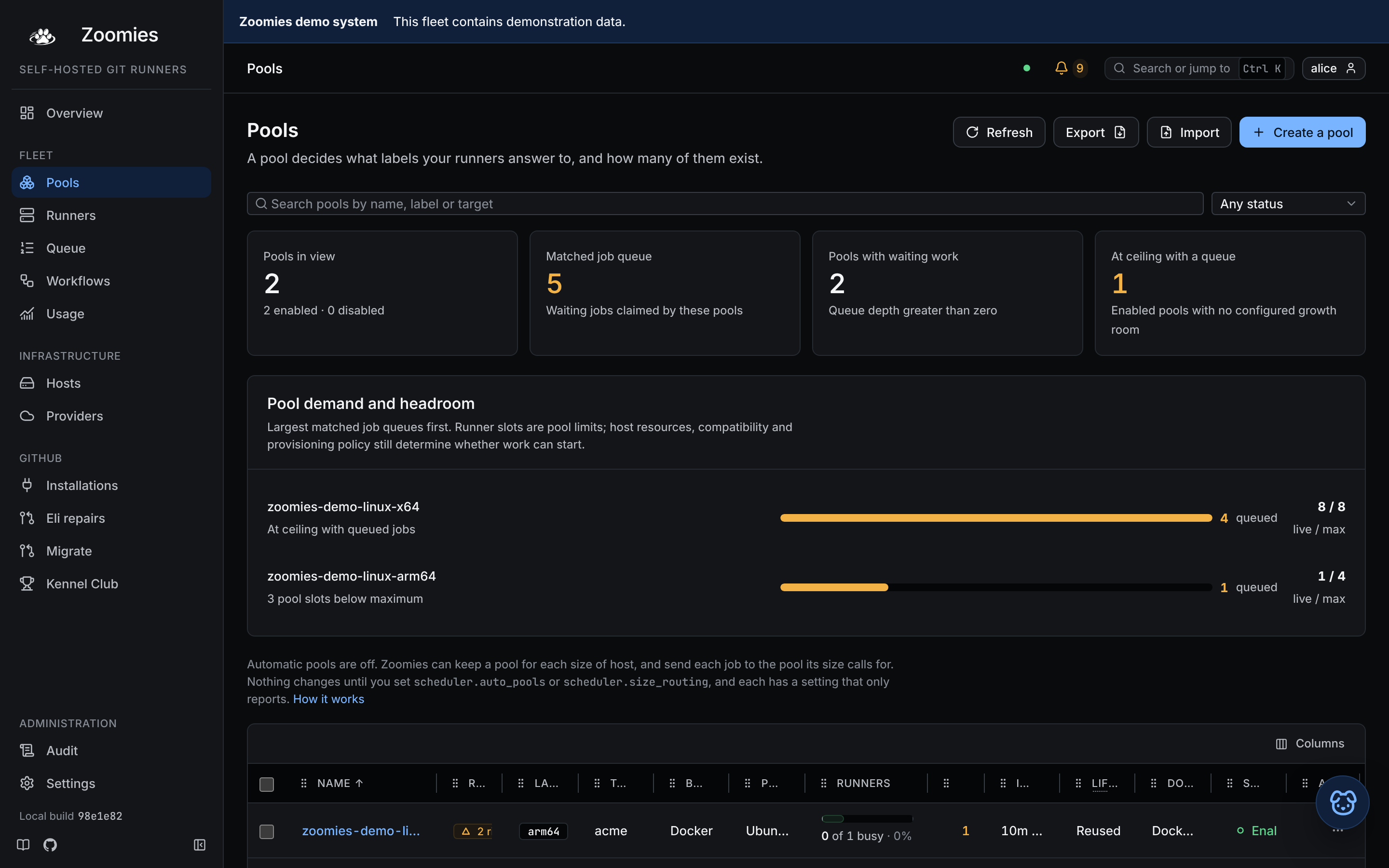
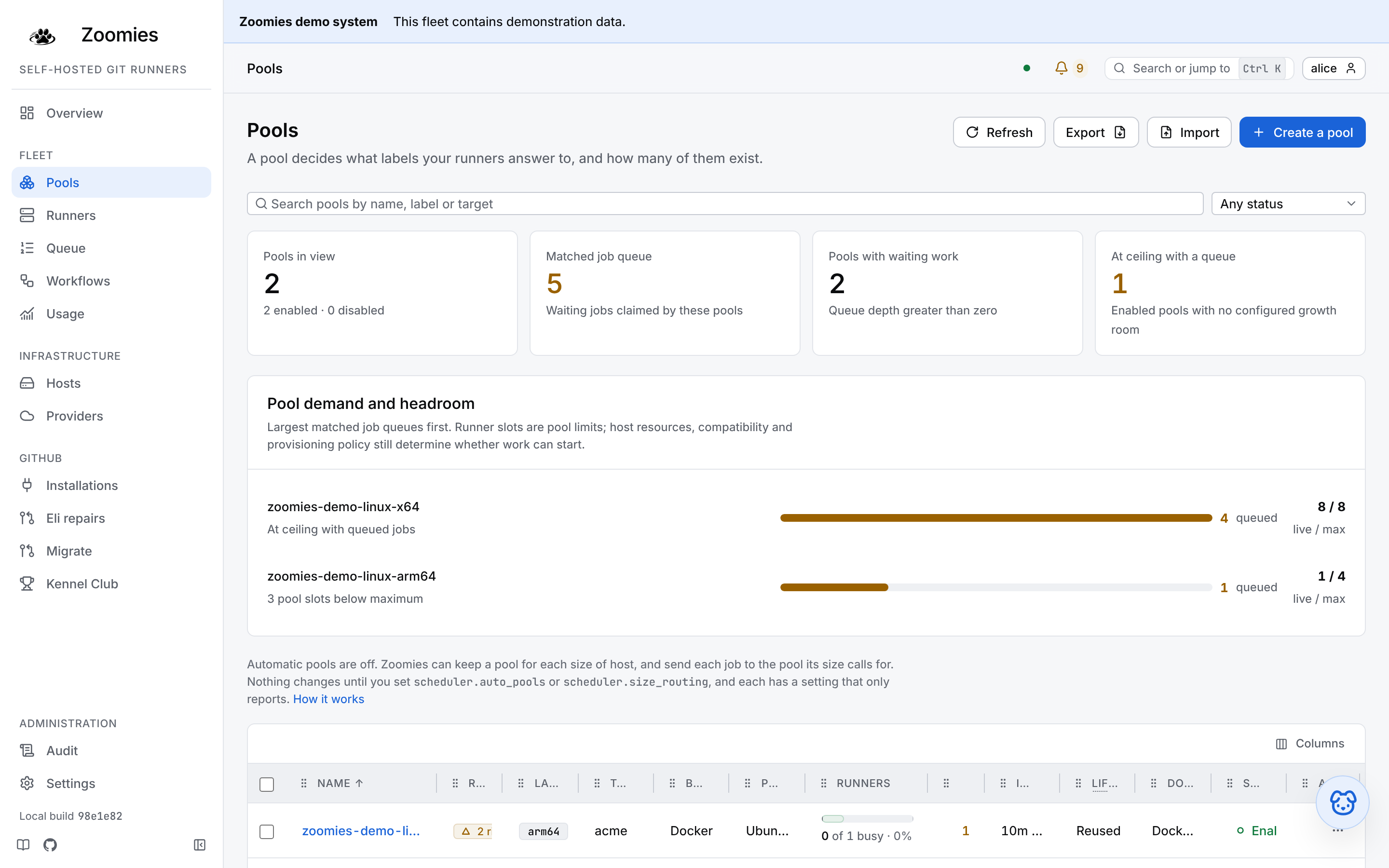
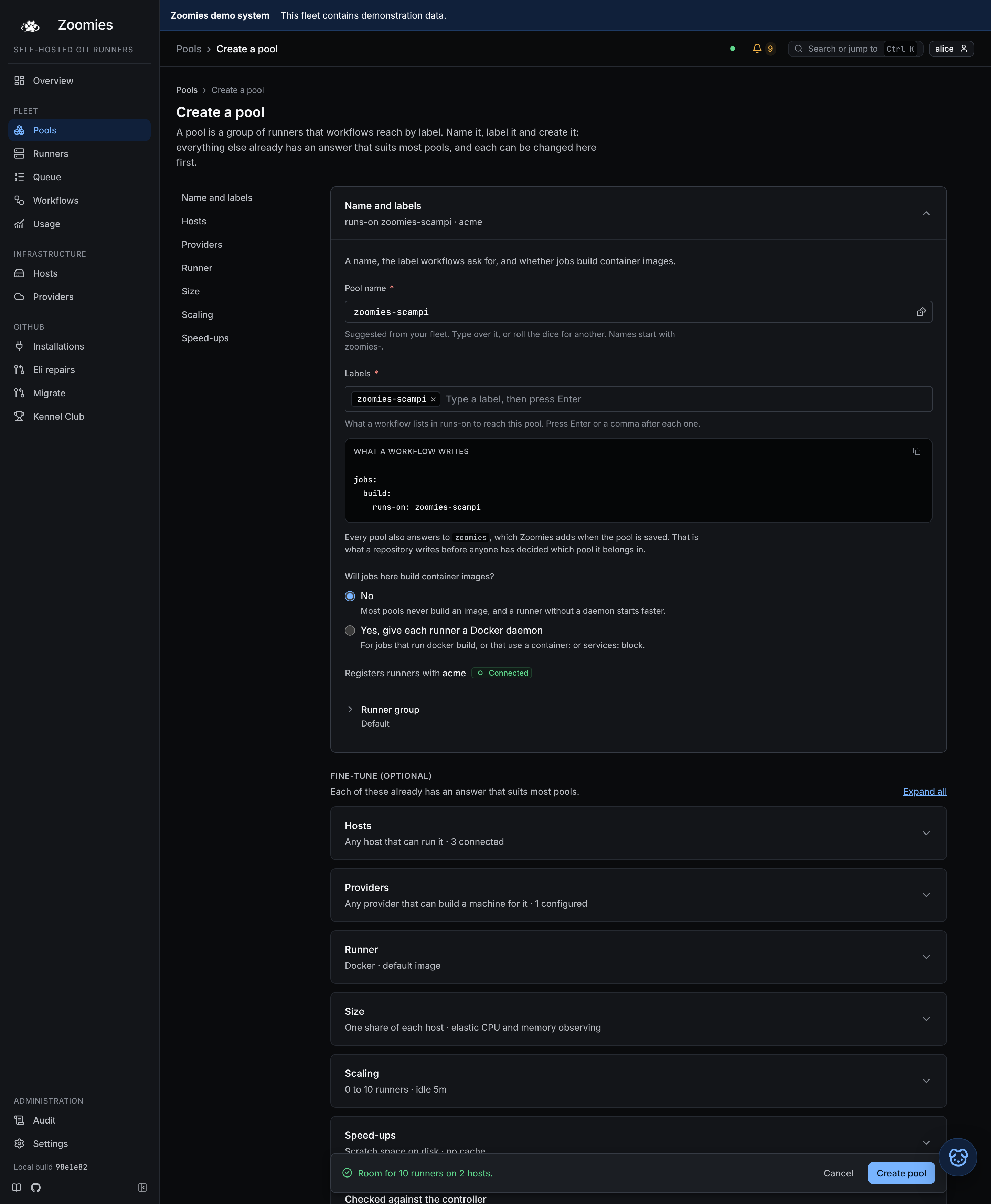
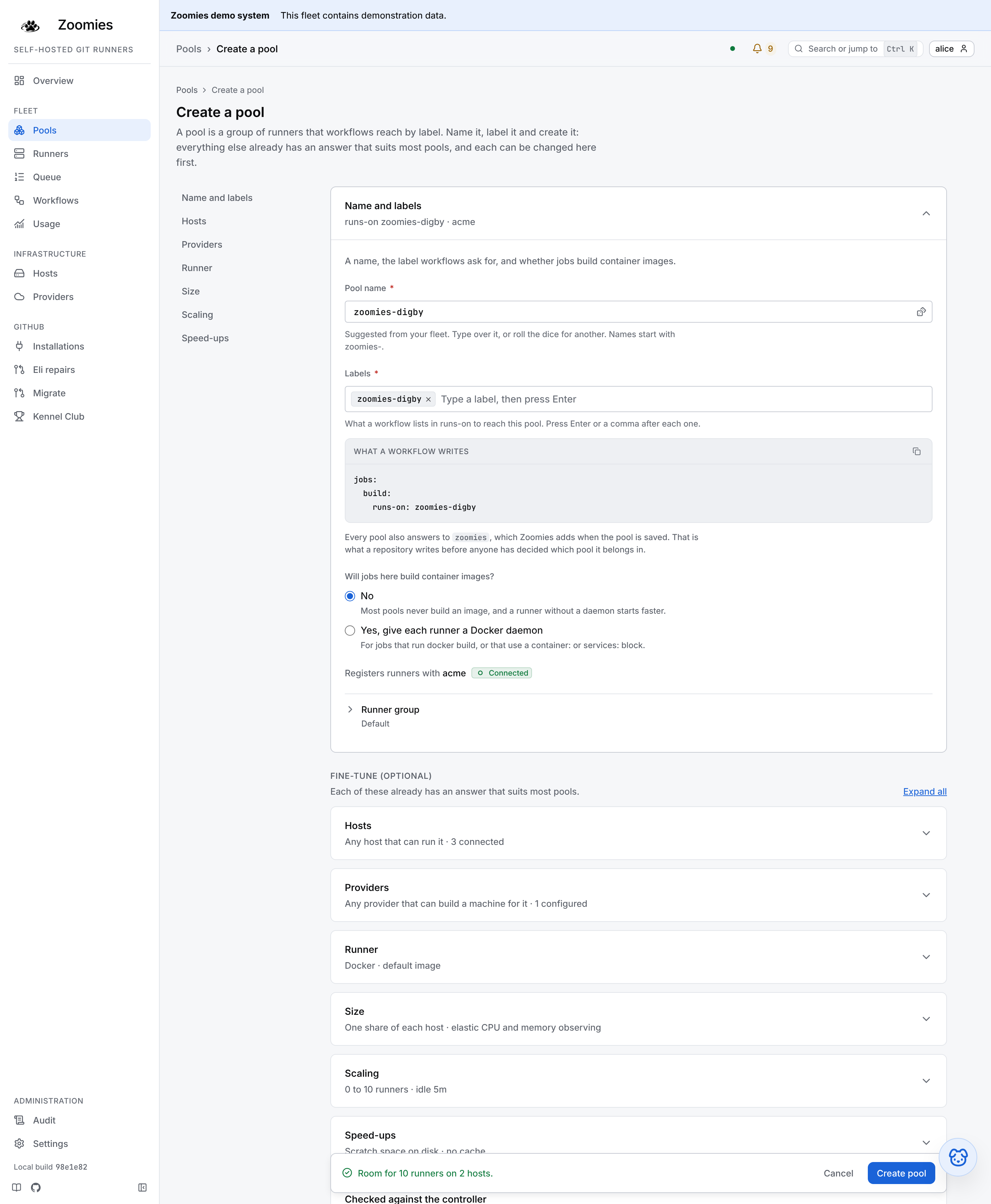
The page that creates one is the pool editor. It is six sections (Name and labels, Hosts, Runner, Size, Scaling and Speed-ups) and each is a row that says its current answer without being opened, so a first pool is a name, a label and a press of Create pool, and every other setting is one tap away. The Size section is where the pool says how much machine one runner gets: one share of each host, with what every host in the fleet would give a runner listed underneath, or a fixed size on every host. Under the shared size sit the two fields of elastic CPU zoomies, Elastic CPU, off, observe only or automatic boost, and Boost ceiling, so lending a busy runner the host's spare CPU is a choice made beside the guarantee it builds on. Under them is Elastic memory, a choice of three with a Memory ceiling and the swap it may fall back on: the valve that raises a running job's memory limit just before the kernel would kill it, offered whatever the size is decided by. Elastic memory says what it promises and how it decides. The controller's check at the foot of the page, and the bar that follows you down it, give the controller's own verdict, asked as you type, so a pool that no host could run is refused with the reason before it is saved.
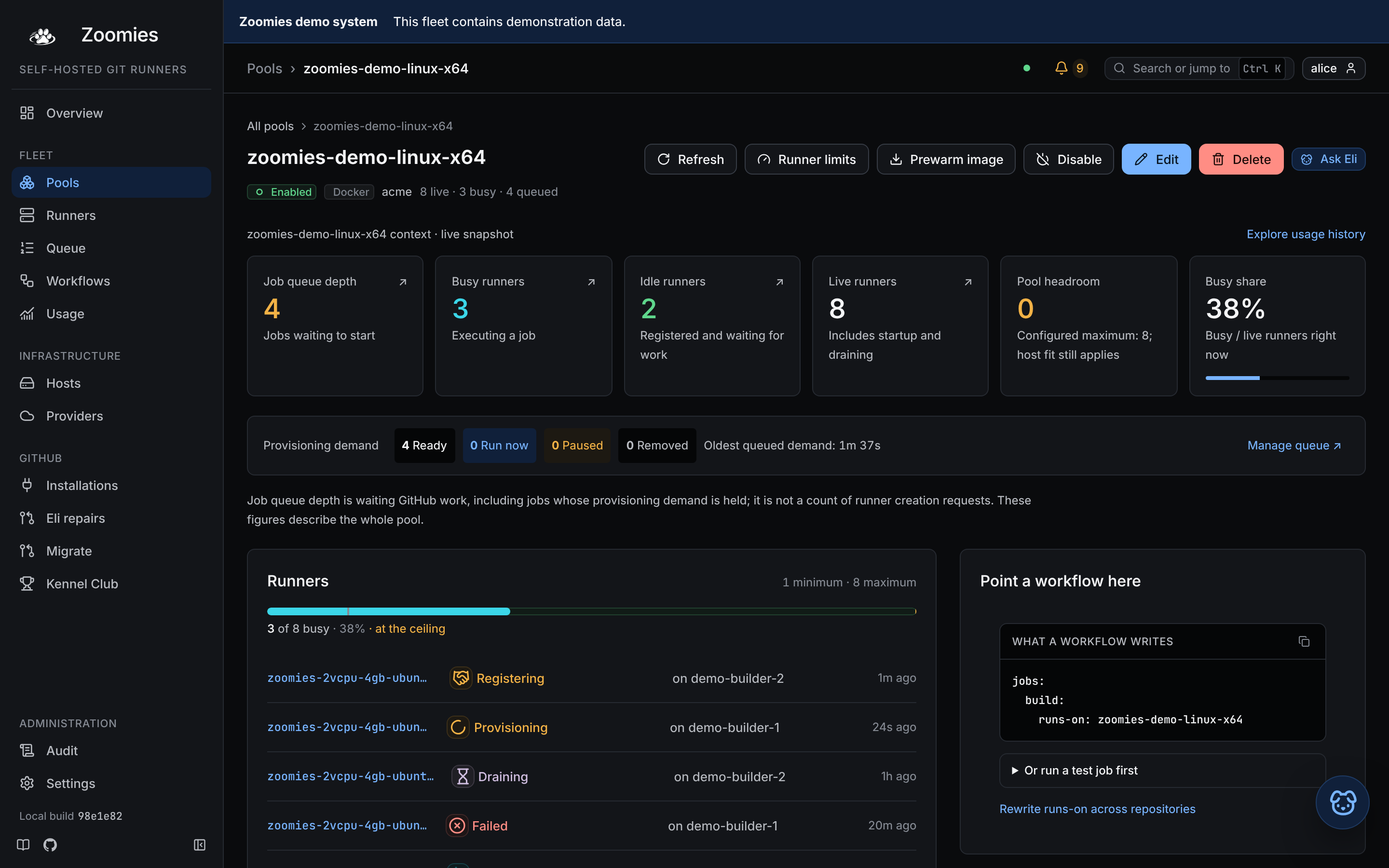
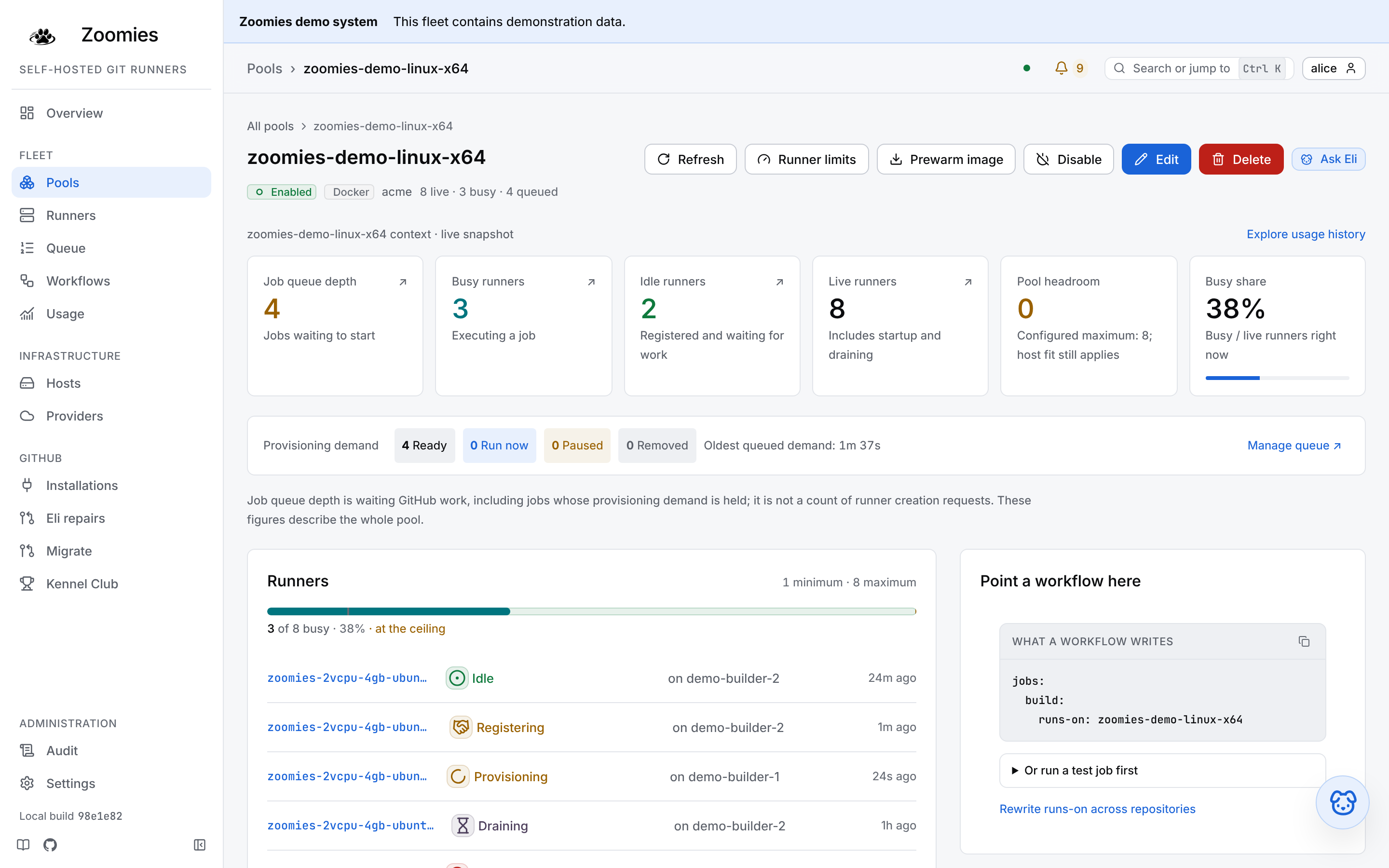
A pool's own page shows its runners and recent jobs, the exact runs-on: line
a workflow writes to land here, and its configuration with the warnings, if
any, that the settings earn it. Edit reopens the same editor on the same
pool, with every section shut and saying its answer; the ones you change are
marked Edited, and Save changes waits until there is something to save. A
size typed there applies to the next runner it creates; the elastic CPU policy
is read on every heartbeat, so that change reaches runners already running.
Automatic pools. With scheduler.auto_pools off, which is the default, the
page says so in one sentence and nothing else changes. Once it or
scheduler.size_routing is shadow or on, a panel above the grid says what the
controller is doing about size classes: what each switch is set
to, the pools it keeps and the hosts in them, what it would do and has not, the
whole of shadow, what it could not do and what to change, the hosts that count
towards no pool and why, and where each class begins. It is closed to one line
until something there needs you, and then it opens by itself. A pool the
controller keeps is marked Automatic in the grid. Its page explains where its
maximum comes from (the hosts that count and what they hold) and offers what an
operator may change: Settings for the runners to keep ready, a cap and the
idle timeout, and Pause and Resume. There is no editor to reopen, because
its labels and size follow its hosts; and Delete waits while the controller is
keeping the pool, because it would make it again. A pool it is not keeping (the
switch is only reporting or is off, or the pool belongs to an installation the pools
no longer belong to) says so on its page, holds the limits it had, and can be
deleted.
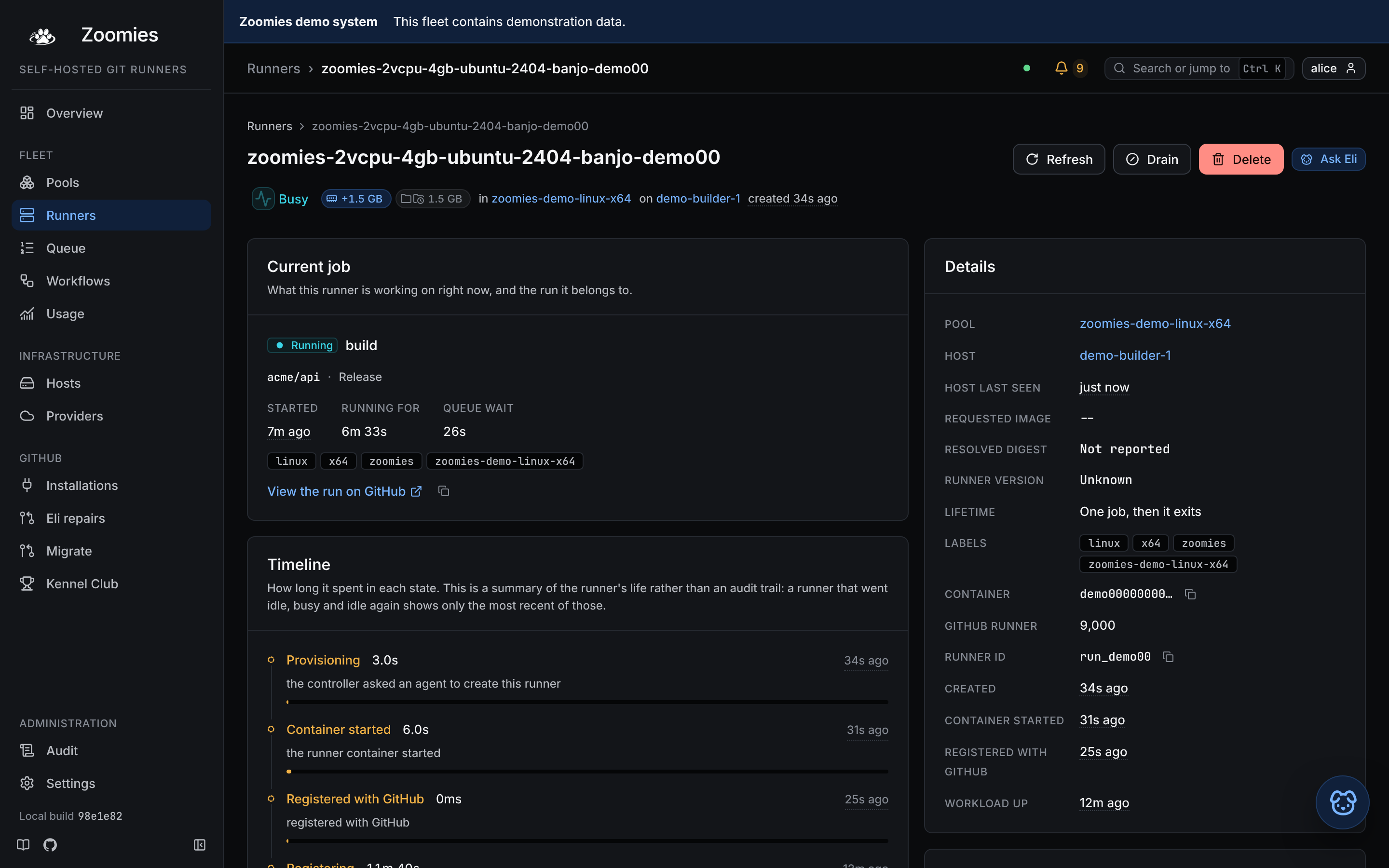
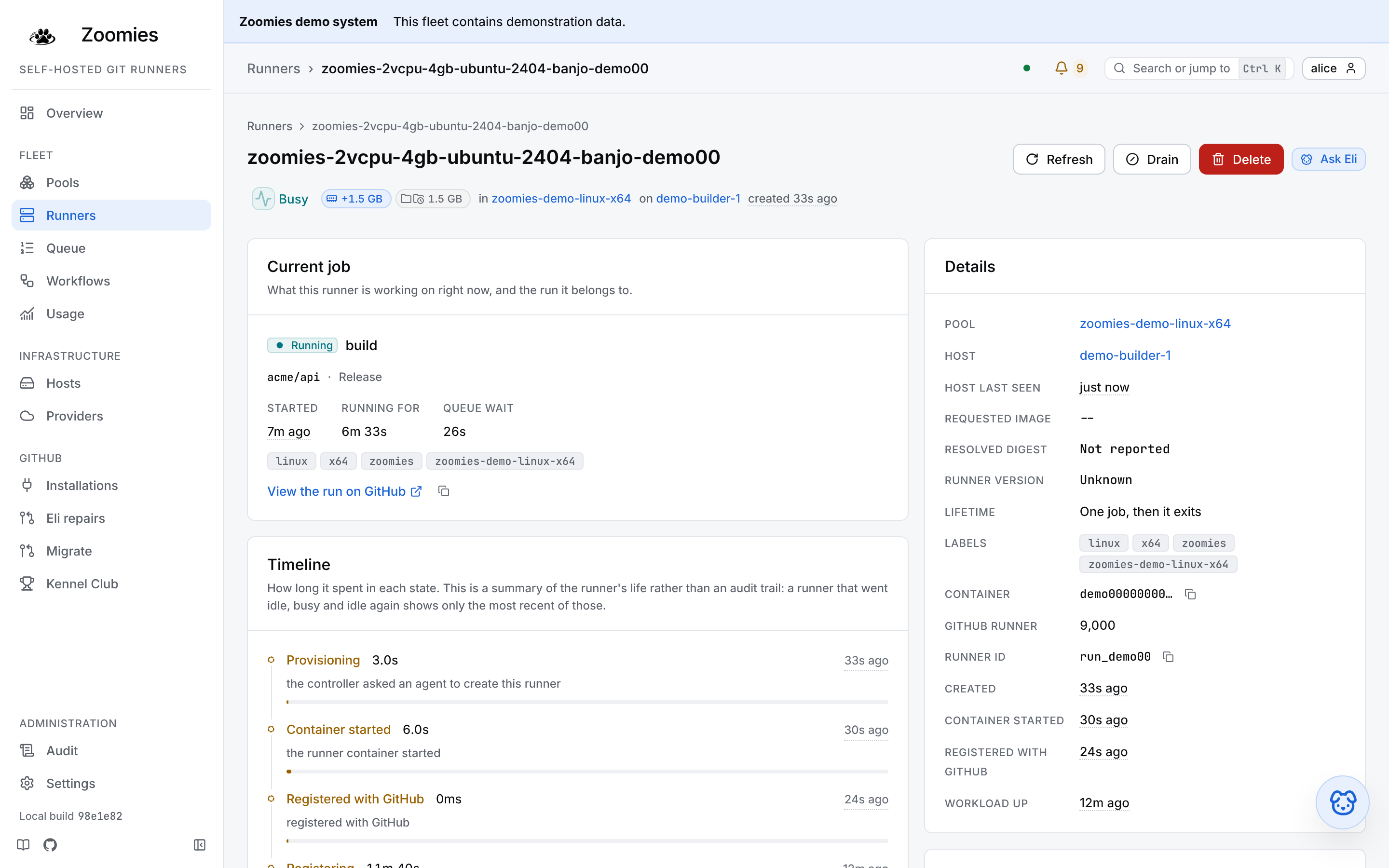
Runners
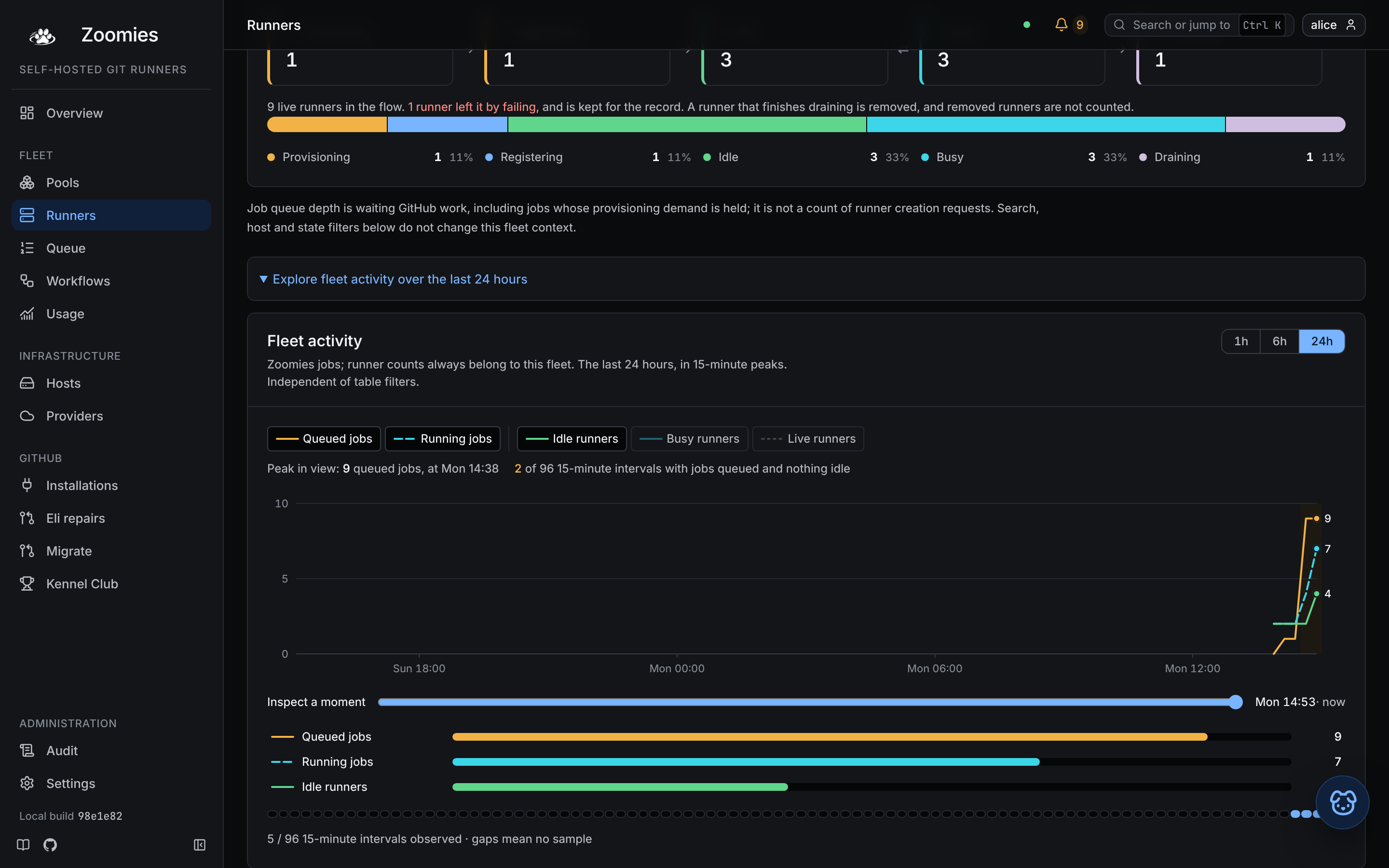
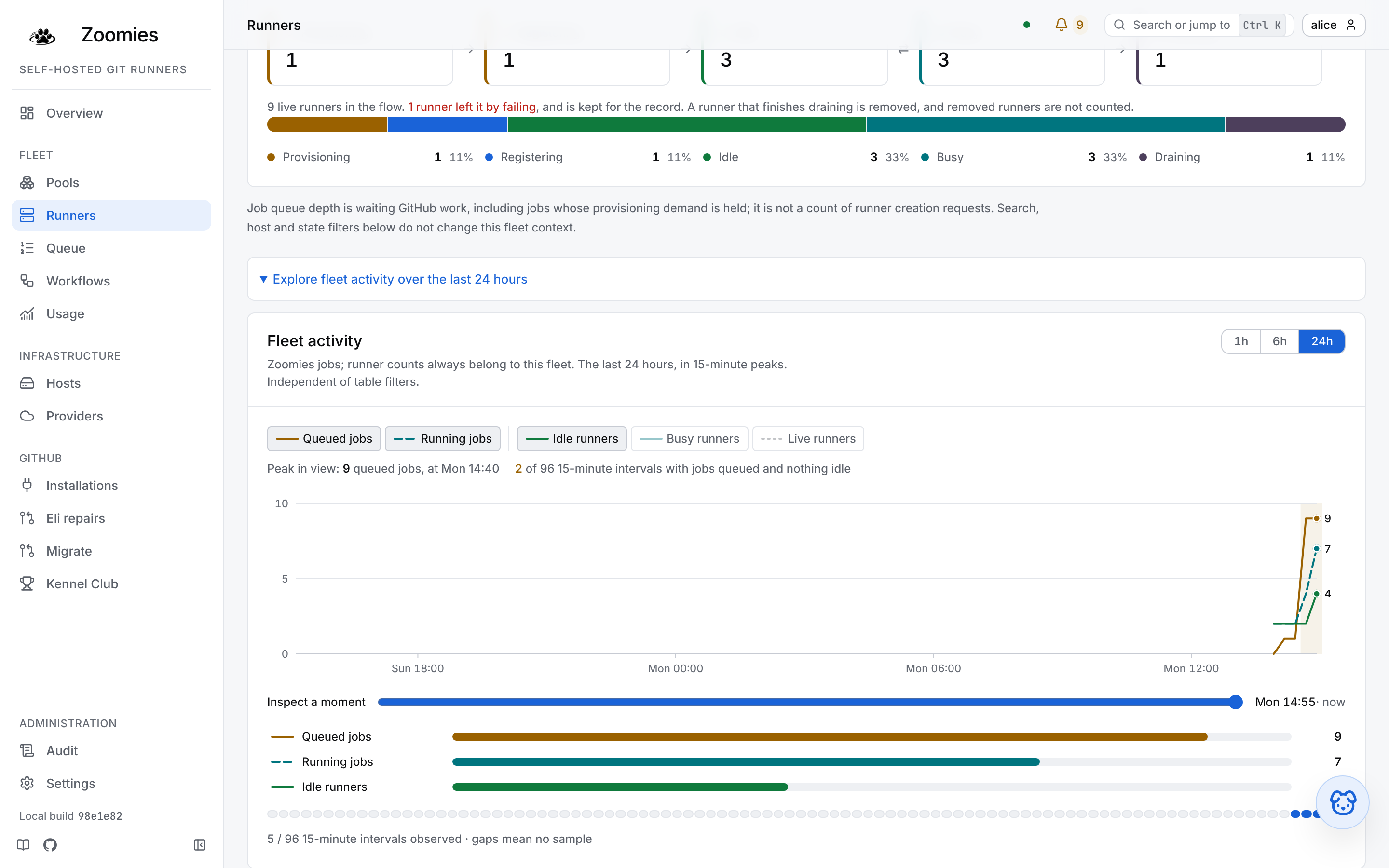
Every runner that exists right now and what each one is doing. Removed runners are hidden by default, because a busy fleet makes and destroys thousands of them and they are all history. Rows select for bulk drain or delete, and the state filter is a real filter: it narrows the set rather than repainting it. Above the grid, the runner lifecycle is the controller's own state machine drawn out (provisioning, registering, idle, busy, draining) with how many runners are at each step this moment and a link into each; under it, a bar of the same states whose segments are links too, and say their share when you hover them.
When the state filter includes failed runners, a What keeps failing to start
card above the grid names the host or pool that keeps failing to start runners
over the last day: since when, at which stage, and whether the image, an
incident on its host or a throttle explains it. It says which pool and host the
list is narrowed to, and that the list's search is not applied to it. It is the
answer zoomies analyse startup-failures prints, with
its evidence folded under the next steps.
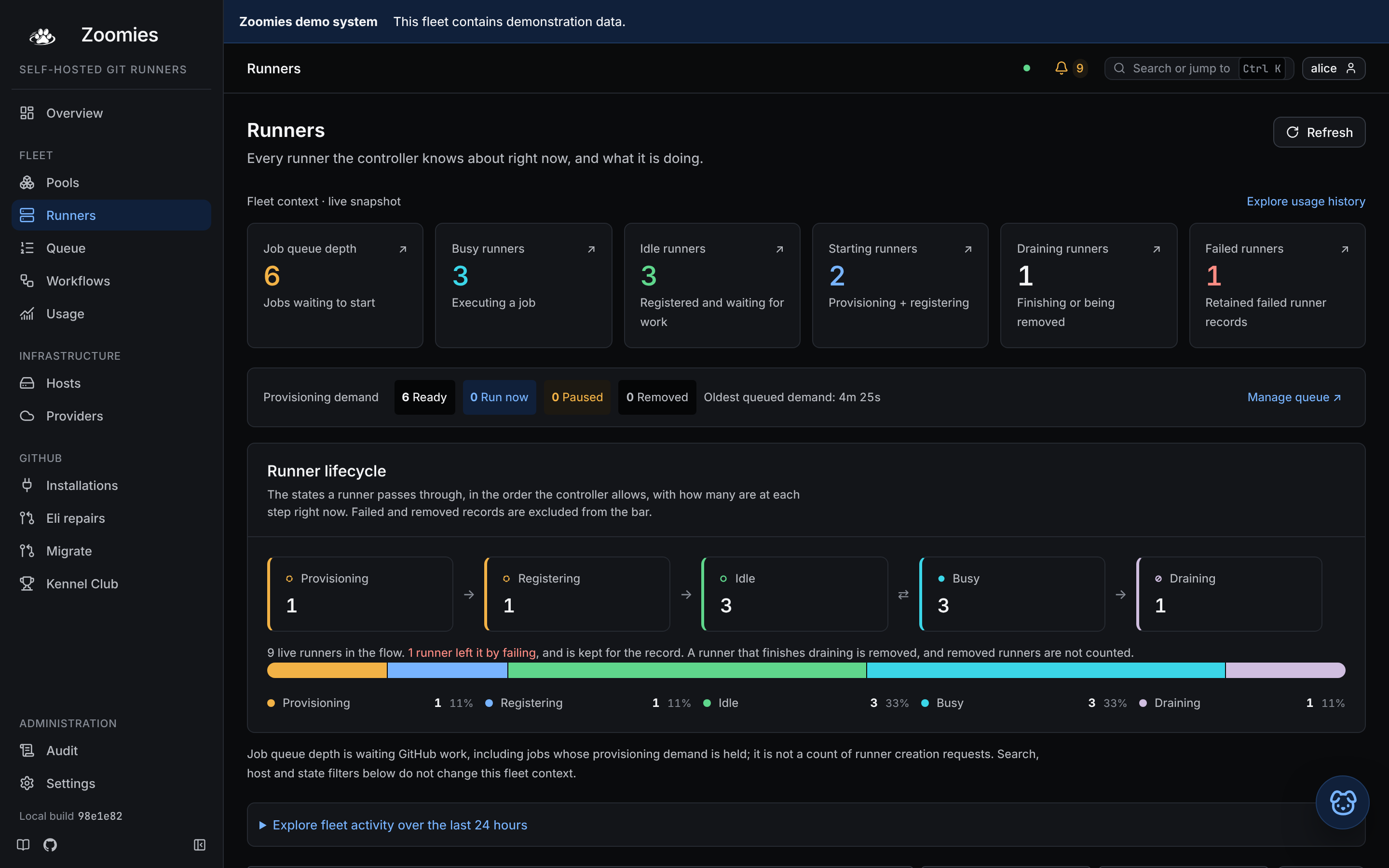
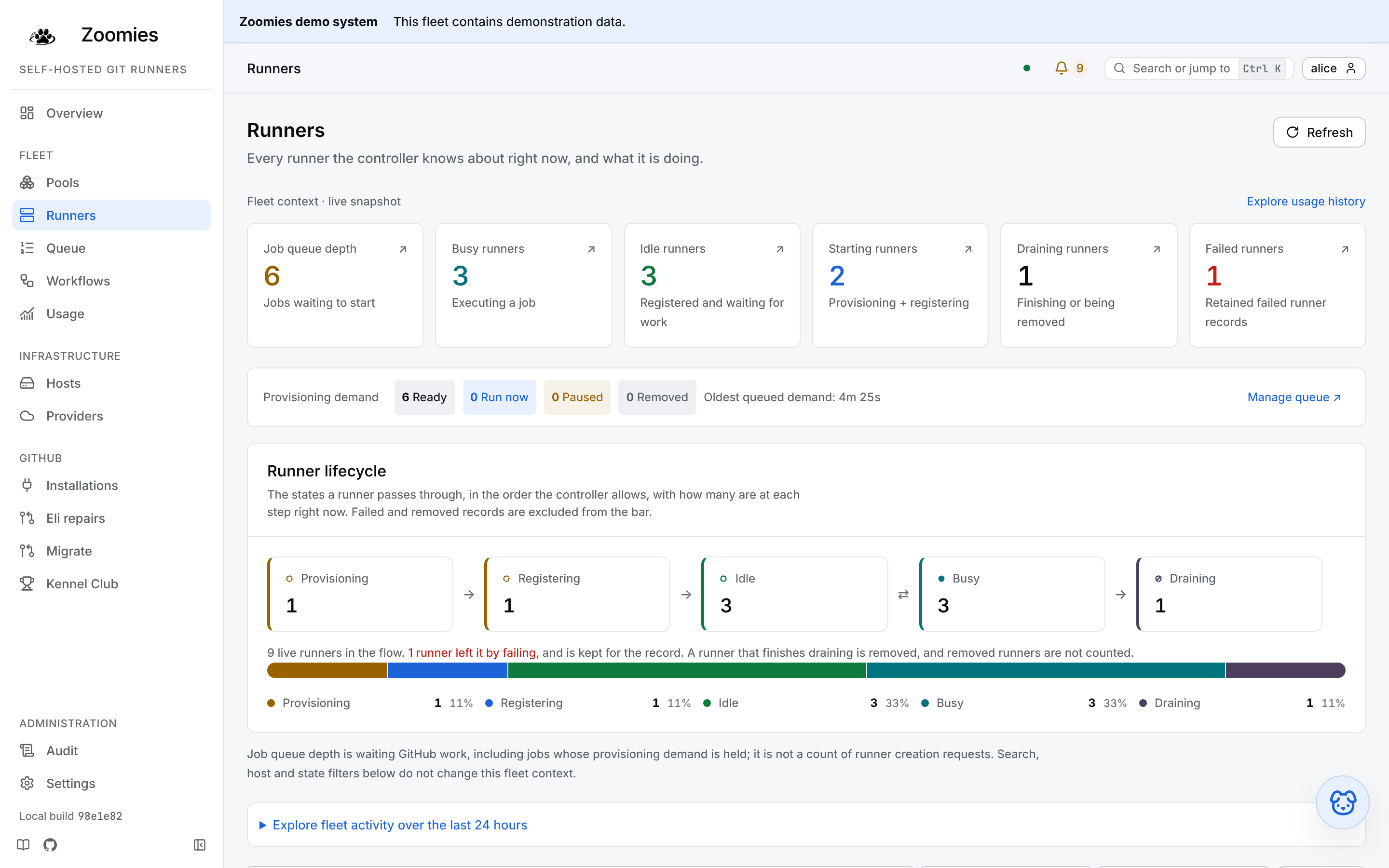
A runner's page carries the job it is on, a timeline of how long it spent in
each state (provisioning, registering, idle, busy) its resource usage as the
host's agent last reported it, and its output. Beside the usage is the
allocation: the CPU and memory the runner was created with, and whether the
pool set them or the host gave it its default share of the machine. The source
is the thing to read when a runner was killed for exceeding its memory: a limit
from the pool is raised on the pool, and a host's share is raised by lowering
the host's capacity or by giving the pool a memory_mb of its own. Beside the allocation is its CPU state: the guaranteed, current and
ceiling CPU together, under a label that says what is happening to the quota
right now, Squirrel spotted, maximum zoomies for a runner lent most of a
host, Rabbit spotted (extra zoomies for a smaller boost, Steady paws)
guaranteed pace at its share, Nose to the wind (watching spare CPU for a
pool that measures without moving, and Leash tightened) host under
pressure when the throttle has taken it below its guarantee. The last is
shown for any limited runner, elastic or not, because a job running at three
quarters of its allocation is slow for a reason the runner itself cannot
show. Elastic CPU zoomies says what each state means and
how the decision is made.
A runner the memory valve has something to say about wears a small pill in the Memory column, under its figure, +1.5 GB for memory it was lent, Swap where it may also use swap, At ceiling or Host full where it wanted more and was refused, and a dashed ~1.0 GB where a pool that is only observing would have lent that much. A runner whose pool keeps folders in memory wears one more, with a folder icon for each folder that is, and what they come to. Hover, focus or tap a pill for its card; the runner's page repeats them beside its status and draws the cards open in a Memory and folders panel. Elastic memory has the whole list.
The output on a runner's page opens on the Build log while the runner has a job: the workflow's console output after the GitHub runner has masked secrets. Runner diagnostics, the second tab, is the raw startup, registration and worker messages, and a runner with no job has only those, folded under that name. When the stream drops and reopens, the build log marks the join with a dim reconnected to the log stream line, because the relay sends its backlog again and what follows may repeat what is above it. Save log keeps the build output received in that view, and Open on GitHub is the complete archived log.
The expandable activity panel shows the queued jobs, running jobs, idle runners or live runners over the last day, six hours or hour; it opens on the day, and a wider window folds the minutes into intervals that carry their peak, so a spike is never averaged away. Hover the line for every figure at that moment, or inspect it with the timeline control; gaps indicate missing samples. Fleet context is independent of grid filters, while selecting a pool scopes the headline runner metrics.
Queue
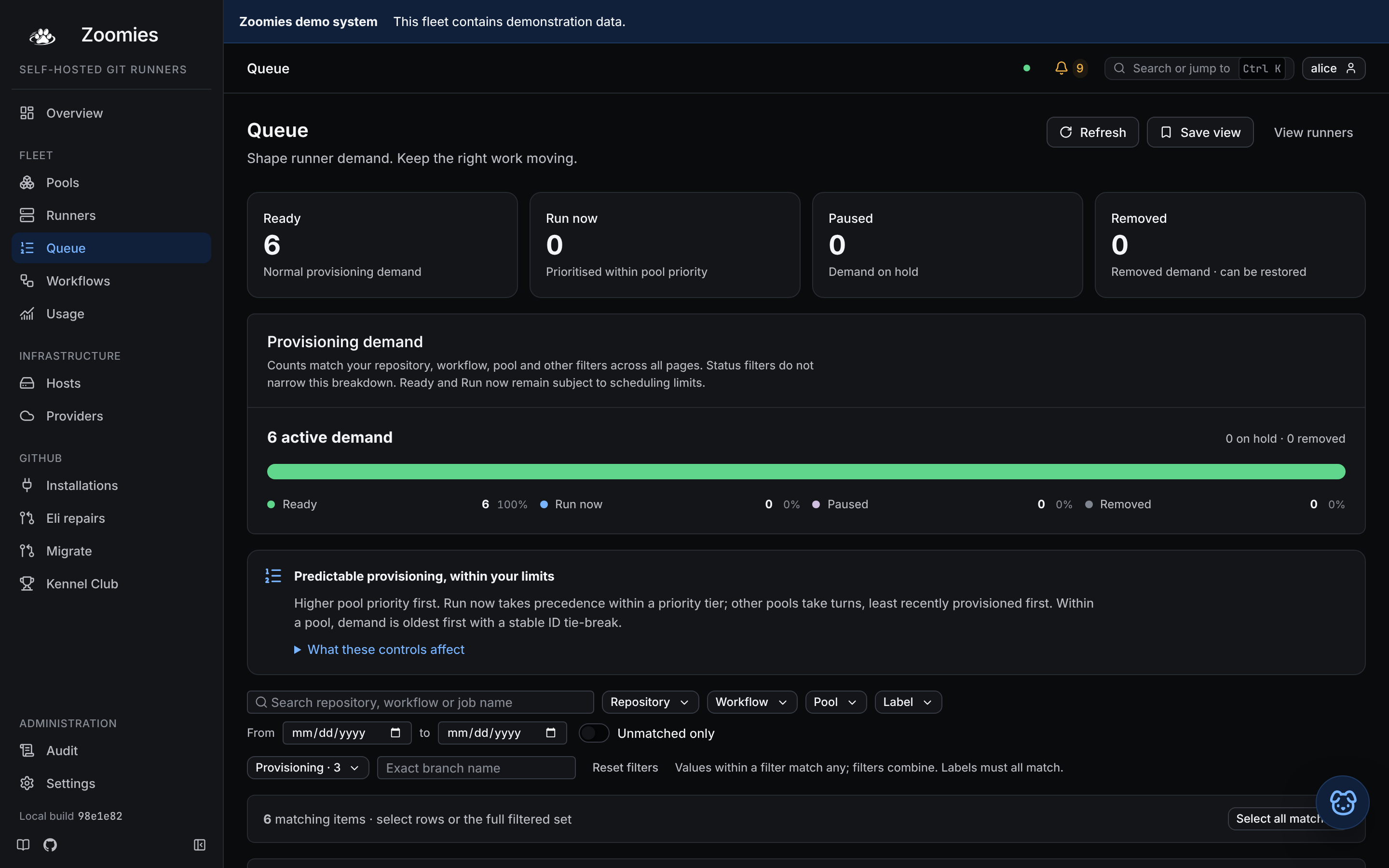
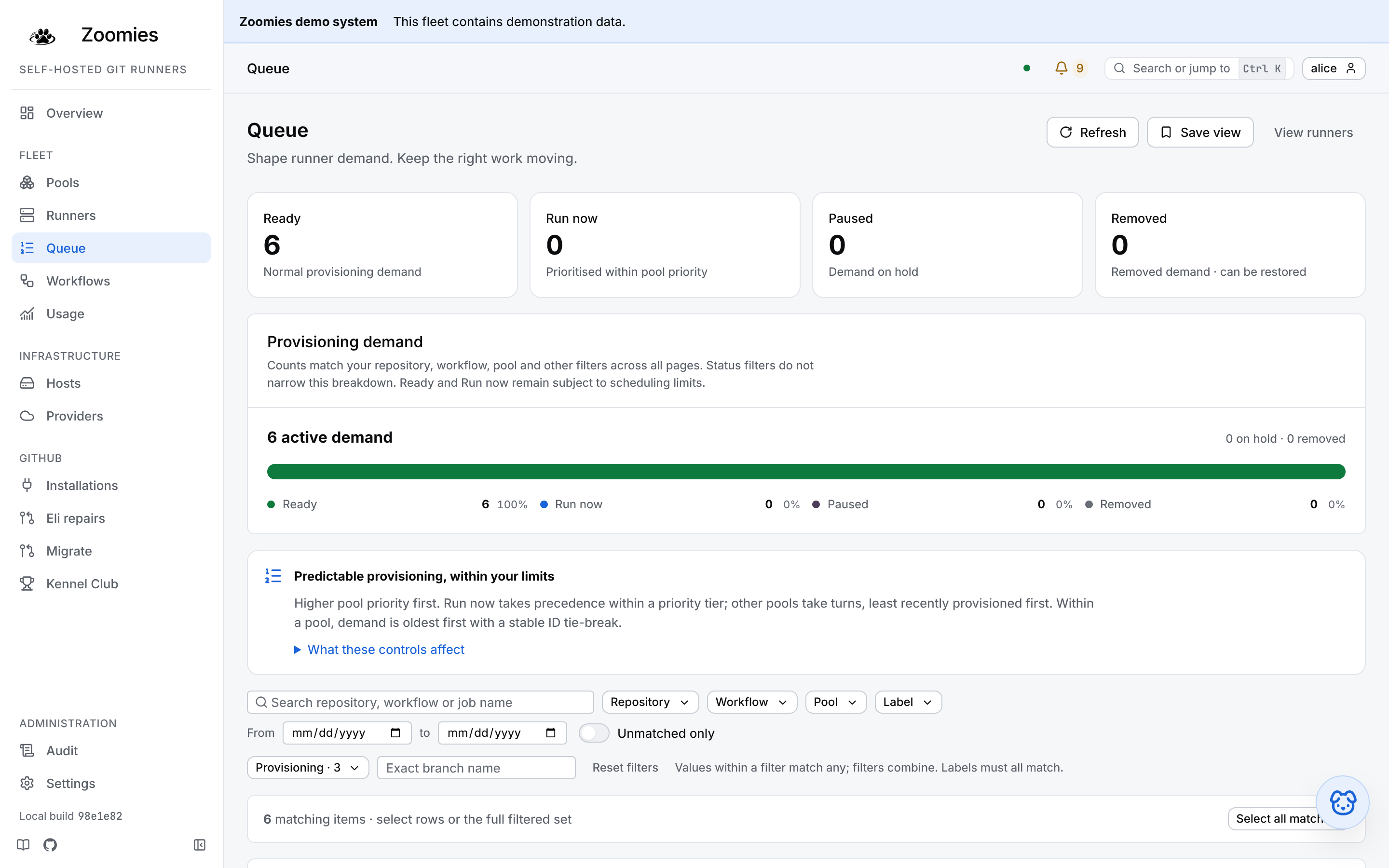
Provisioning demand has its own view, with ready, expedited, paused and removed
counts alongside filtering and bulk controls. Job queue depth can remain high
when provisioning demand is paused; these are separate measures. Removing an
item is the exception: an operator who takes work out of the queue has said it
is not for this fleet, so it stops counting as queued everywhere; the
Overview's queue depth and pool bars, zoomies_jobs_queued and the queue age
with it. Restoring it from the Removed view puts it back.
Workflows
What GitHub's Actions tab lists, in this fleet's terms: one row per workflow run (the #1009 beside a workflow's name on GitHub) with the jobs GitHub reported under it summed up. A run's state and conclusion are worked out the way GitHub's own run page works them out, over the latest attempt of each job: running while any job is, queued while any waits for a runner, and once every job has finished, the worst outcome among them, so a run whose failed job was re-run to success reads as a success. The row says how many jobs the run has and how they are getting on, when it was queued, how long it waited and how long it took, and links to the same run on GitHub.
Each row opens in place (press it, or the chevron, or the right arrow) to the jobs inside the run: every job with its state, the pool that claimed it, the runner that ran it, the step it failed at, its queue wait and duration, and a link to it on GitHub. Earlier attempts are listed too, marked with their attempt, because the attempt that failed is usually why somebody is looking. Pressing a job opens the same drawer the Jobs page opens. Nothing here is a second copy of anything: a run is derived from its jobs, and the jobs under it are the same rows, so the two cannot disagree.
A run's row carries the Queue page's controls for every queued job of the run at once (Run now, Pause and Resume, one press each, and Cancel beside them where the deployment allows it) and each job inside an opened run carries the same three for itself. They are the Queue page's actions under the Queue page's names, through the same endpoint, and mean exactly what they mean there: Run now raises the run's queued jobs ahead of the rest of their pool's queue within its priority tier and skips the scale-up delay, Pause holds their demand, and neither changes what GitHub thinks of the run. A run-level action leaves alone a job an operator removed from the queue, which was stood down on purpose and comes back from the Queue page's Removed view; and removal itself is not offered on a run, because taking work out of the queue is a decision about one job. An action already in force (Pause on a run whose every queued job is paused) is disabled and says why, and the row badges what has been done, Paused or Run now, with a count where it is only some of the run's jobs.
The status views and the filters are the Jobs page's, read at the run's level; a status names the run's own, and any other filter keeps a run whenever one of its jobs matches, so a run arrives whole rather than reduced to the job that matched. Every job switches to the Jobs page with the same filters in force.
Jobs
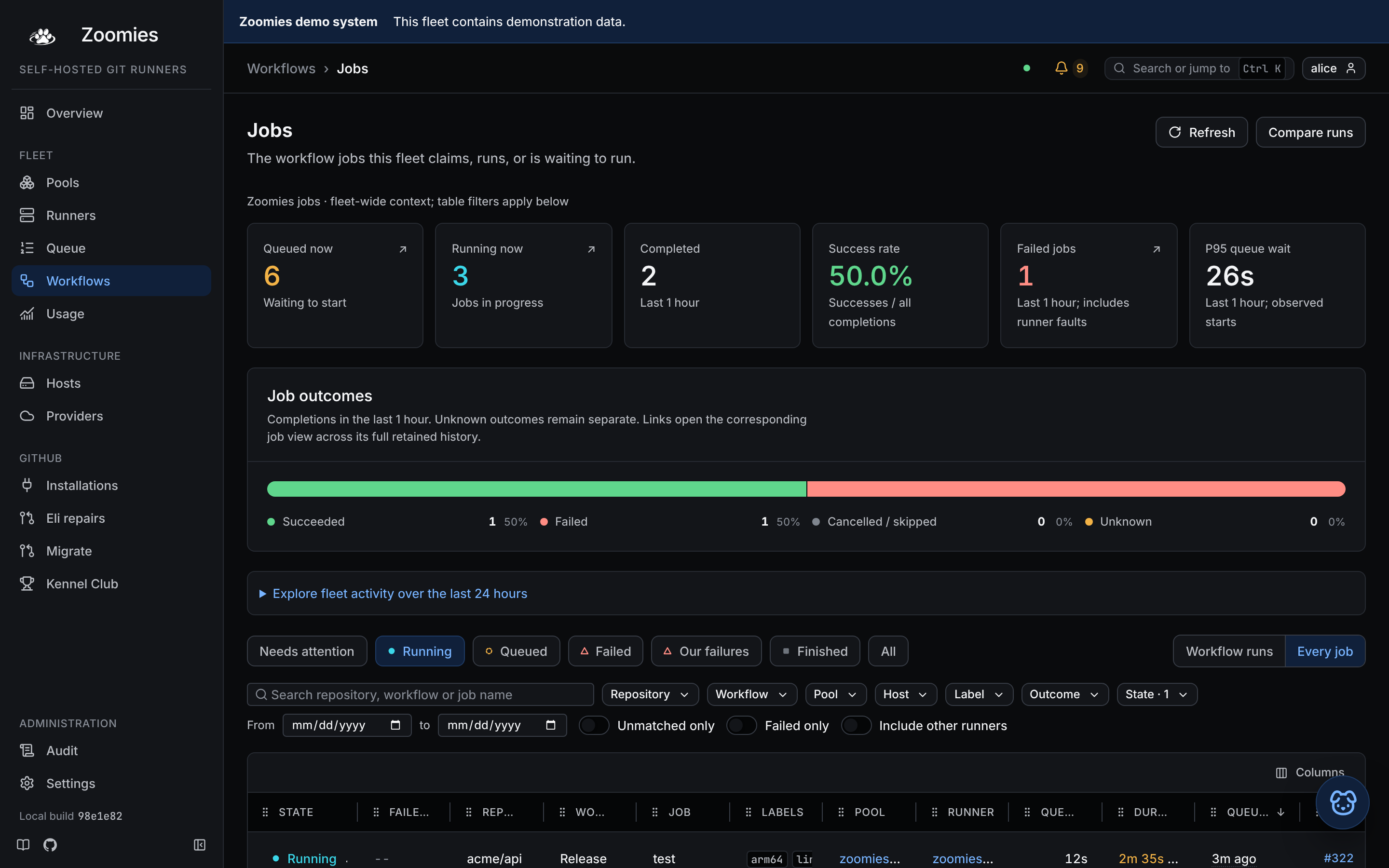
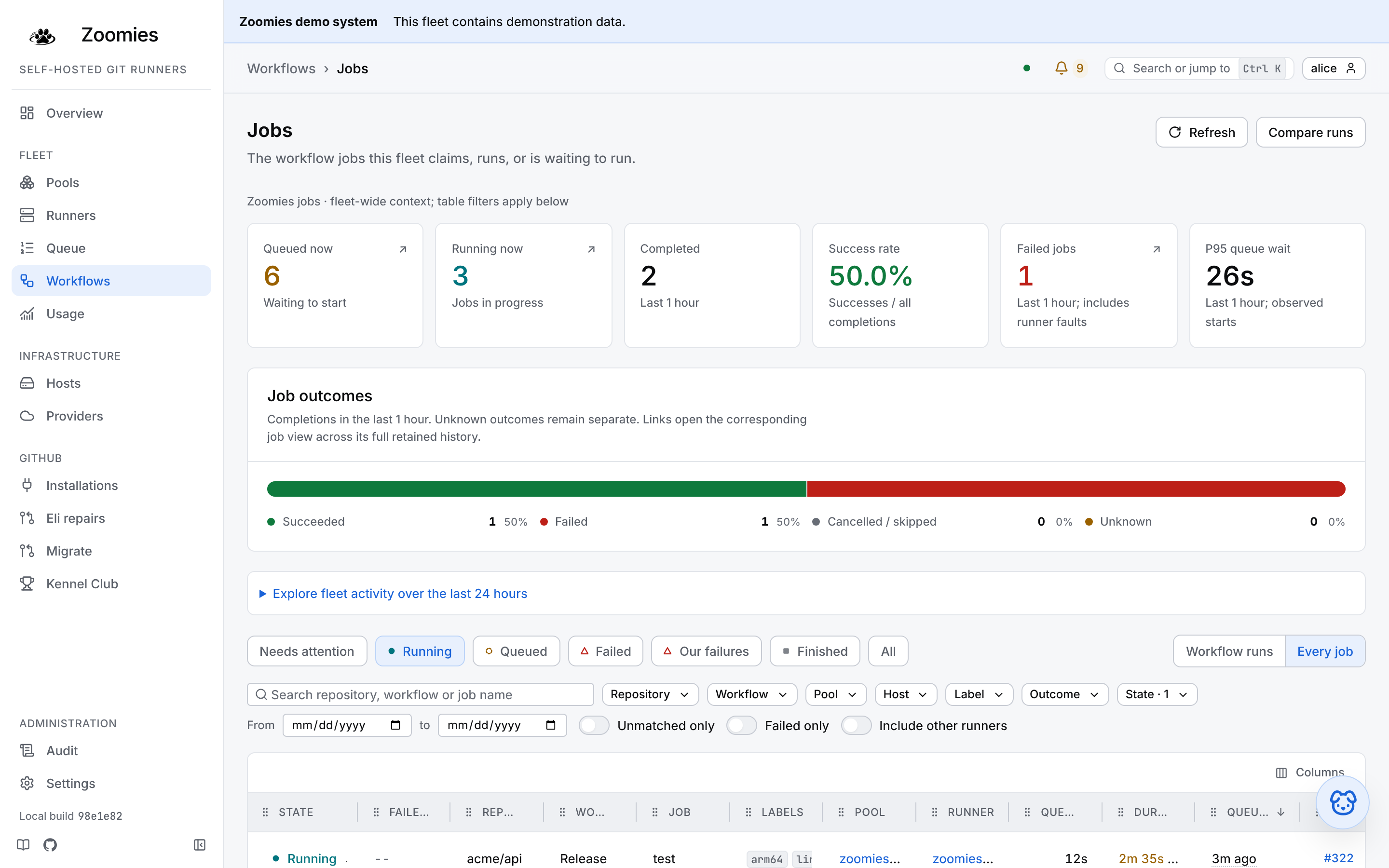
The Workflows page one step down: every job on a row of its own, where Workflows has the run each belongs to. It is not in the navigation, Workflows is, but every link that names a job lands here, and Workflow runs at the top goes back up with the same filters in force. Everything this fleet claims, runs or is waiting to run is listed, with each job's queue wait and duration. Status is the filter this page is opened for, so it is a row of buttons above the grid (Needs attention, Running, Queued, Failed, Our failures, Finished, All) and the page opens on Running, which is the question an operator arrives with. That default is for a bare visit only: every link into this page that already carries a filter keeps it, so the problems drawer's unmatched link and the Overview's outcome links still show what they promised.
Two of the buttons are questions about a failure more than a status. Needs attention is the failures from the last week that nobody has marked as known and no later attempt has replaced, the list the Overview's Recent failures counts, with room for the rest of it. Our failures is the half of Failed this fleet caused, a runner that never started or one that stopped under the job, which GitHub records as an ordinary failure.
The rest of the filters (repository, workflow, pool, host, label, outcome, dates)
live in the URL alongside it, so a view can be pasted into a chat. Host is the
host a job ran on, so it is not offered on the Queue, whose jobs have not run yet.
hosted=false in the address leaves out the jobs that ran on somebody else's hosted
runners, GitHub's own or a vendor's, and says so in a chip; it is the scope the
Overview's figures count in, so a link from one lists the jobs it counted.
A date range takes a time of day as well (since=2026-10-02T05:12, on the
operator's own clock), which is how a link from a figure that counts a moving
window, such as the last seven days, opens exactly the jobs it counted; a bare
date still means the whole of that day. A queued job
that no enabled pool claims is one filter away, Unmatched only, and the
problems drawer links straight to it: on an organisation that also rents
runners elsewhere, most such jobs are somebody else's rather than a fault.
Queued and Running mean work this fleet actually has in hand. Both leave out a job whose workflow run has been cancelled, and Queued also leaves out anything an operator removed from the queue; the same sets the Overview's two tiles count, and a chip above the grid says so where a filter is in force.
On Queued, a Why jobs waited card puts the wait of the jobs queued in the
page's dates (the last day when none are set) down to its causes, for every
pool or for the one pool the list is narrowed to, and names any of the list's
other filters it does not apply. Like the list, it leaves out the jobs another
vendor's runners ran; with Include other runners on, it says the list holds
jobs it does not. It sits above the grid, and below it on a
Mission Control phone, and it is the answer
zoomies analyse queue-wait prints.
None of those jobs is hidden: they are in the history under All, badged
Cancelling, Removed or Paused. GitHub goes on calling all three
queued or in_progress, because Zoomies can neither unqueue a job nor
conclude one, and a row that showed only GitHub's word for it left the
operator's own decision invisible, and the fleet reporting work nobody was
going to do. ?provisioning=deleted and ?cancelling=true narrow to each on
its own, and the Queue is where removed work is restored.
A cancellation is the sharpest case, because the gap is GitHub's rather than this fleet's. GitHub accepts the request at once; its completion delivery, which settles the conclusion, can be minutes behind. Zoomies stops the work immediately (queued demand paused, runners taken back) and records that it did, so the tiles and the lists agree from that moment rather than from whenever GitHub gets round to it.
Opening a job says where it went wrong first: the step that failed and how long it ran, with a link to that step's log on GitHub, or, when the runner died under it, that the failure is the fleet's and the workflow did nothing wrong.
The drawer also shows the controller version that claimed the job, and the agent version of the host that ran it, so a slow or failed job can be placed on a release. A job recorded before versions were stamped, or one no pool here claimed, says "Not recorded" rather than being guessed at. The same figure is a Controller version column, hidden until you choose it from Columns.
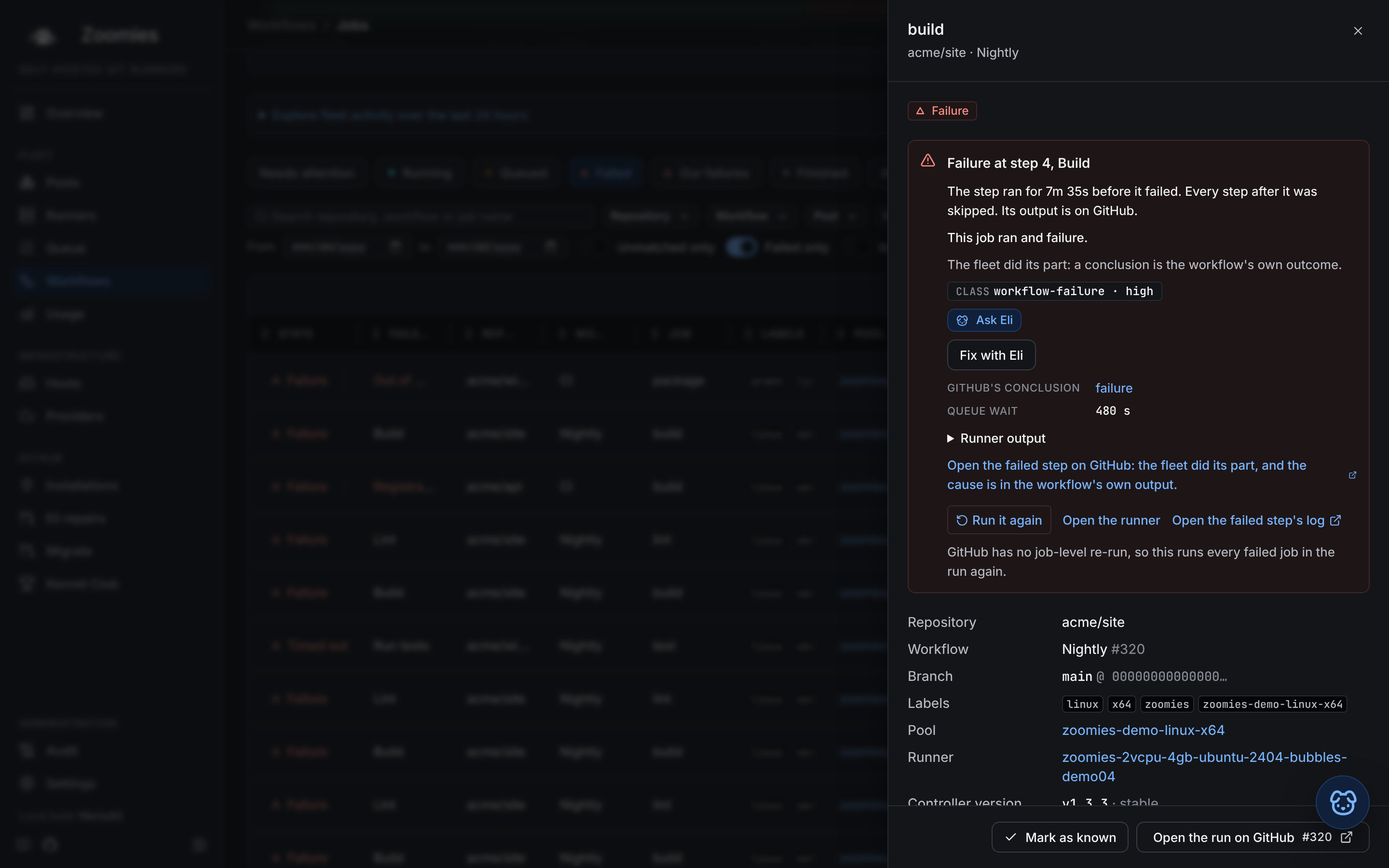
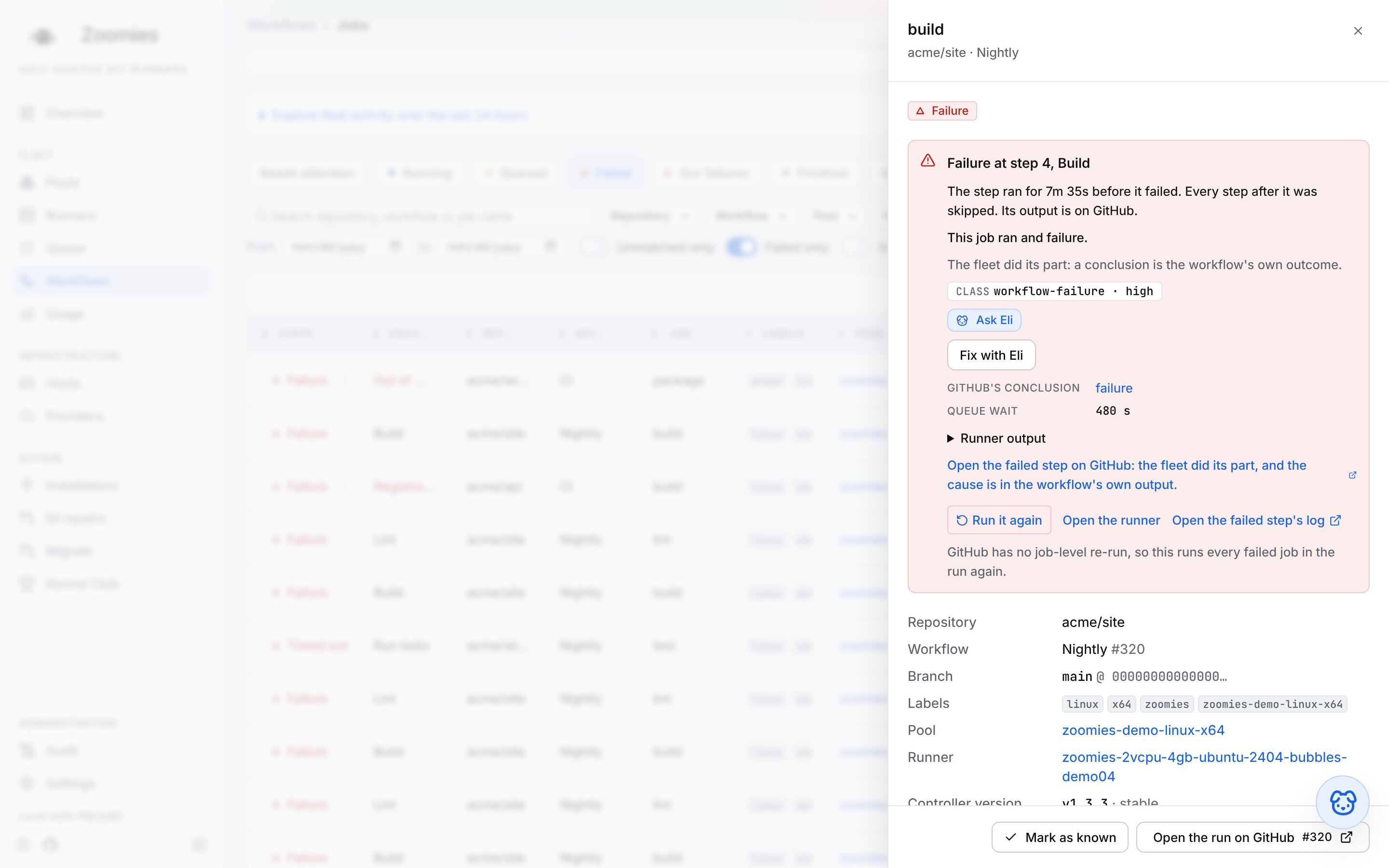
While scheduler.size_routing is shadow or on, the drawer also says which
size class the job was put in and on what authority
(the size label it wrote, an operator's pin, its earlier runs or the default)
with the controller's sentence for why. A job sent to another class because its
own had no pool or no room says so under Sent to, with the reason, and Ran
on says which class of host took it. A job that landed on a class other than
the one it was sent to is explained rather than blamed: for a job that wrote only
the base label, GitHub chooses the runner, and the sentence says how to make it a
promise. CPU held back appears when its runner was cut short by its CPU limit.
The same facts are a Size class column, hidden until you choose it from
Columns.
Size labels and pins is a panel above the filters that appears once routing is
on or anything is pinned. It lists the jobs whose runs-on could say something
better, from what their own runs used (a class that is too small, none at all for
a job that needs more than the default, a class larger than the job uses) each
with what to write instead, and Pin to puts the job in the class its runs call
for without editing the workflow. Below it are the pins in force, each removable,
and a form that pins a repository or one job.
In a signed-in viewer's job drawer, PR check delay reads an explicit PR number from that job's repository. Press Read PR delay to take one bounded snapshot. Opening the drawer and fleet events do not refresh it. The card shows the pinned head, target branch, observation window, coverage and opaque required-check identities. Unknown queue/startup timings stay unknown; pre-start already includes both. Check results establish neither full merge readiness nor a dependency critical path. A refused allowance shows the server's wait before another manual request, without automatic retries. Ask Eli shares the displayed snapshot to explain its uncertainty.
Usage
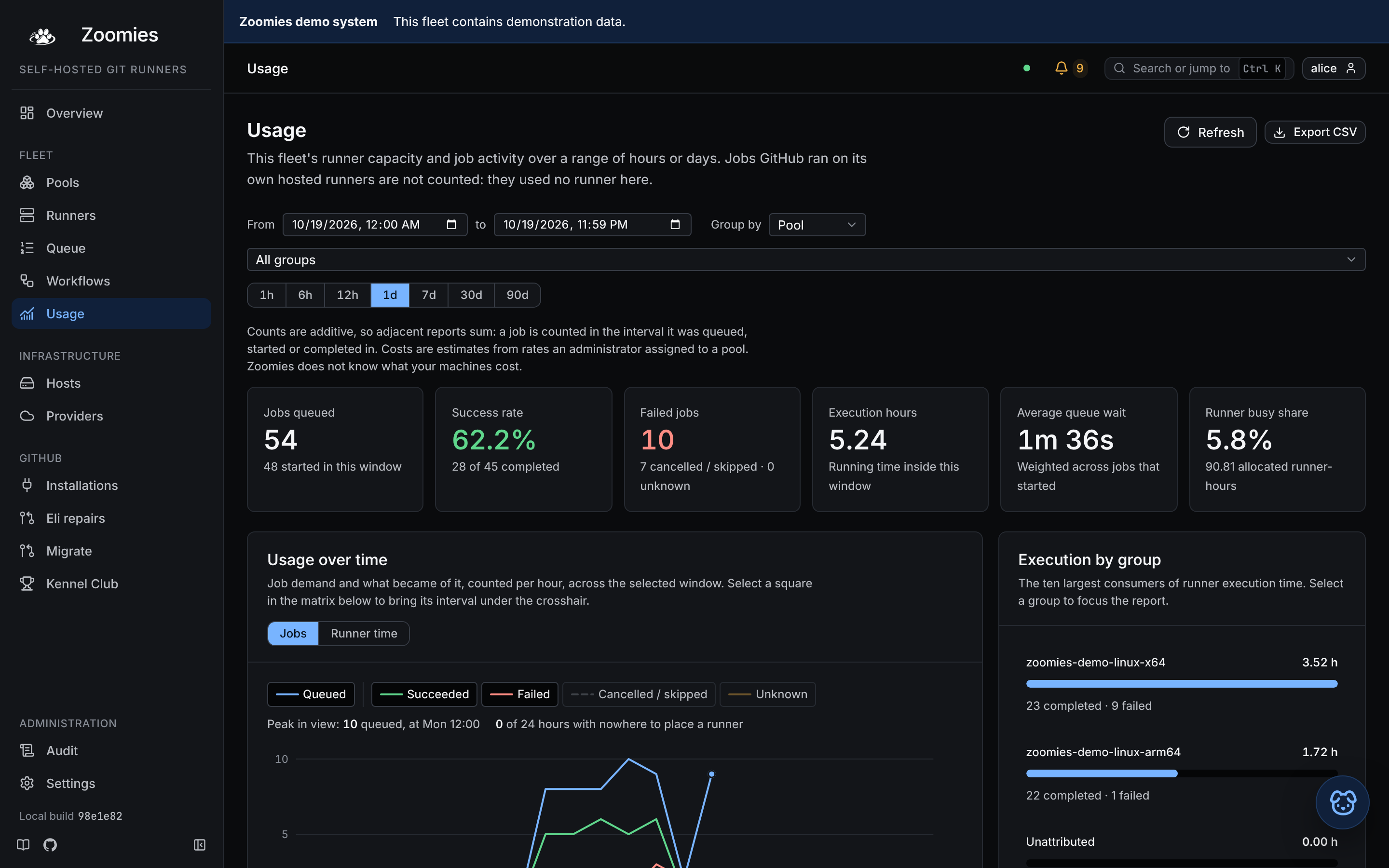
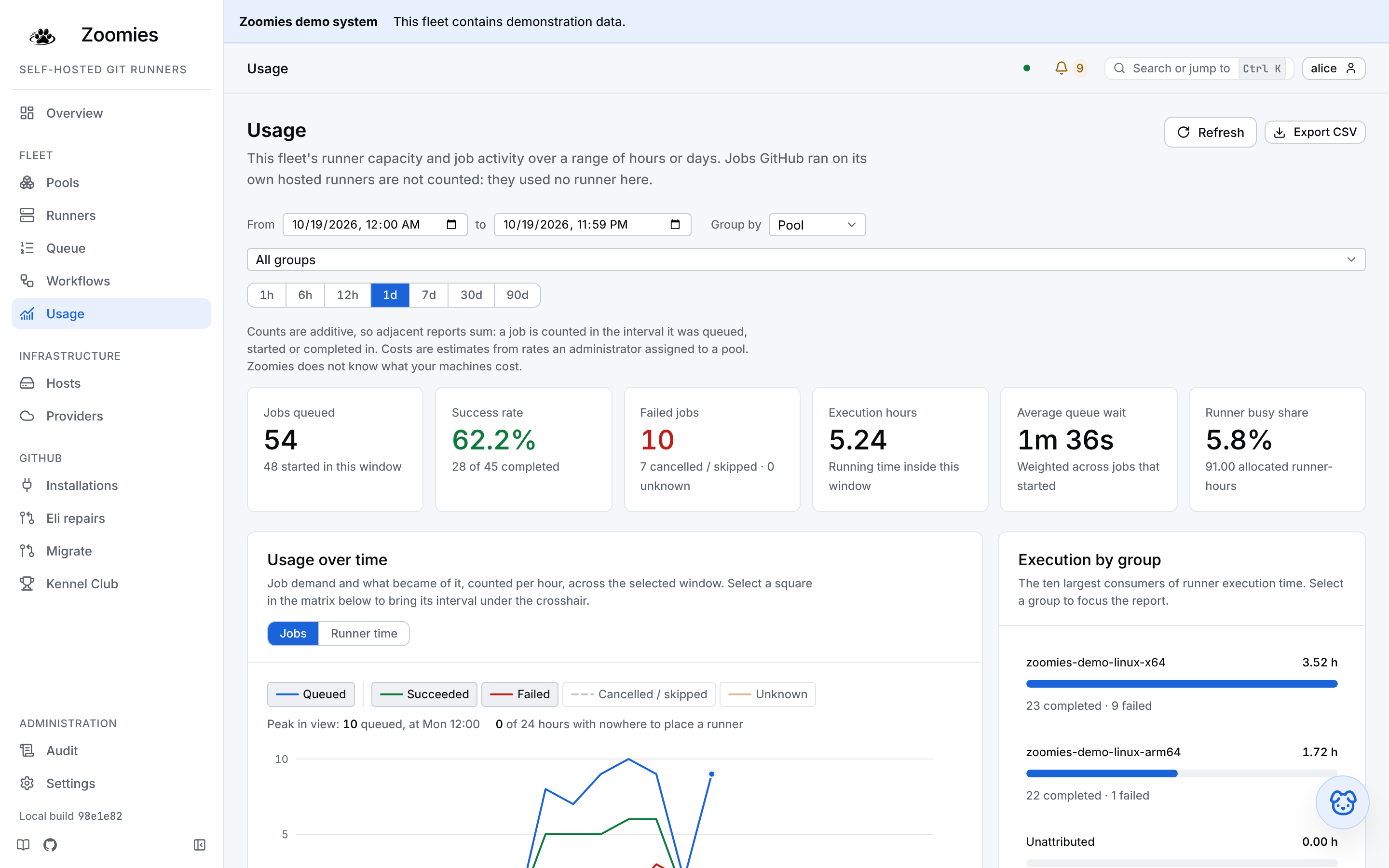
Runner-hours, jobs and queue waits over a range (today, until you change it) grouped by pool, repository, workflow or installation, with an estimated cost wherever an administrator has given a pool a rate. Zoomies embeds no cloud prices. The table exports as CSV.
The quick ranges beside the grouping are the last hour, six hours and twelve hours up to now, or today and the last seven, thirty and ninety days, with the one in force pressed. The From and To fields take a time of day as well as a date, so a report can be cut to the hour an incident began; editing either lets go of the quick range. Either way the range is in the address, so the report is a link.
The range is drawn as a chart with the same hand as the Overview's fleet activity: a line per figure, chosen by chip (the jobs queued and how they ended, or executing runner time against the time allocated to hold the runner) and the moment under the pointer read off every line at once, in the rows beneath as well as beside the crosshair, so a figure never lives only in a card that a finger's lift takes away. Where a pool had work and nowhere to put a runner, the intervals are shaded behind the lines. An interval that has not happened yet is a gap rather than a zero: a report to the end of today is a window with hours still in it.
Below the detailed table, By release groups the completed jobs of the range
by the controller version that claimed them: how many there were, how many
failed and how many were lost to the fleet rather than the workflow, and p50 and
p95 of duration, queue wait and runner startup. It is the answer to whether
builds got faster and more stable after an upgrade. Jobs recorded before
versions were stamped are their own row, marked "not recorded", and duration
leaves out cancelled and skipped jobs. Jobs only go back as far as
retention.jobs, and the range may not exceed limits.job_stats_window (90
days unless set).
Under it, a What got worse and what got better card compares the range's
two latest releases measure by measure, or says the sample is too small to rank
when either has fewer than 30 jobs, or says to widen the range when fewer than
two releases ran a job in it. It leaves cancelled and skipped jobs out of every
figure read from the job rows, and says so, so its counts can be lower than the
table's. It compares releases, never periods, and is the answer
zoomies analyse compare prints.
The same activity matrix as the Overview's draws the chosen range in the squares the Overview uses for a window that long (a square per hour for up to a fortnight, each day cut into six four-hour squares up to eight weeks and three eight-hour ones up to sixteen, and a square per day laid out as a calendar beyond) cut to the grouping and the group in focus, so a repository's bad week is a red row of squares rather than a column of numbers. Selecting a square moves the chart's crosshair to the interval it falls in.
Hosts
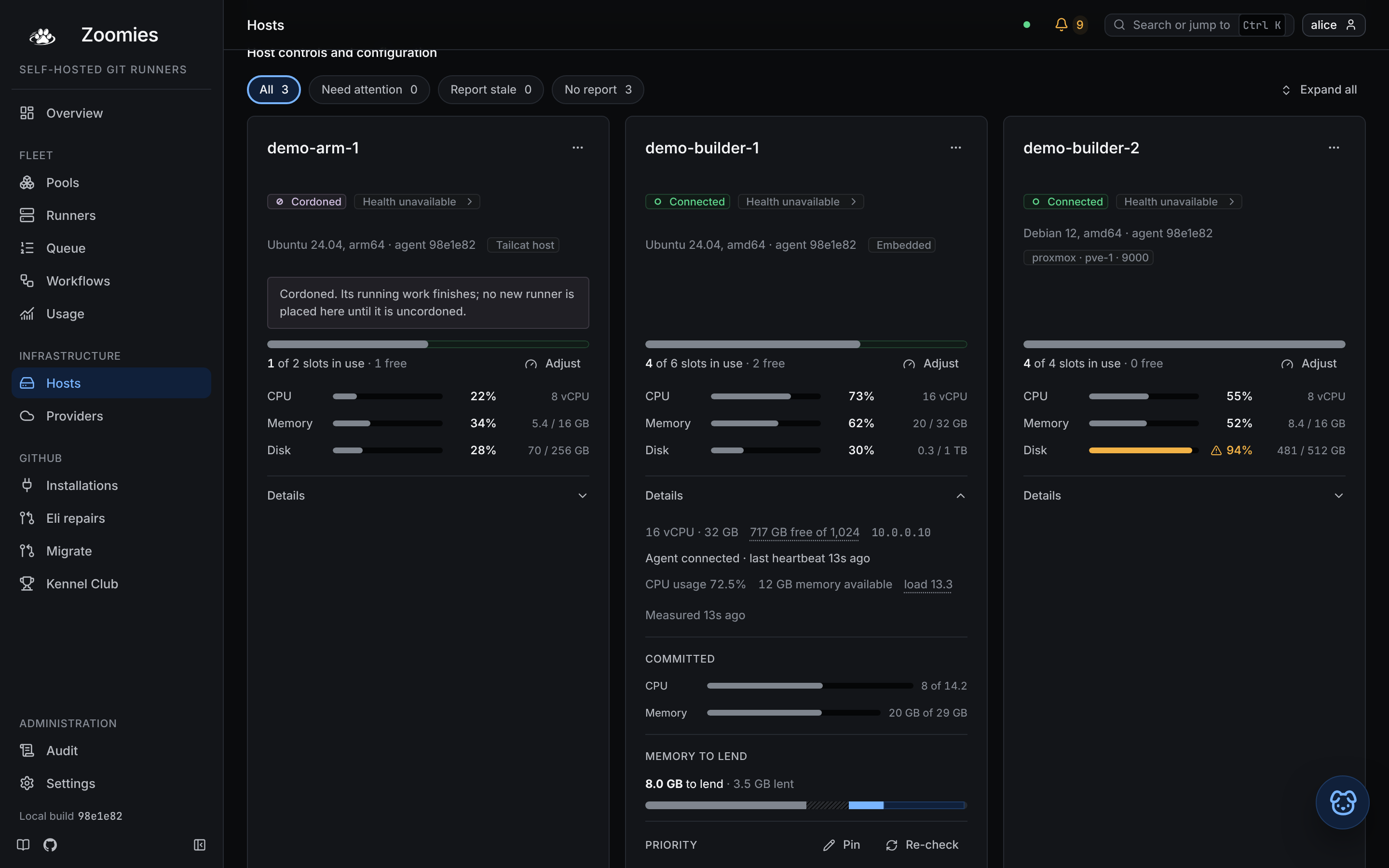
Where runners can go. Each machine's heartbeat, its slots in use, the disk its runners have left to write into, what the fleet has already committed of its CPU and memory against what may be placed on it, the backends its agent found (and the exact command to run when one is missing) and the labels pools select it by. Slots and the committed bars answer different questions: the first is whether the fleet will place another runner here, the second whether the machine can carry it, and a host with free slots and no memory left takes nothing. The closed card says so when it matters: with a slot free and 90% or more of the CPU or memory the scheduler may place already committed, a notice names the figures. Each of the two settings a host has is reached from the thing it describes. Adjust, beside the slot bar, owns the resources: how many runners the host may hold, and the reserve; the cores, memory and disk the scheduler leaves alone for the machine's own sake. Each sits on a slider with the recommendation marked on it, worked out from the machine's size and the largest ask across your enabled pools, and Set to recommendations puts all four back in one press; a setting past its mark warns rather than refuses. Edit, beside the tags, sets the tags and nothing else. A cordoned host keeps its runners and takes no new ones. Add a host mints a join token and prints the one line to paste on the new machine.
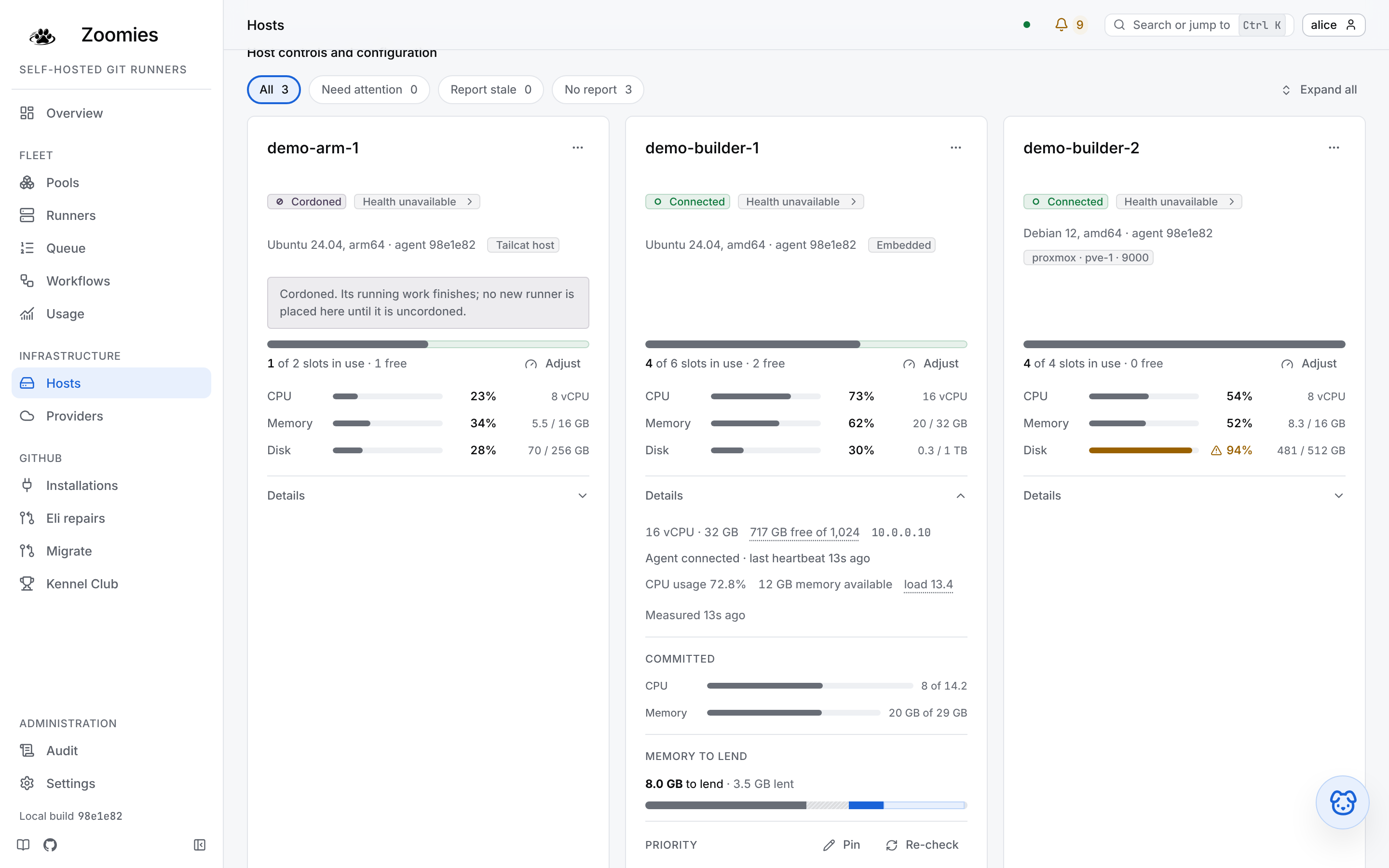
A card opens closed, and a closed card answers one question: does this host
have room, and if not, why. It carries the host's name and state pills, the
platform and agent release with the neutral chips that say what kind of host it
is (Tailcat host, Embedded, the machine it was rented as), the slot bar
with Adjust, and three bars for how loaded the machine is. CPU,
Memory and Disk are each a share of the whole machine as the agent last
measured it, with the figures it is a share of beside the bar (6.4 / 16 GB,
written in terabytes from one up, unless under a tenth of a terabyte is used,
when it stays in gigabytes as 20 / 1,024 GB because it would round to
0 / 1 TB).
They are the shares the capacity map draws, so for a host that is sending
heartbeats the newest point on that chart and the card are one figure. A figure
turns amber, takes a warning triangle and says so in
its label where the product itself acts on it, and that is not one line for all
three. CPU turns amber from 85%, the line from which the scheduler places one
runner at a time, counted without the CPU it has lent to runners: a host at 92%
with 30 points of it lent is not amber, and its label says why. Memory is not
judged as a share of the machine. It turns amber when the memory still available
is at or below the host's reserve, the point at which the scheduler holds new
starts, so a 16 GiB host at 94% used has 983 MB left against a reserve of 819 MB
and is not amber. Disk turns amber when the Work directory free space check
would warn: under 10% or under 10 GiB free. Each is compared as the unrounded
figure, as the scheduler and the check compare it, and not as the figure printed
beside the bar: a CPU of 84.6% reads 85% and is a fraction under the line, so it
is not amber. A figure that is not measured reads
--. For a host that has stopped sending heartbeats, or whose agent reports
nothing to measure, the bars give way to one sentence saying why, because the
agent's last disk figure would otherwise read as now. The capacity map has no
such rule, and still draws that last disk figure as the newest point of a silent
host's line.
Nothing that keeps a host from taking work is folded away. The sentence for a cordon, a throttle, a hold on new starts, a busy CPU, a runtime that is recovering, an image that will not pull, an incompatible agent or a machine that is draining, the line naming a failed health check and the update row all stay on the closed card, and so does the Backends block, with the agent's own explanation, for a host with no backend that works. A host with Docker and no Podman is the ordinary case and is not one of them. Two more sentences stay because the numbers beside them cannot say what they say. The line under the slot bar that says why the slot count is what it is (a capacity set below what the machine holds, or a machine that holds fewer runners than the capacity) explains a host that is full at fewer runners than its capacity. The Committed notice is for a host with a slot free whose committed CPU or memory has reached 90% of what may be placed, the line the Committed bars turn amber at: the slot line counts slots, and the Memory bar beside it is what the machine is using, so neither shows that the runners already on the host have promised the rest away. A full host has every slot used, which the slot line already says, so it does not carry the notice for being full.
Details opens the rest beneath it: the size class and the other neutral chips, the disk figure with its link to the check, the heartbeat and usage lines, the Committed bars, Memory to lend, Runner sizes, Priority, Backends and Tags. The cards in a row are one height and their sections line up across it: the pills, the slot bars, the three utilisation bars and the Details buttons sit at the same height from card to card, so a row reads straight across. A card with a notice leaves the same space on the cards beside it, and opening one makes its row as tall as that card needs. The button names its host for a screen reader, says whether it is open, and is 44 pixels tall on a touch screen. This browser remembers which cards are open, writing it when one is opened or closed and never on sight, and forgets a host that no longer exists.
Expand all, at the end of the row of filters, opens every card on the page at once, and becomes Collapse all when they are all open, so a card opened or closed by hand turns it over too. A host that joins later arrives closed, and the button then offers Expand all again. With a filter on, it acts on the hosts the filter shows and leaves the others as they were, and a line beside it says how many that is (Acts on the 2 hosts shown). A page with one card does not have it, because that card's Details button is the whole of it.
Under Details, Agent connected describes the heartbeat. Recent CPU usage, memory available and the one-minute load describe the machine's actual load, separately from its committed resources. A missing or stale reading is shown as unavailable. The pressure warning is not one of these lines: it is on the closed card, where it says whether new starts are held or limited to one at a time, and recovery happens automatically and keeps any manual cordon. See current usage and automatic holds for the thresholds and the limits of these measurements.
The page opens on its tiles, a row of filters and the cards, and the capacity map
is folded behind a Host capacity map button above them: the cards are what
somebody came to act on, and the browser remembers whether the map was open. A
host's status pill reads Connected while its agent is sending heartbeats and
Unreachable when it stops. The pill beside it is the host's own OS report,
and "healthy" is kept for that. That pill is a link, 24 pixels high and ending in
a chevron, and a muted line under the card's badges names the worst checks (up to
two, then "and N more"), so a tap on a phone says what is wrong as well as where
to look; the link opens the host page at the first of them. A stale report, a
container's partial report and a host whose only finding is a reboot get no such
line. The pill reads Report stale for a connected host with an old report,
Last known report for one that is not connected, and Partial report for a
container or a native report that skipped half or more of its checks, all
neutral. The Need attention tile counts the hosts
whose health pill reads warnings, errors or a pending reboot, and opens the
cards filtered to them. The row above the cards (All, Need attention,
Report stale and No report) is kept in the address as
?health=attention, ?health=stale or ?health=no-report, so a view can be
shared; it is not remembered, because a filter that came back by itself would
hide hosts for no visible reason. Report stale also holds a host whose agent
is not connected, and the three filters do not add up to All: a host with a
current, clean report is in none of them.
A host the controller has stepped down after sustained pressure wears a Throttled badge, with the step in its title, and its slots line reads "n of m slots in use · throttled from capacity": the smaller figure is what the host is taking right now, and the configured capacity is untouched. The notice under it is the throttle's own sentence (what was taken, which measurement did it, what the running jobs are getting, and that it lifts one step after five minutes of calm) and Lift the throttle beside it clears the throttle by hand once the cause is fixed. The adjust dialog's note about the floors under a reserve names the CPU floor too: half a core, or a twentieth of the machine, held back for the daemon whatever the operator sets.
A host's own page carries a Whether its failures came under pressure card:
whether the failures, OOM kills and slow startups of the jobs it ran over the
last day came in the minutes it was busy, and the line that separates them when
one does. It is the answer
zoomies analyse host-pressure prints.
Updating every host that is behind
An administrator sees Update N hosts in the page header when hosts are
behind the controller's release and can update themselves; the count is the
hosts whose own card offers Update, read from the same answer. Its
confirmation names the release and the number of hosts and says what follows:
one host at a time, the one running the fewest jobs first, each agent restarting
when its turn comes without waiting for its jobs (they keep running and the new
agent takes them over), and the first failure halting the rollout. The request
names no hosts, which the API reads as every host behind. With updates.mode
off the action is drawn and cannot be pressed, and the reason is the line under
the page title, as it is on a card.
While a rollout is open the button gives way to a Host rollout panel above the hosts: how many hosts it has updated of how many, the host being updated now, and the controller's sentence for what it is doing or waiting on. Rolling out is news; Halted wears the draining colour, because it is held until a person acts, and says which host failed in the controller's words, with Resume the rollout (the host that failed waits out its retry while the next goes) and Cancel the rollout (an update a host has already been handed finishes by itself). The failed host's card wears the danger colour, a finished rollout reads Done in the idle one, and a host that is behind stays a neutral fact. Operators and viewers see neither the button nor the panel; the rollout is on Settings → Updates for everyone.
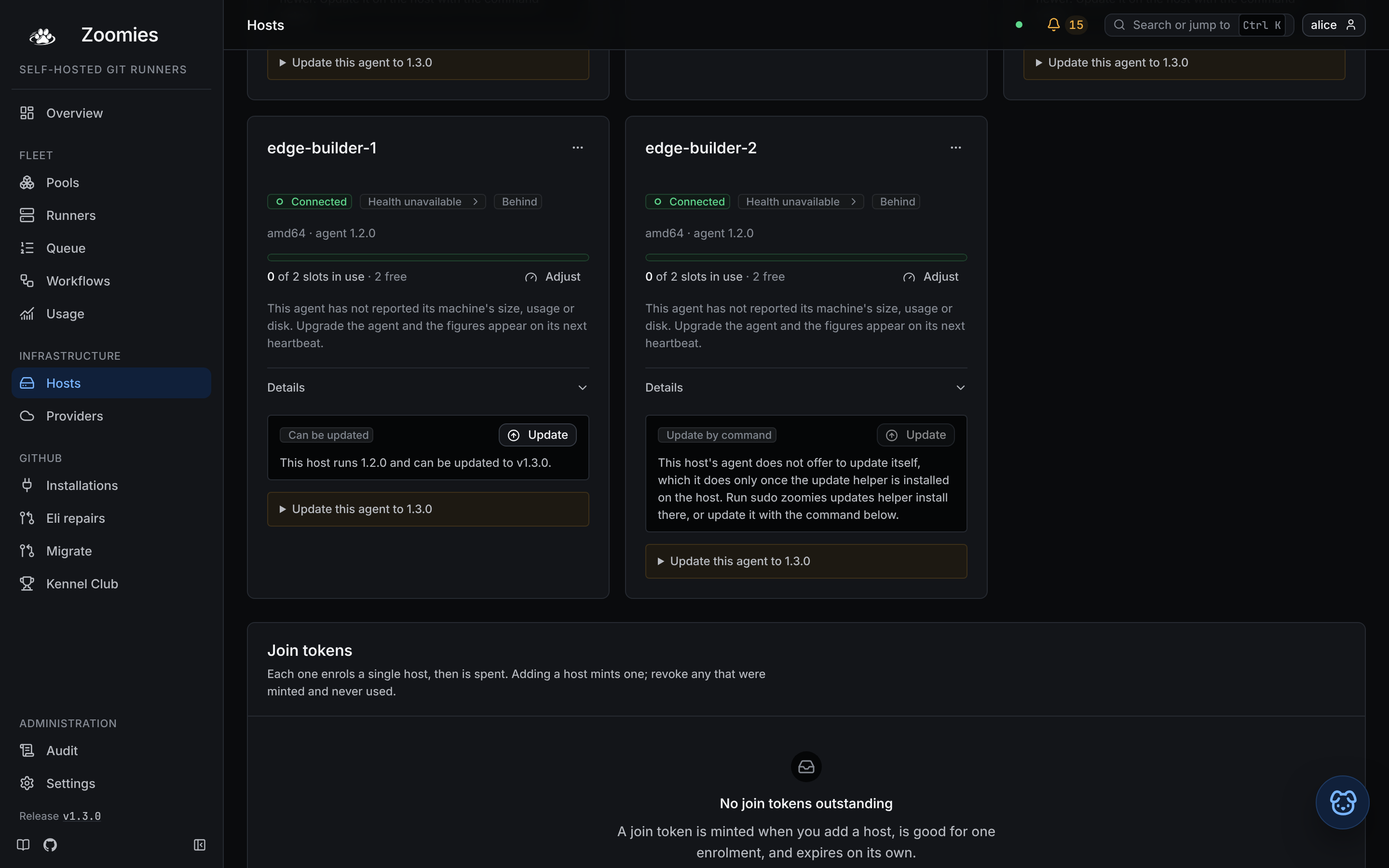
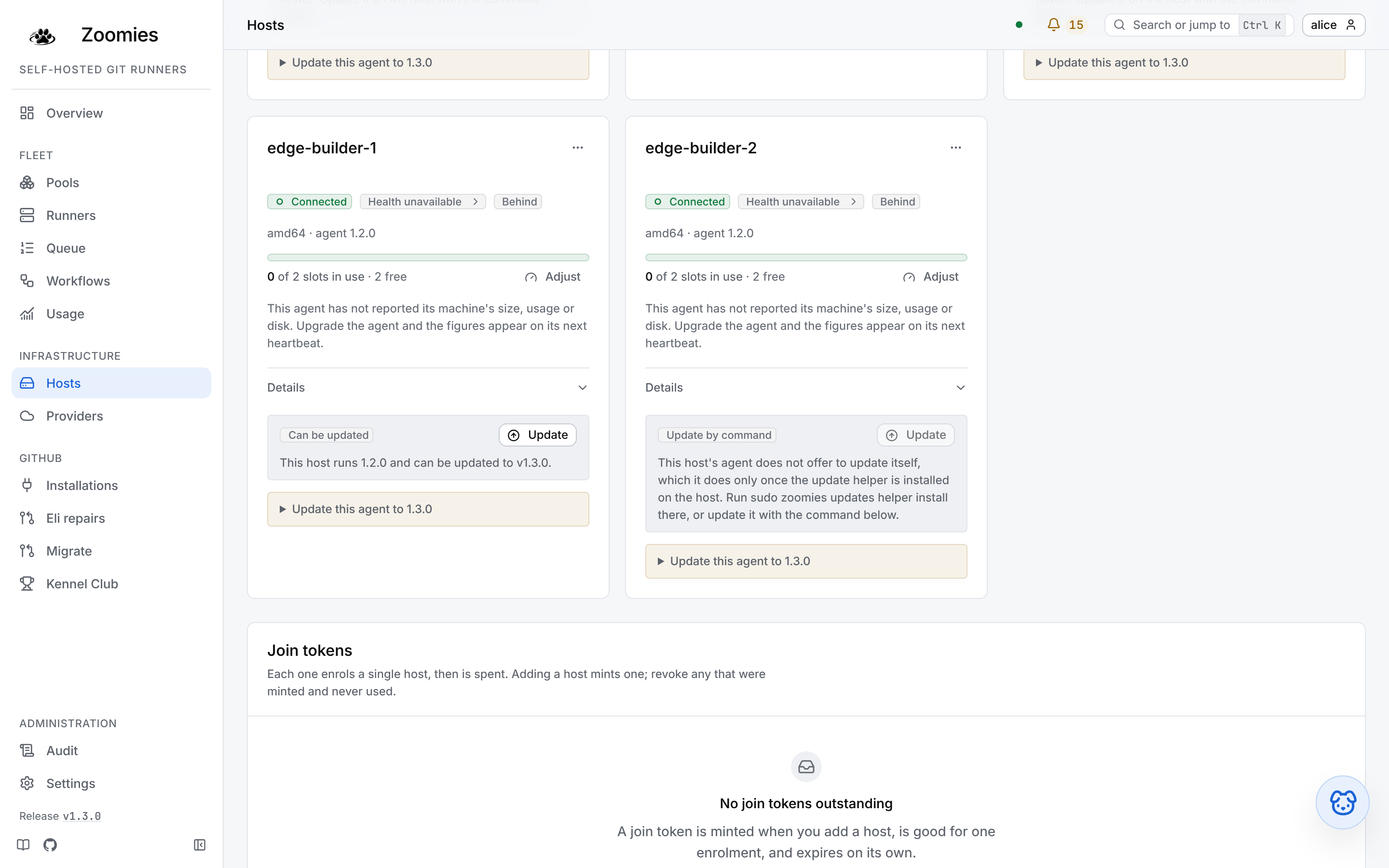
A host that is behind the controller's release has an update row on its card, above the command that updates it by hand. Can be updated offers Update when its update helper is installed; Update by command draws the button but cannot press it, and says why, when it is not. While an update is open the row reads Updating, and afterwards Updated, Failed, Timed out or Cancelled, with Try again where another attempt would be taken.
Tags and size class. A host's tags are the labels pools select it by, and its
card lists them, under Details, in two groups: those stored on the host, which Edit changes,
and those the controller works out from the machine (os, arch and, while a
size switch is on, size) under a caption saying so. Once either switch is
shadow or on, a Size class block says which class the host is in, in the
controller's own words, whether an operator's size tag put it there and what its
machine measures, and any move it is being held before making, with when it takes
effect. It also says whether the host's slots count towards an automatic pool and,
when they do not, why. The dialog lists the derived tags beside the editable ones,
and refuses a size tag that is not small, medium or large where it is
typed. A tag with a name and no value is a flag, stored as true (what
zoomies hosts edit --tag gpu writes) so a pool's host selector asks for it the
same way whichever you used. See
size classes and automatic pools.
Providers
Where machines come from. A provider is one place Zoomies may rent a machine,
a hypervisor, today Proxmox VE, and its card leads with what is
being spent: the machines it holds against the ceiling it may not pass, the
shape it builds, and, in the controller's own sentence, why no new machine may
be bought this moment. The wizard opens a new provider on a maximum of two
machines with one kept warm, and for a Proxmox provider replaces both with a
recommendation worked out from its nodes: as many machines as they hold, up to
eight, with one kept warm. Saving creates nothing, and nothing is rented while
Rent machines (provider.enabled) is off, which it is until an
administrator turns it on, or while the fleet's own ceiling
(provider.max_machines) is zero. Check runs the preflight against the real
provider (read-only there, audited here) and a provider nobody has ever checked
says so rather than looking healthy. Under the cards is every machine across
every provider, narrowed by a state filter that lives in the URL, so a link to
one part of the lifecycle is a link somebody else can open.
An administrator can tick machines in that list, or in a provider's own Machines tab, and delete them together. It exists for the pile a wrong template or a wrong address leaves behind: filter to Failed, tick the box at the top to select every machine shown that can be deleted, and delete. A machine that cannot be deleted from here has no box and says why: one that has not been created yet, one already being deleted or deleted, and a quarantined one, whose resource may belong to somebody else and which is only ever released from its own page. The confirmation counts what it is about to do. Machines that never got as far as a VM, which is the usual shape of a failed create, are cleared with a click and touch nothing at the provider. If any ticked machine has a VM behind it, those VMs are destroyed, and you type how many machines you selected to confirm. A machine that still has runners on it is skipped and stays ticked, with the controller's reason on its row, unless you tick Also delete machines that still have runners on them, which loses whatever those runners were running. The same rules apply as when deleting one machine; the box is off again the next time the dialog opens.
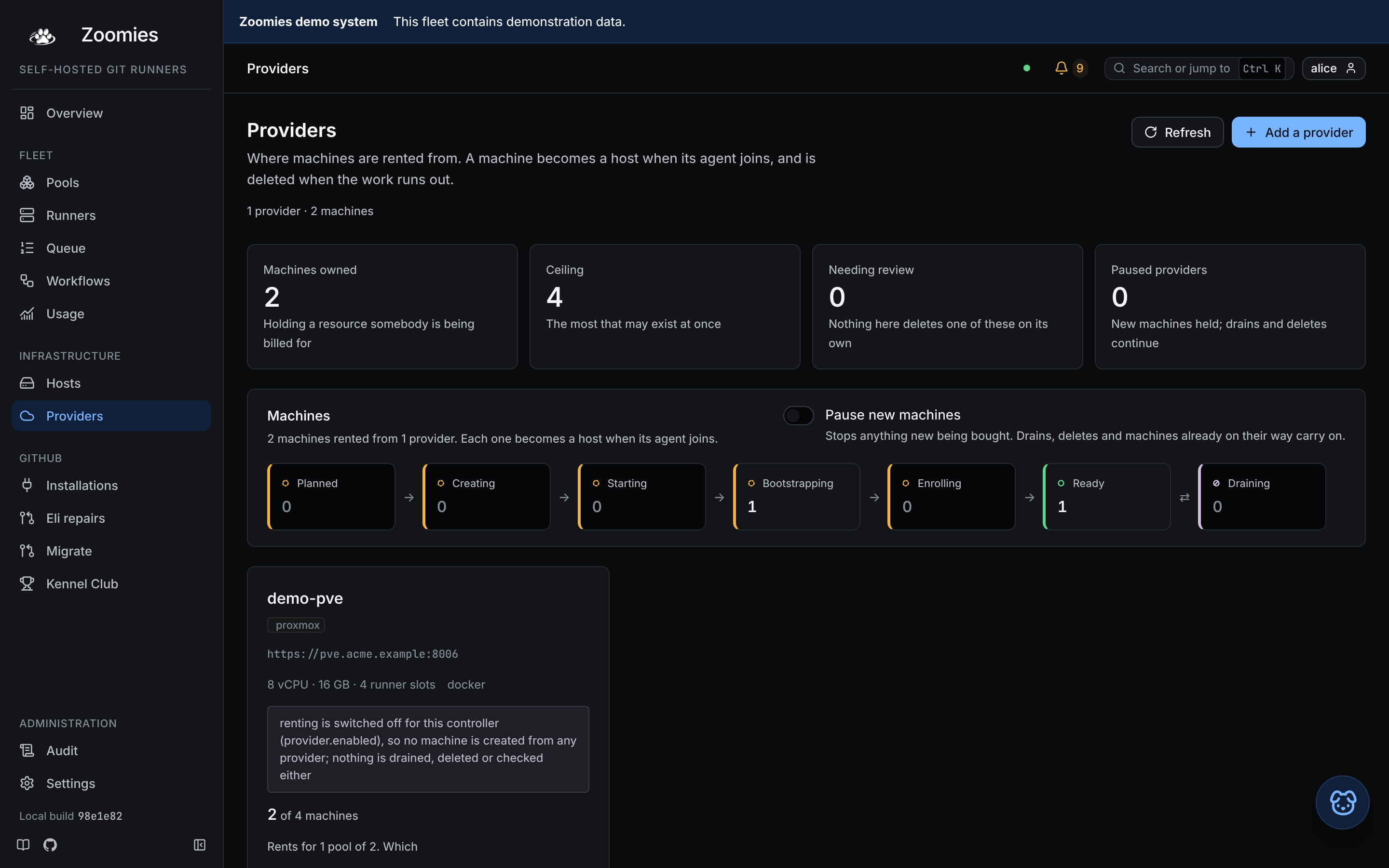
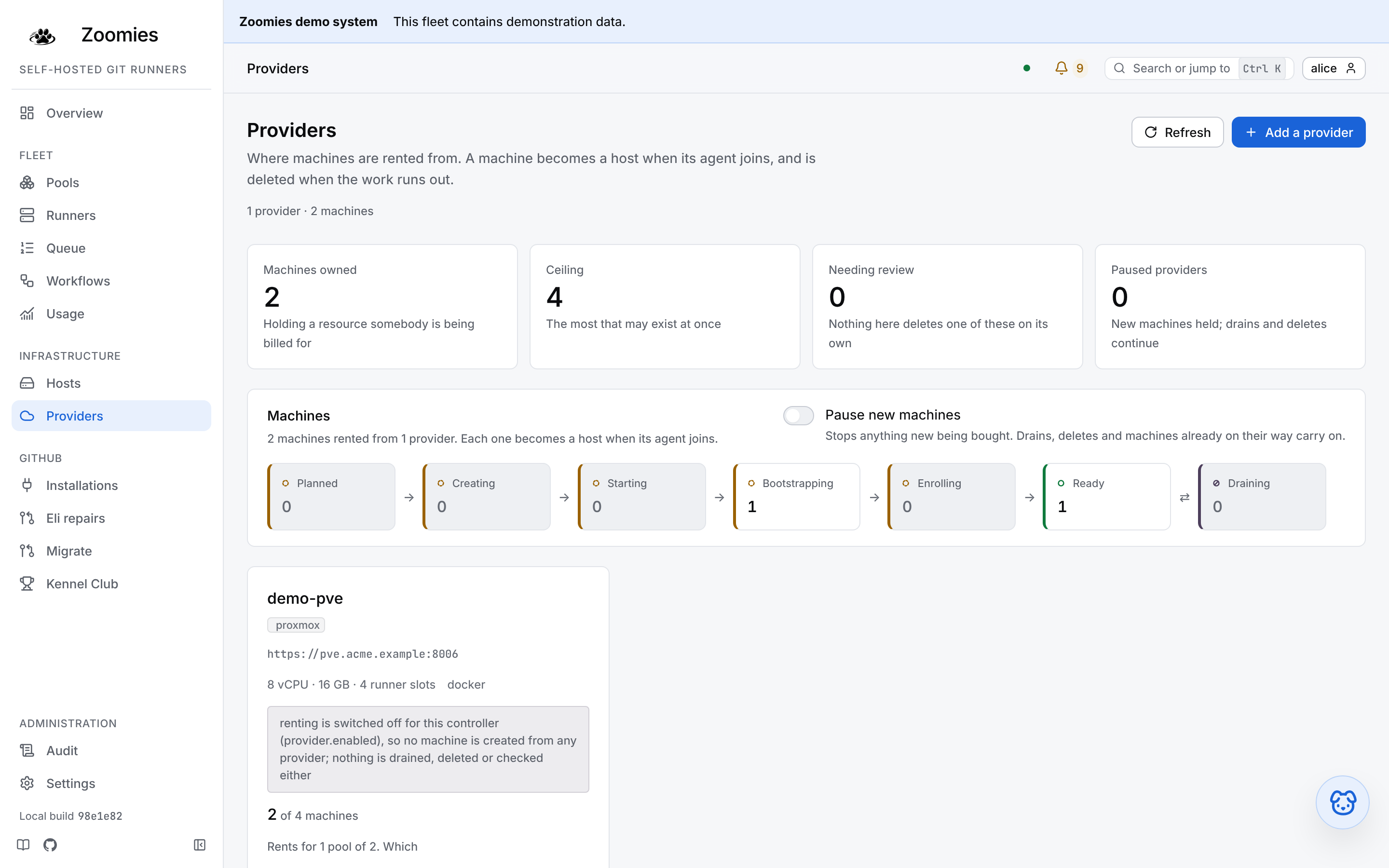
When a switch is the reason nothing is rented, a notice above the totals says so in the controller's own sentence, lists the pools it is holding back, and offers an administrator one click that turns renting on with a ceiling already filled in; anyone else is told who can. A setting pinned in the environment refuses the click, and the notice stays with the controller's reason beside the button, which names the variable to unset. A provider's Pools tab gives each pool it would rent for the last machine pass's verdict on it, so what renting is doing for a pool now sits beside the reason it would not rent for the rest.
Adding one is five steps (where it is and how we sign in, where a machine is built, what shape it is, what it may spend, and what the controller makes of it) and none of them creates anything: the draft is sent to the controller for a verdict as it is typed, so a rejection appears beside the answer that caused it while there is still a reason to change it. Adding a Proxmox provider walks through the form. The credential is sealed as it is stored and never comes back, so editing a provider shows an empty credential box and leaving it empty keeps the stored one.
A provider's own page ends on the orphan review: resources at the provider wearing this fleet's naming that no machine of ours accounts for, machines that hold no resource, and machines nothing has confirmed are ours. Nothing there deletes anything. Its one button forgets a row Zoomies holds and leaves the resource behind it alone, because something we cannot prove is ours may be somebody's hand-made VM that happens to be named like ours, and destroying that is the one mistake that cannot be undone. The sweep behind the list is the expensive part of answering, so it runs when the tab is opened and not before, and the whole tab needs the administrator role.
A machine's page is written for the ten minutes when something is taking longer than it should. Its timeline is one row per phase the machine actually reached, the last row still counting while the machine is on its way, because a clone that never finished and a guest that cloned and never enrolled are faults in different systems. While an operation is in flight the page carries the provider's own handle for it, to paste into the hypervisor's task log and read the other half of the story, and it keeps the provider's complaint and the guest's separately, so a success at one does not erase the other's.
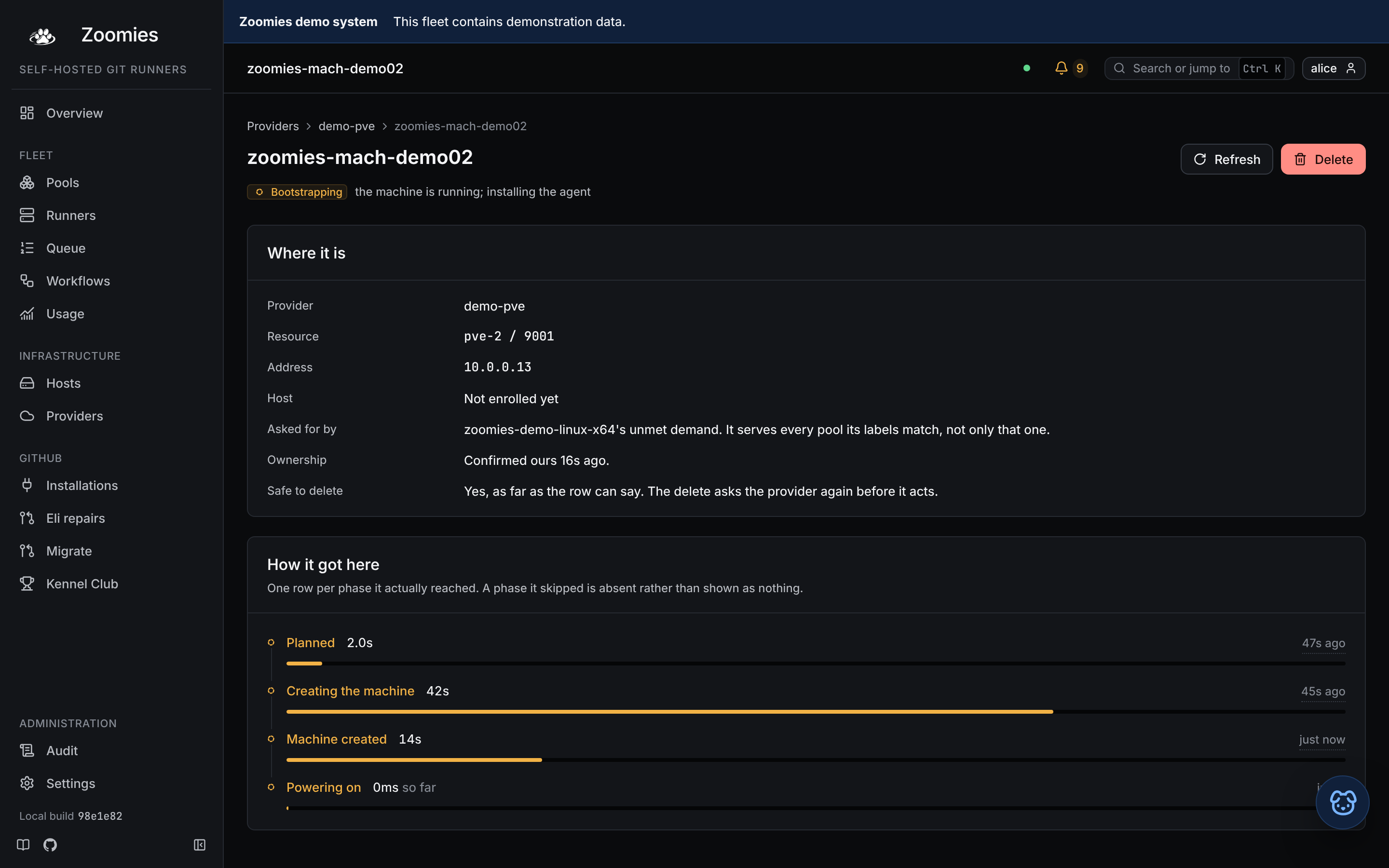
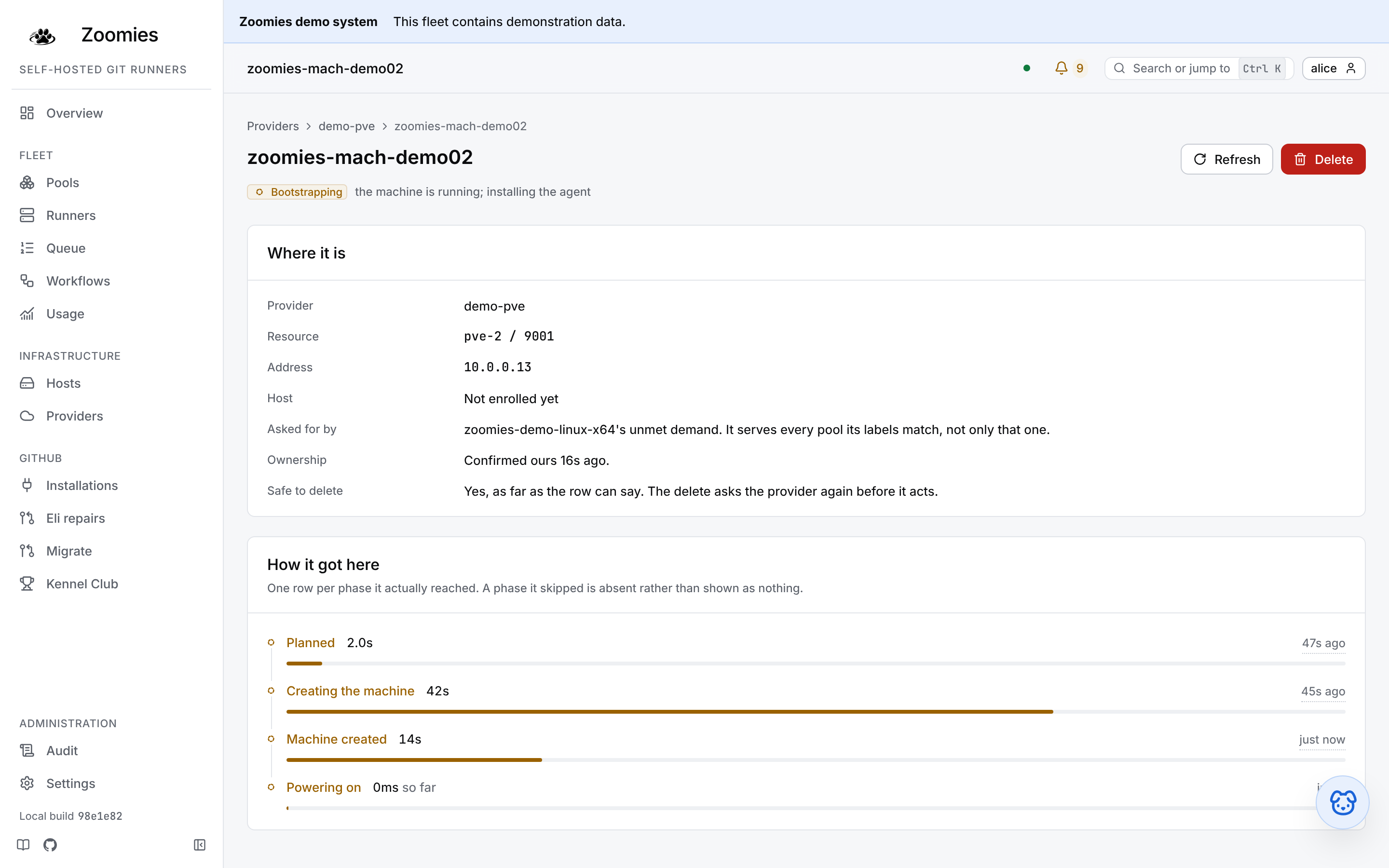
The same lifecycle band sits on the Hosts page, above the hosts these machines become, because an operator short of hosts is asking whether more are on their way. The switch beside it stops new machines being bought across every provider, and it is the only control there on purpose: it survives a restart, and it holds nothing else back (a drain finishes, a delete completes, and a machine already being built is still followed to wherever it ends up) so pressing it during an incident stops the spending without stranding a VM. A host Zoomies rented says so on its card, and its remove action sends you to delete the machine instead: removing the host here would leave the machine running, and on the bill.
There is one way to ask for a machine by hand, and it is a test. Run a test machine, in the Test machine panel on a provider's own page, builds a single real machine and follows it through each step a first job would depend on (cloned, powered on, agent installed, enrolled as a host, reported ready), then releases it; one that fails is left in place so that what it said can be read. It is held to the rules every machine is: it counts against the provider's maximum and the fleet's, it is refused while renting is off or the provider is paused, disabled or standing down, and only one runs at a time. Starting one needs the operator role, and Proxmox VE has the rest. Every other machine exists because a pool had queued work and nowhere to put it, or because a provider's warm minimum asked for one, and a second source of supply would be a second thing the reconciler would then decide to delete. An operator who wants more machines raises a ceiling. What a provider has to implement is the contract behind all of this.
Installations
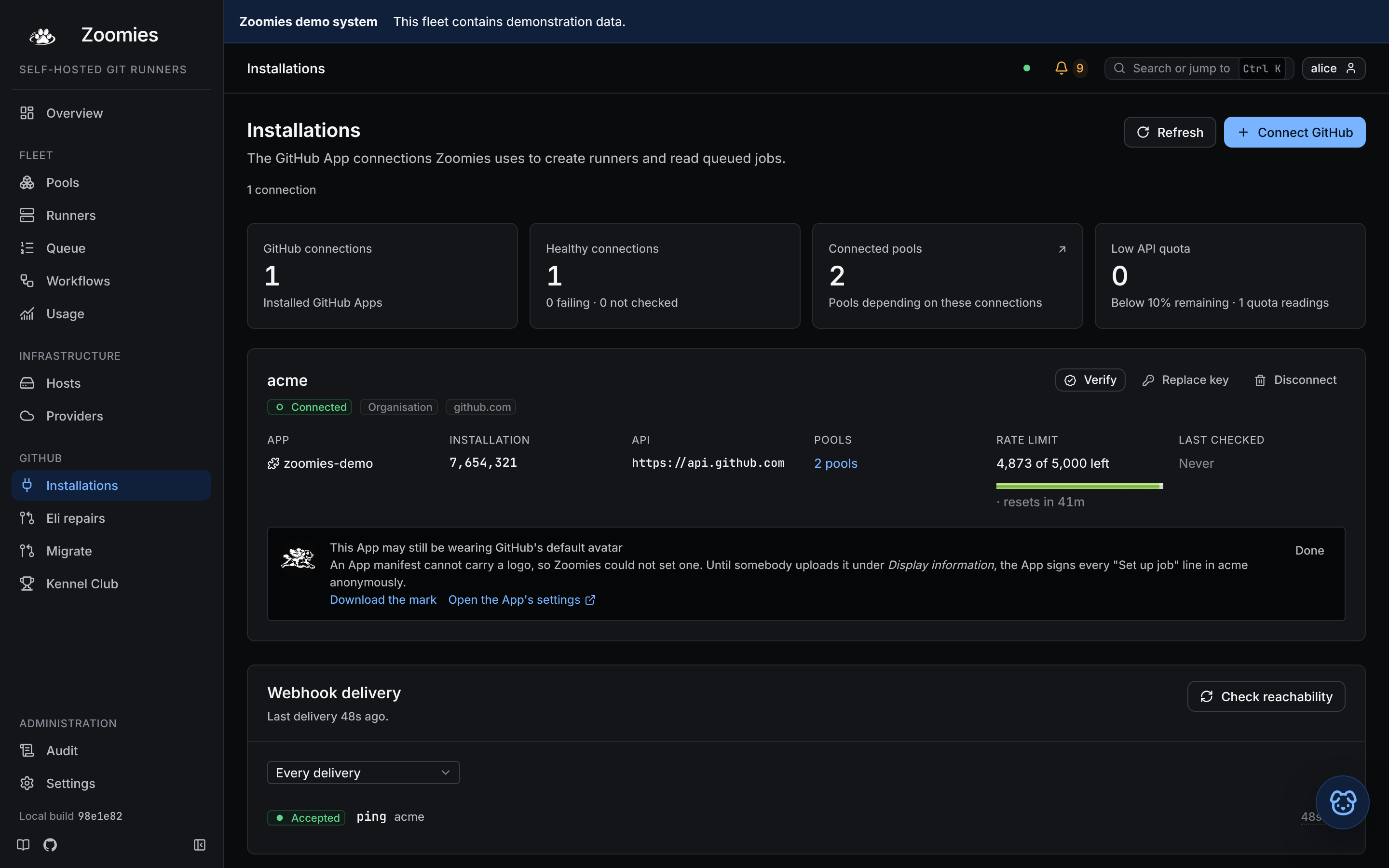
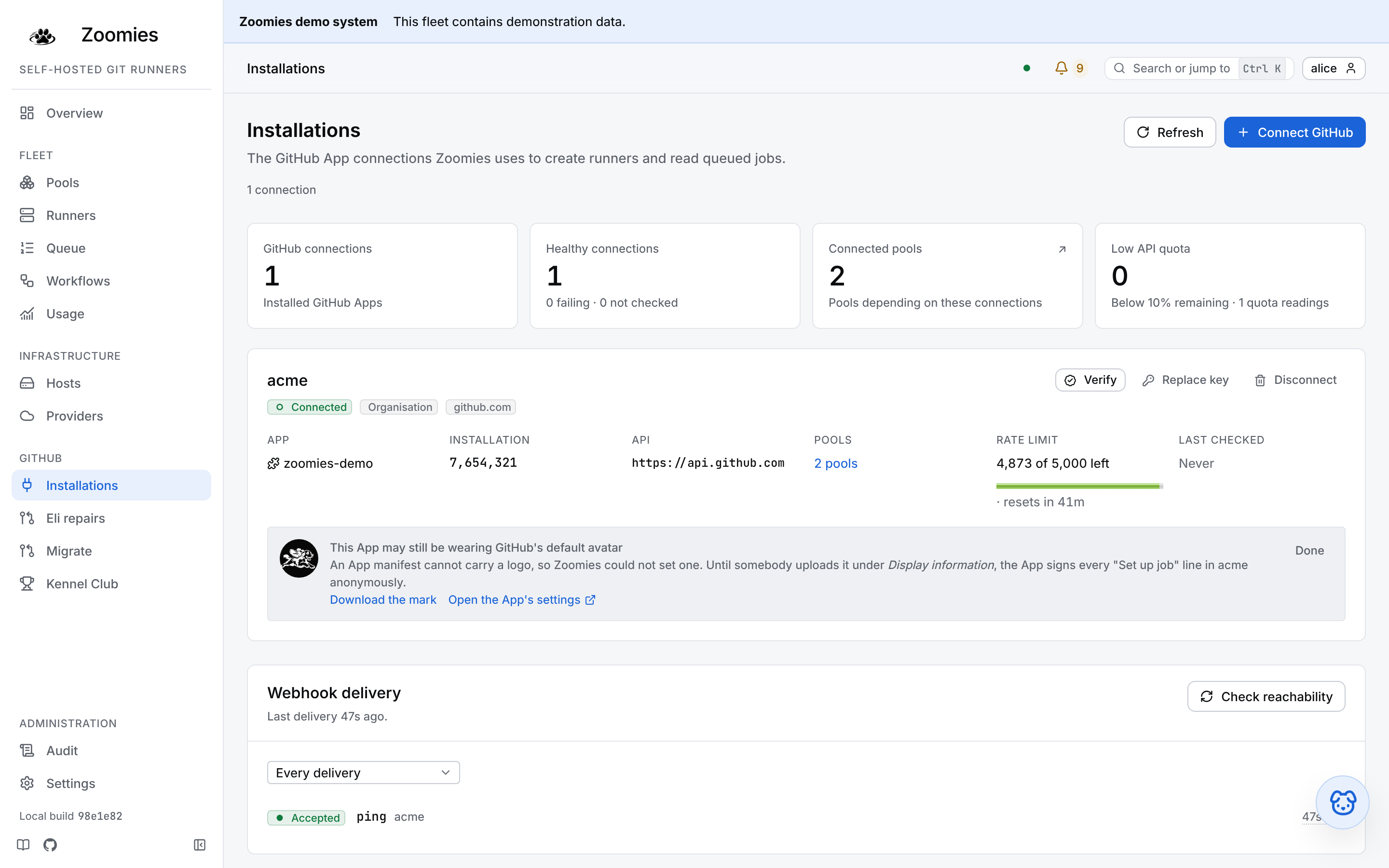
The GitHub App connections: which organisation or repository, the App and installation IDs, how much of the API rate limit is left, and every webhook delivery GitHub has made, accepted or rejected, so an empty list beside a running workflow says the deliveries are not arriving, which is the fault that otherwise looks like a slow fleet.
Ask Eli
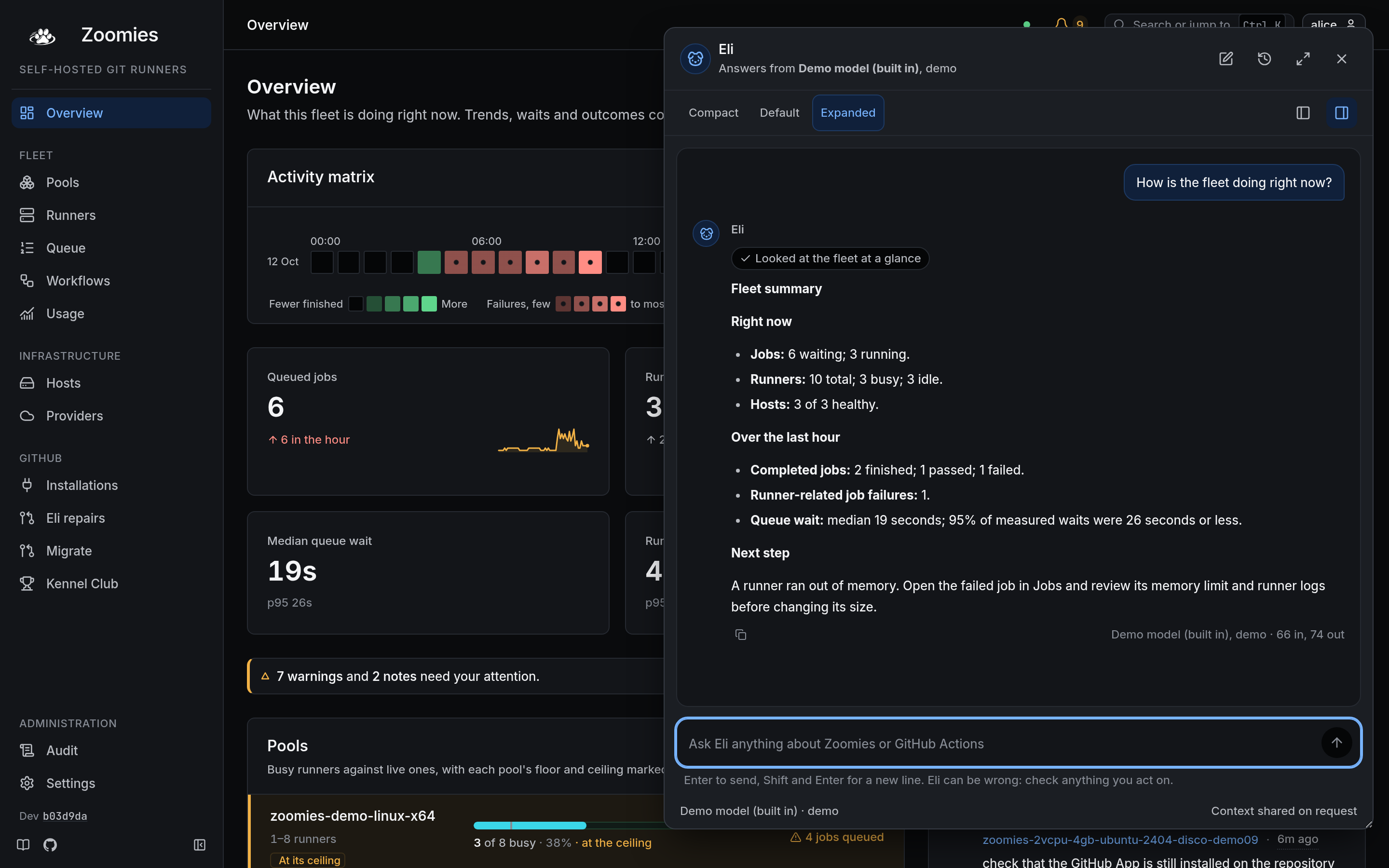
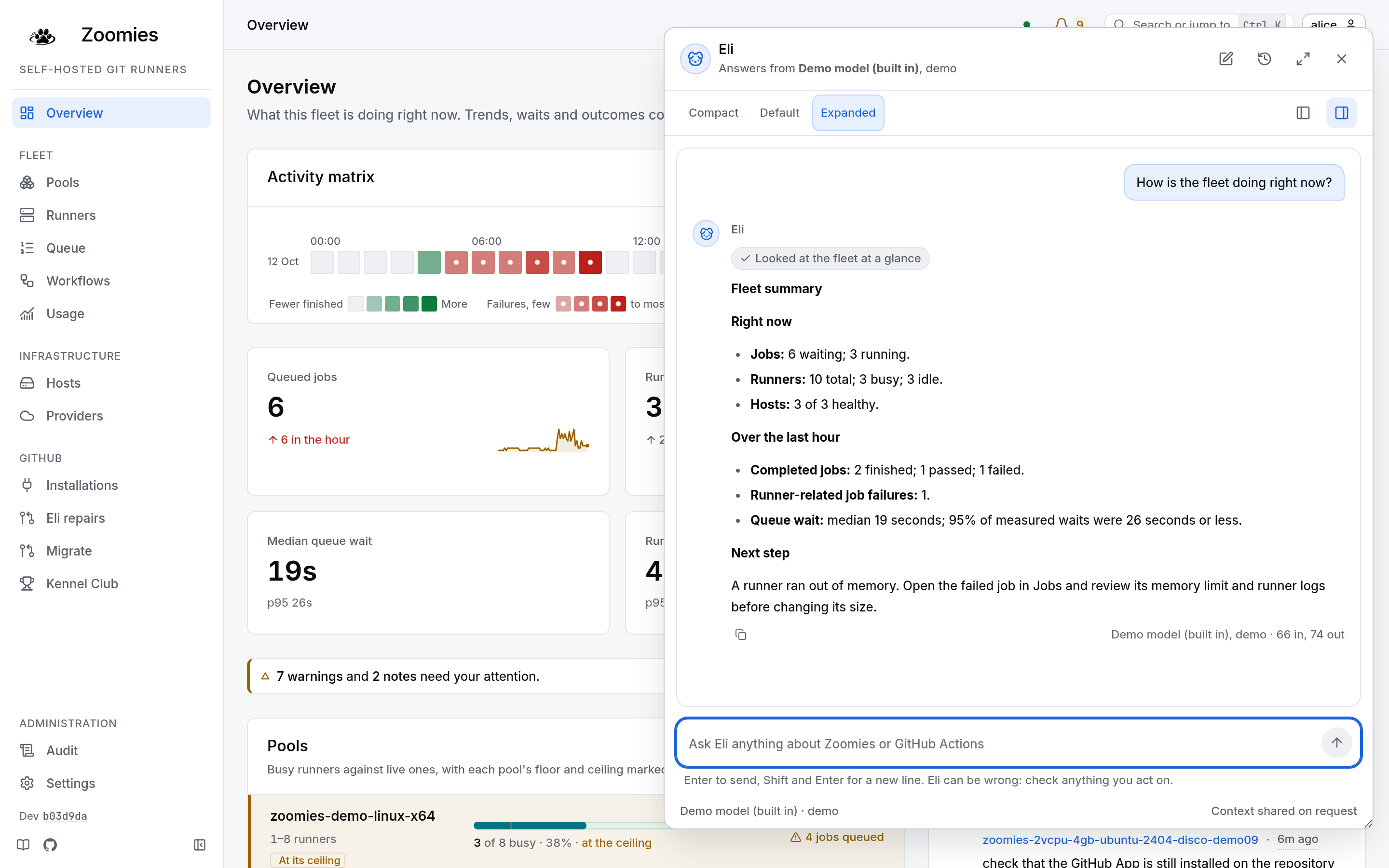
Open Ask Eli from the corner of a fleet page, or use a contextual Ask Eli button on a job, runner, host or problem. Ask about a failed build, a queue delay or a possible optimisation. The expanded panel lets you keep the fleet in view while reading the answer; What Eli looked at shows the tools behind it.
Fleet lookups require the provider's Let Eli read this fleet switch and use your own permissions. Chat advises; PR repairs take an explicit request into a change on an existing PR branch, and the same switch lets Eli read one's history: is one running, what stuck it, whether asking for another now would be refused. Starting one is still the repairs page's press. The image below uses the demo model, which turns the lookup into a readable summary of jobs, runners, host health, recent outcomes and queue waits, with a next step based on those figures. It needs no credentials. A configured model supports fuller investigation. Set up Eli or connect another assistant through MCP.
Eli repairs
Where a failed pull request check becomes a repair. It is one entry in the navigation and four pages, each doing one job: the hub, for what needs you, what is running and what happened; the repair page, for one failure; an attempt, for one repair; and setup. How repairs work.
The hub opens on Now: one line about setup (whether you can repair, your GitHub account and, for an administrator, how many repositories repair themselves and how many ask first) and an attention rail for each thing that is owed. A sticky section navigation, On this page, counts the offers, the running repairs and the automatic repositories, and carries History. On a phone the last destinations move behind More.
- Needs you opens when it holds offers, and is one line when it does not. It lists the offers Eli has made for pull requests whose checks failed on a repository set to Ask me first, one per pull request head. Each says which pull request it is about (its title and number, the repository and the branch), when it failed, and which jobs stopped at which step, so the decision to look can be made from the list. Review repair opens the repair page for that offer, and Dismiss hides it for that commit.
- In progress appears while a repair is running, with the step it is on and how long it has been going. Follow opens it. You can leave: the result appears here and in History.
- Automatic repairs is a closed summary until an administrator opens it, and appears when at least one repository is set to Automatic, and for nobody else: where nothing repairs itself the hub says nothing about it. Each repository has a row. It says who pays (the installation provider and its model) and whether that can work, with a sentence and a Fix in setup link when the provider is missing, disabled or a person's; how much of the allowance the last 24 hours have used, which is the repository's and is shared with repairs people ask for, and, when it is all used, when a place frees; the latest automatic repair, which opens, and how many are running now. Stop automatic repairs opens a dialog that asks what should happen instead, Ask me first or Turn repairs off, and says what becomes of a repair already under way: one that has not pushed yet stops before it changes the branch, unless it is already publishing, and one that has pushed carries on watching its checks. With two or more repositories Stop all does the same for every row. Stopping never turns anything on; starting Automatic is a decision made in setup.
- History is a closed summary that says how many repairs there are and how recent the latest is. It opens by itself when nothing else needs a person, and otherwise is one press away. It is a page at a time and filtered by state, repository and who or what began the repair; the filter fields sit behind Filters, and an active filter is a chip in the toolbar. A row says what the repair was about: its state, the pull request's title, repository and branch, the job and step that failed, the commit Eli pushed or why it did not, who or what began it, and when. A row opens the repair. Choosing repairs to clear them from the list is behind Select, so the list reads as a record until you mean to edit it. Clearing hides a repair and does nothing else: a cleared repair leaves the list and its total, but still counts towards the daily limit.
Repair a PR asks for a pull request's address and opens its repair page, where Eli checks it before anything is spent.
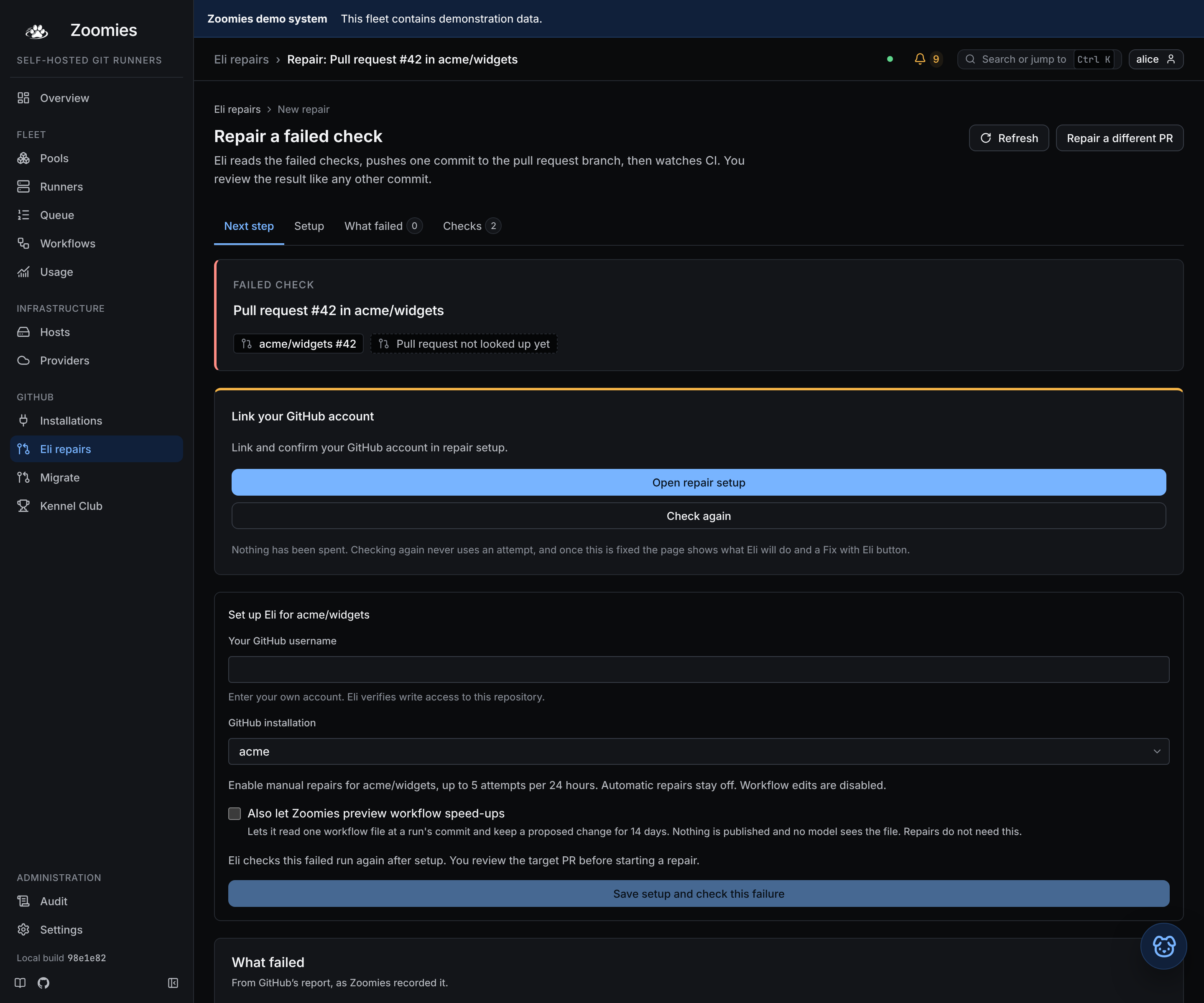
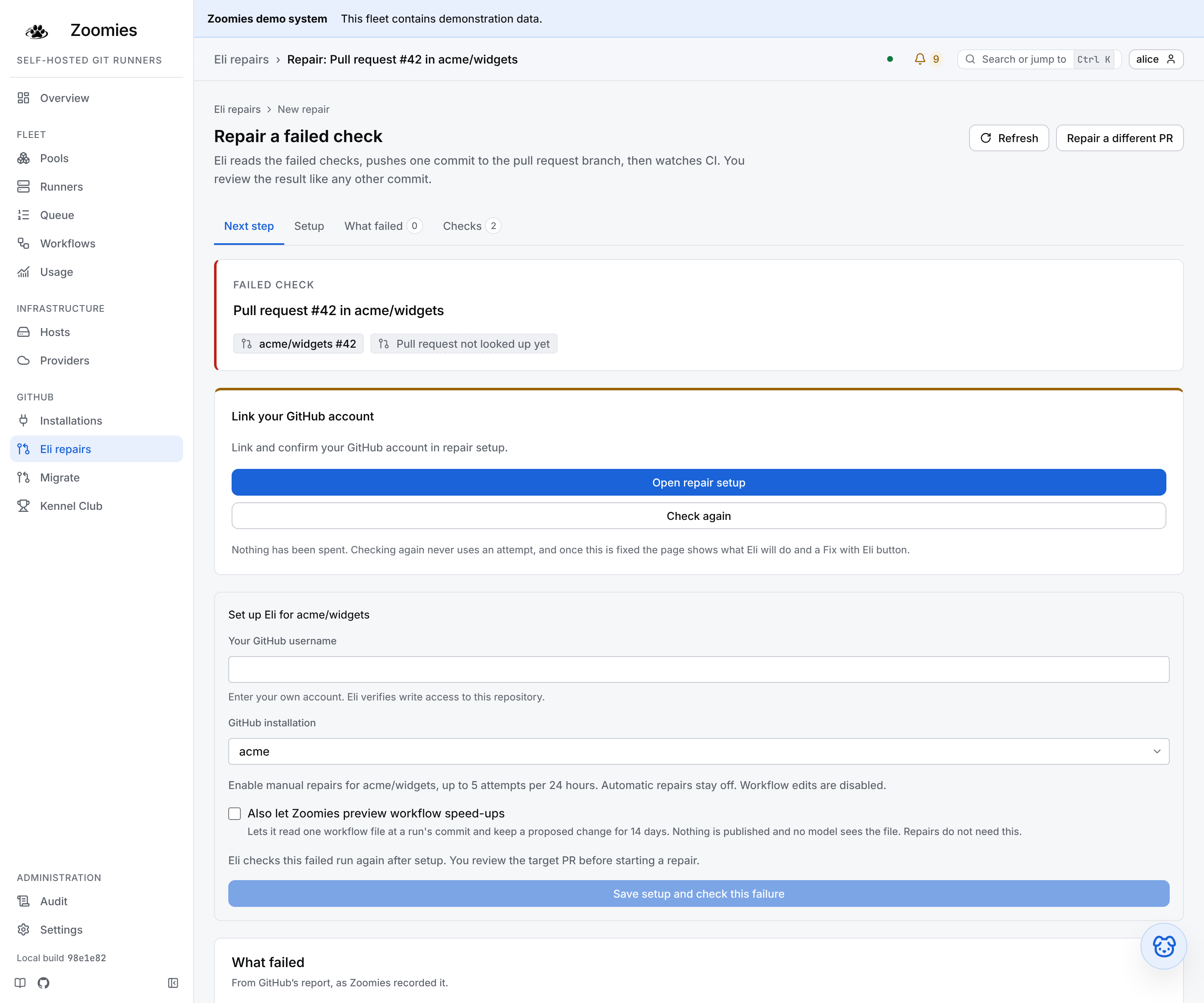
The repair page opens from Fix with Eli on a failure in the Overview or in a job's Why drawer, from an offer, or from a pasted pull request. Its On this page navigation moves between the next step, the setup when it is missing, the failure and the checks. It shows the failure before anything is spent: the pull request's title, author, branch, commit and run, each linked to GitHub, where the job ran, and every job that failed, with the step it stopped at and whether the fault was the workflow's or this deployment's. Open a job to read the end of its log. Zoomies fetches the error lines from GitHub when you ask, takes out anything that looks like a credential and keeps nothing, and does so only for a person whose linked GitHub account can write to the repository. Can Eli act on this? lists the blocked checks first, with Show all 9 checks for the rest: your GitHub account, the model provider, the GitHub App installation, write access, the repository policy, attempts left, the pull request, its failing checks and the app's permissions. Each says what passed, what is in the way and what to do about it, and a check an earlier one stopped is shown as never reached. Checking never calls a model or spends an attempt. When nothing is in the way, the decision card says who pays (the provider and its model), how many attempts are left today, whether Eli may edit workflow files and which branch it pushes to, with room to tell Eli what to look at, and Fix with Eli starts the repair and opens its page. A failure that Eli is already repairing opens that repair instead of offering another, and one that has since been fixed, closed or replaced by a newer commit says so instead of offering a repair; for a newer commit, Check the current PR asks again about the pull request as it stands now. When GitHub does not answer, the card says so and offers to ask again, whichever check was being made.
On a repository set to Automatic, a note sits above that card. For an administrator it says whether Eli already tried this failure on its own, with a link to the attempt (Eli does not try the same commit twice by itself, so starting another attempt here is the retry), or that nothing has started and the most likely reason: the provider cannot pay, the allowance is used up, or Eli starts from GitHub's report of a failed job and this failure was reported before Automatic was switched on or never arrived. For anyone else it is one sentence saying the repository repairs itself, because an ordinary person cannot read what Eli did on its own.
A repair has a page of its own, at /repairs/<id>, that follows it from the
moment it is queued. While Eli works it shows five steps, where the repair has
got to and how long it has been going, and asks again every few seconds for as
long as the tab is open and the repair has not finished. When it has finished it
says how it ended in the controller's own words and what to try next. What Eli
was asked to fix is a closed summary that opens the pull request, the run and
the failed jobs as they were when the repair began, so the page still reads once
Zoomies has pruned the job records. Technical details is closed too, with the
number of model calls, the source supplied and the time in its summary; opening
it holds the model, the stage reached, the failure
code when there is one, and every model call with its tokens in and out, its
request size and its time; a call whose provider did not report usage says
Unknown and is never shown as zero. Copy investigation details puts the ids,
states and sizes on the clipboard for a bug report, and nothing Eli read.
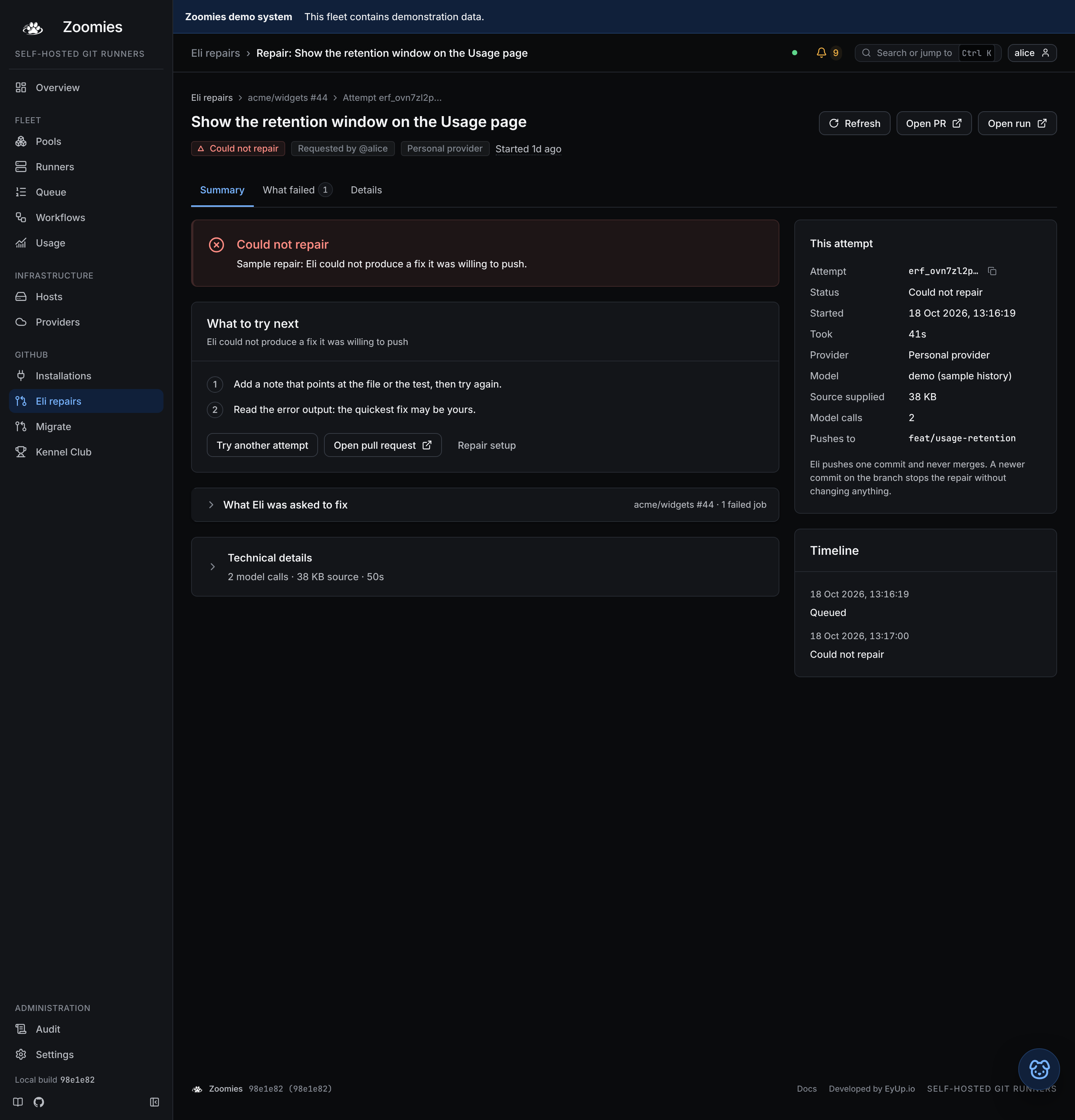
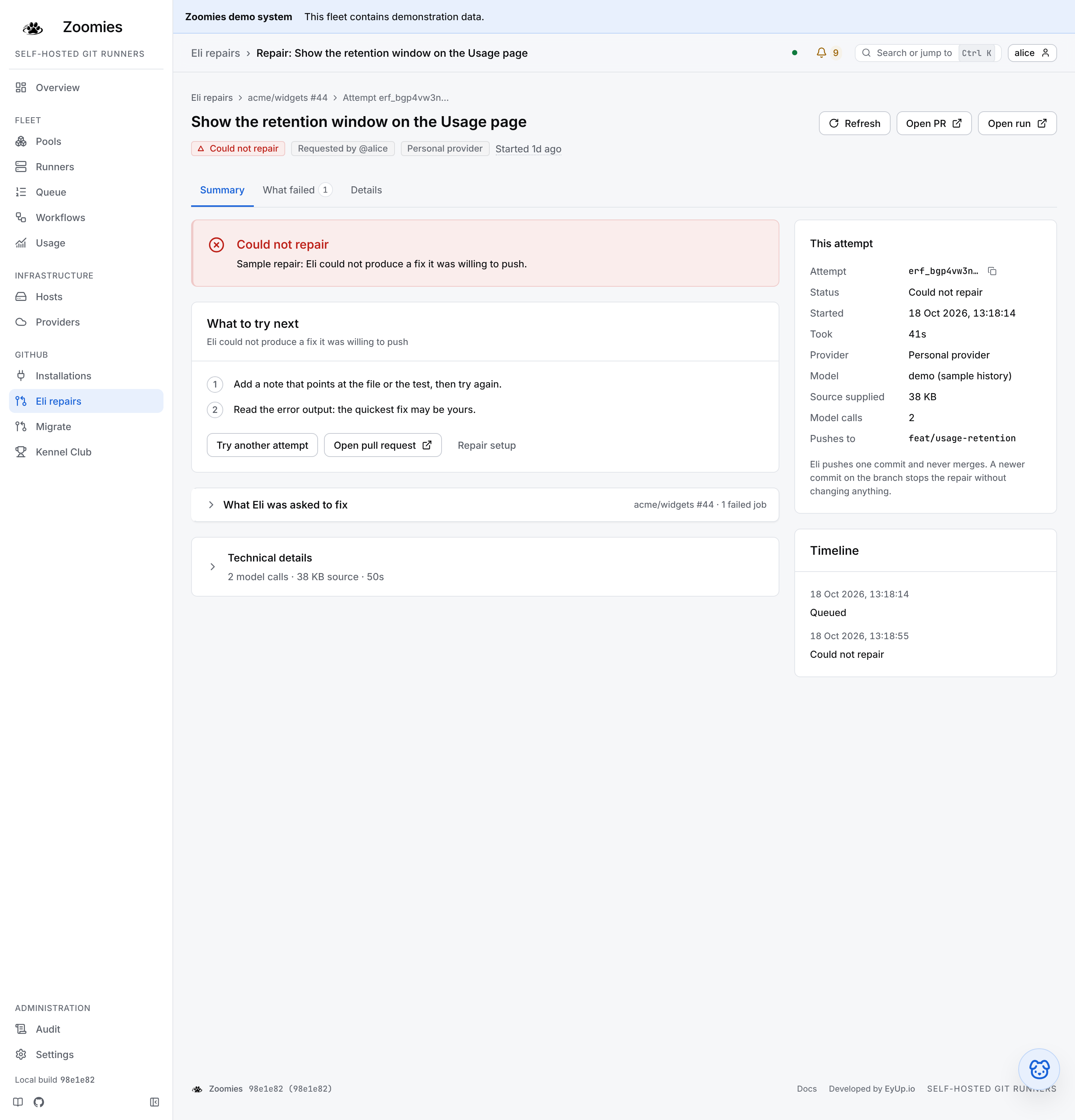
A repair the repository's policy started says so under This attempt (Started by Automatic repairs, by the repository's policy), and an administrator also gets a card, Automatic repairs on the repository, beside it. The card says where that policy stands now: still automatic (who pays, how much of the allowance is used), with Stop automatic repairs and a link to the policy in setup, or no longer automatic. While the repair has not pushed yet it says that stopping now also stops this repair.
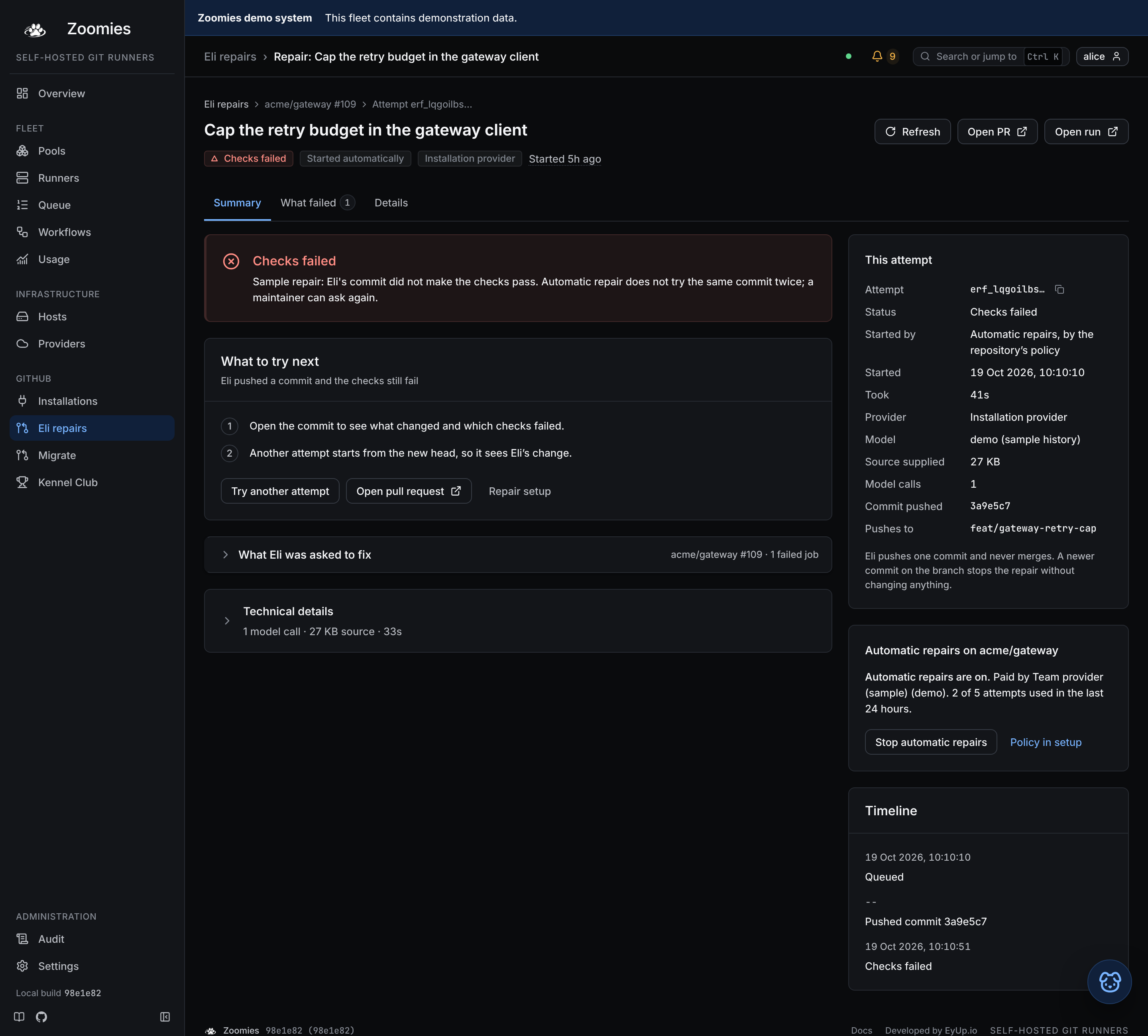
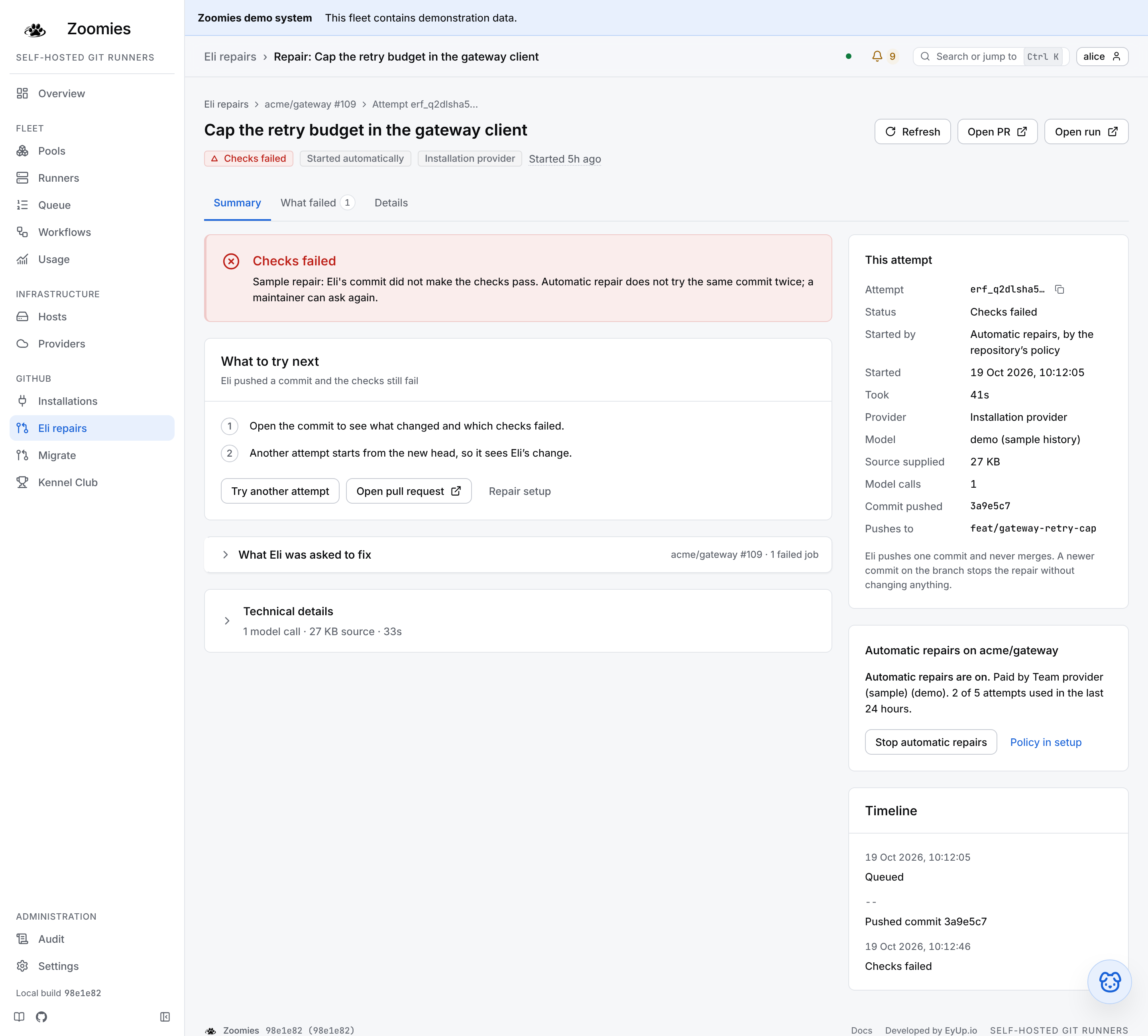
Repair setup has its own On this page navigation for the account, the repositories, the allowance and the account link. It is where administrators choose the repositories and When should Eli help?, and link each requester's GitHub account to their Zoomies user; the requester then confirms that their own provider pays for the repairs they ask for. Start with Ask me first to review offers before spending tokens. Workflow edits stay disabled until explicitly allowed, and the daily attempt budget bounds repair work. When a repair page is blocked on setup, a short wizard for that failure fixes what is missing and leaves you on it.
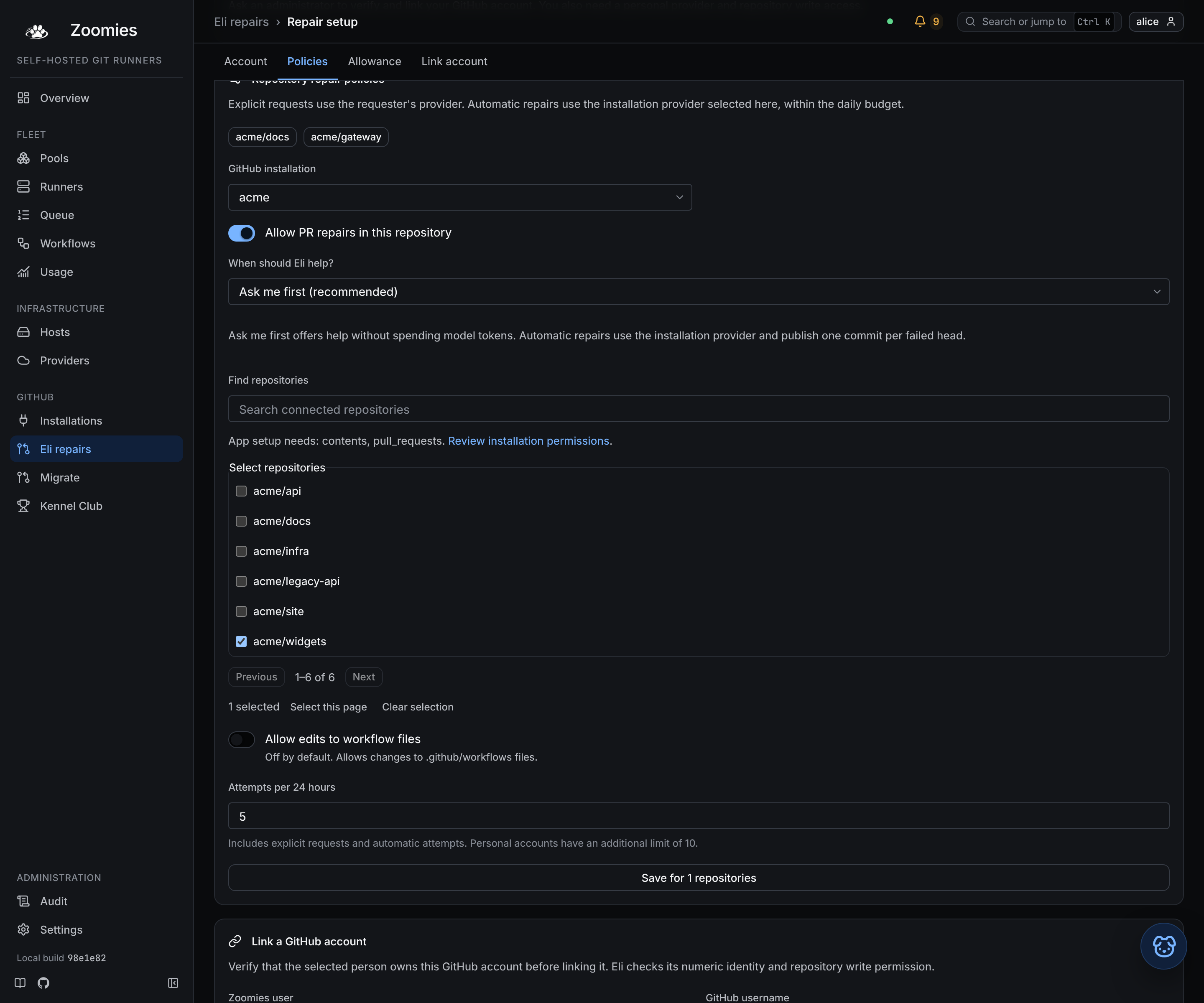
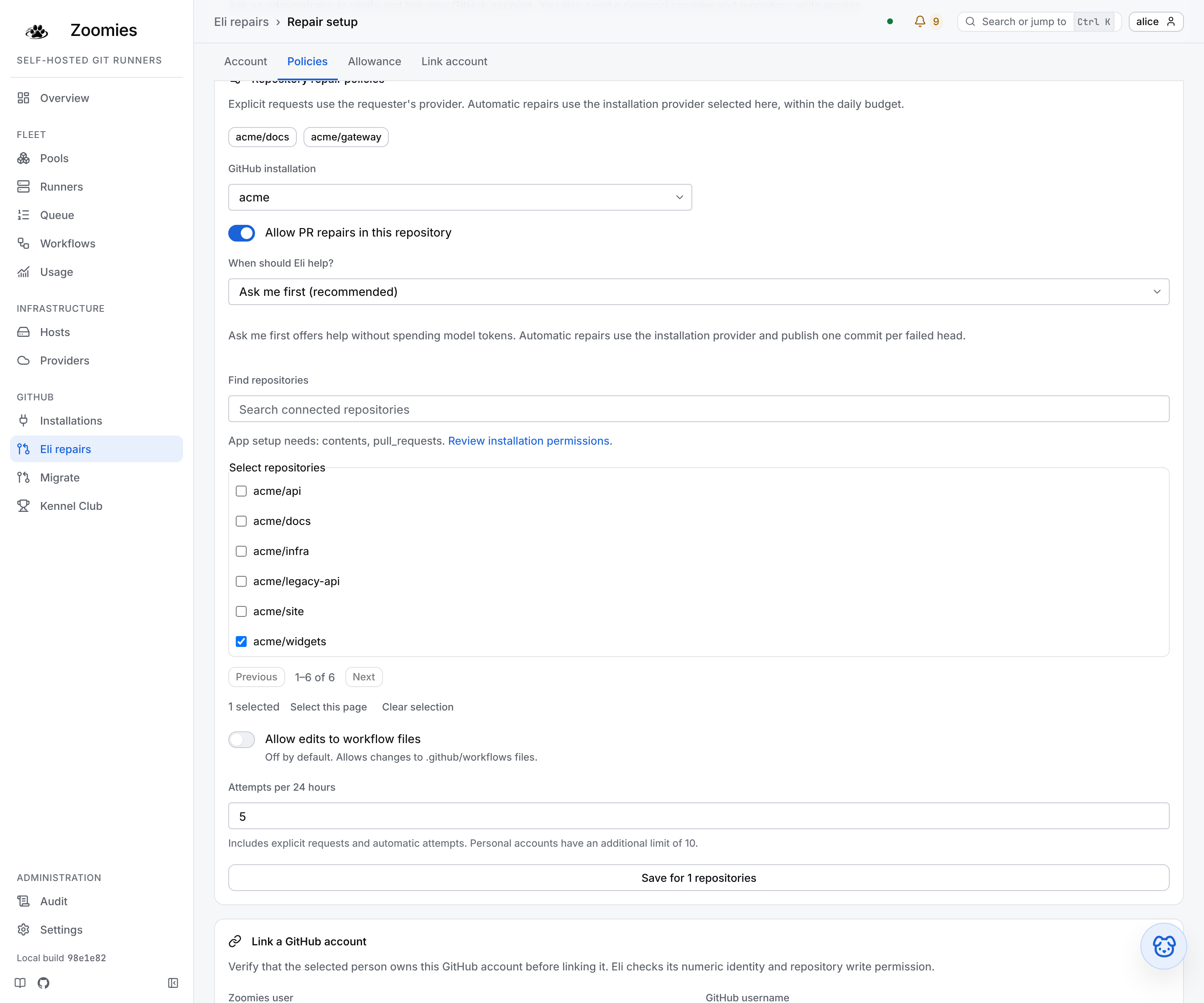
Migrate
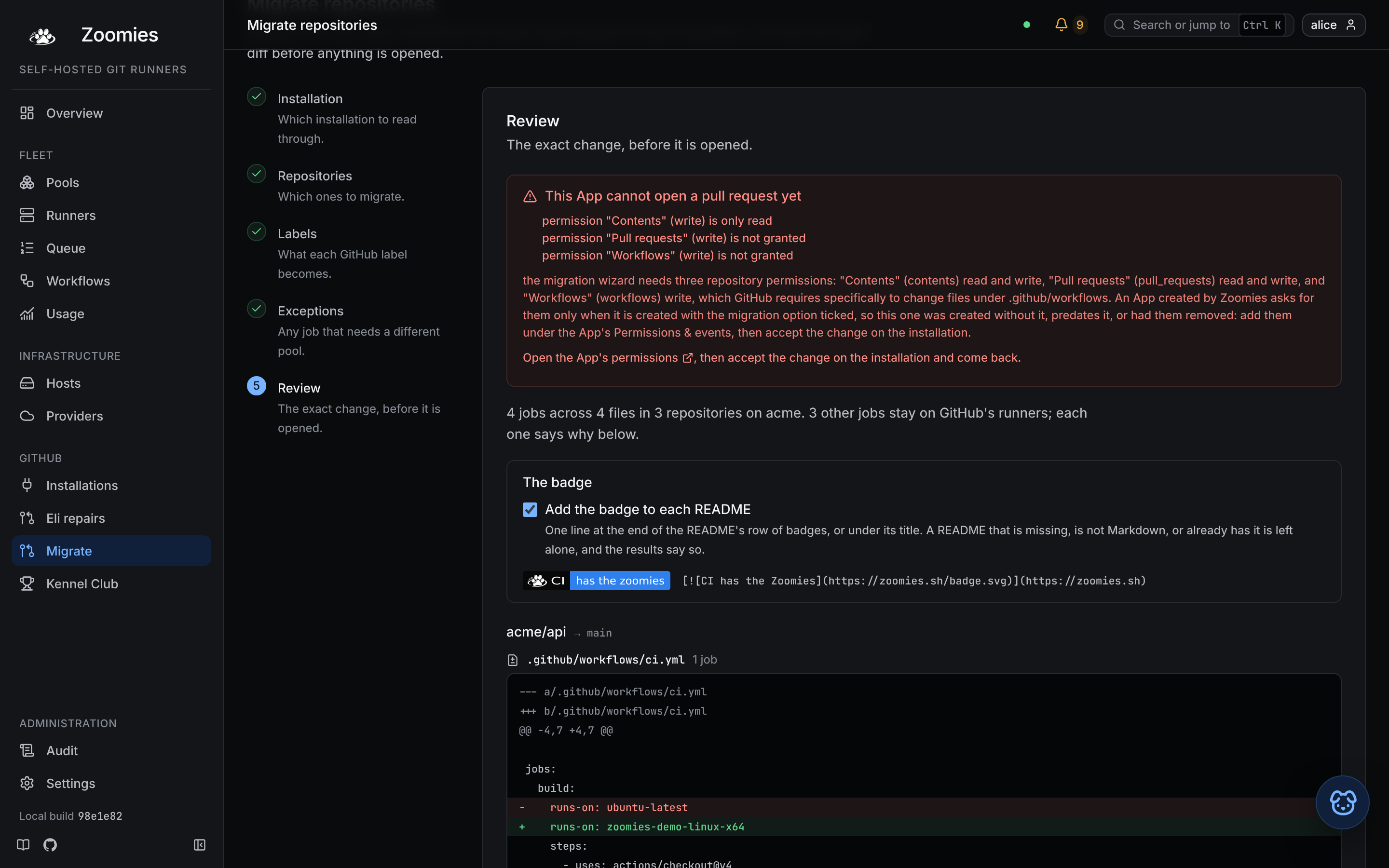
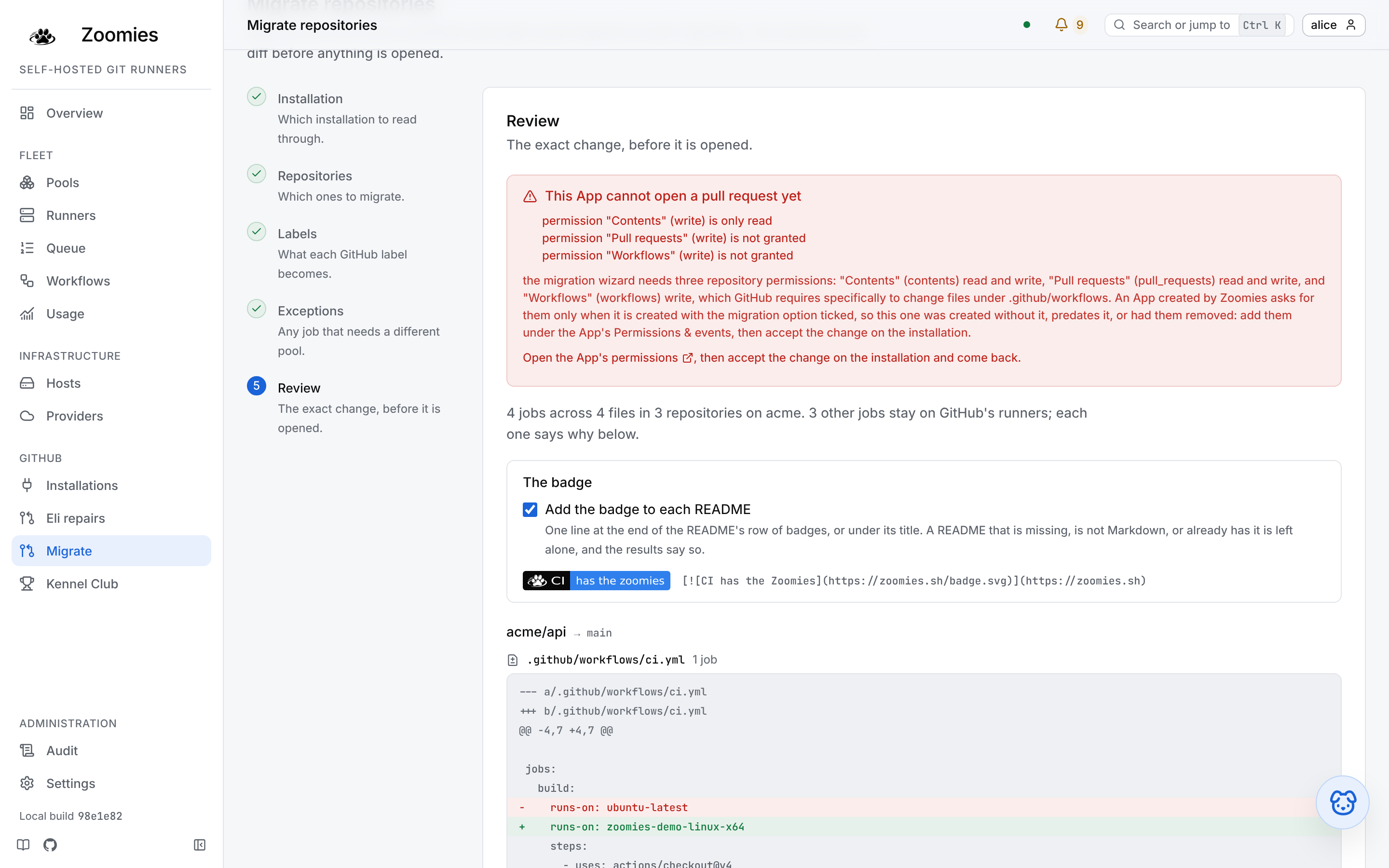
The wizard that moves repositories onto the fleet: choose an installation,
tick repositories, map each hosted-runner label to a pool, and review the exact
diff before one pull request per repository is opened. Jobs it will not touch
(a ${{ matrix.os }} expression, a runner that is already self-hosted) are
listed with the reason, here and in the pull request body. How it
works.
Kennel Club
How the repositories this fleet serves measure up against what affects CI and the fleet: a public repository whose pull requests run on a machine that keeps state between jobs, or a label no pool serves. It is off until an administrator turns on kennel.enabled, and until then the page says what it would do, what it would read and what it never does, and lists the checks it would make. The section has a side menu (Overview, Repositories and AI Context) which on a narrower screen becomes a row of buttons above the page, wrapped rather than scrolled so none of them is out of sight on a phone. At the head of it is a switch, Check repository standards, which is the kennel.enabled setting itself: an administrator turns Kennel Club on or off from the page without going to Settings, and anybody else sees which it is and who can change it. Turning it off asks first and says what it does: it stops reading from GitHub, its problem leaves the problems list, and what it found is kept for when it is turned back on. If the controller's environment holds the setting the other way, the switch says so and stays where it is. g k opens it from anywhere.
Once it is on, the Overview answers first: a verdict band says what needs attention, names the worst repository and offers the action, and the full counts follow as one compact strip. A page nav marks the sections. A card, Not tracked, appears once somebody has told Kennel Club to stop looking at a repository: it counts those, which are in none of the other numbers, and opens them. Each count opens the repositories behind it: the total, the ones with nothing open, the ones that are only partly checked, the ones that need attention, the repositories with an error or a warning open, and the ones with a waived finding. A count of nothing has no link, since it would open an empty list. Under that, What is open by check says which repositories have each check open, with the affected checks first; the checks with nothing open and the checks somebody turned off each fold away in their own disclosure, because "nothing open" and "not running" are not the same sentence. What Kennel Club can see says how far each source of facts could be read. When something could not be read, the counts are a minimum, and the page says so above them rather than letting a count read as a total.
A repository's standing is one of four: Best in show (or No open findings, with plain status words), Needs attention, Partly checked and Pending. Nothing is shown as all clear on a read that was not whole.
Repositories lists the ones the fleet is serving, worst first. The Overview's five questions are quick views with counts above the list, and the filters are one row: severity, check and tracking (the standing now lives in the quick views). Each filter is in the address, so a view is a link to send. Visibility is hidden by default and stays in the Columns chooser. Serving means a job the fleet had a hand in within the last thirty days, or within as long as it keeps its jobs if that is shorter. Kennel Club keeps a row for a repository for a quarter after its last job, and under the installation scope for every repository the App can see, so a switch, Active on Zoomies, leaves the quiet ones out, and a line under the filters says how many it has left out and offers them. The switch is each person's own and is remembered in their browser; it starts on. The Overview's counts, its cards and the Kennel Club problem still cover every repository it is tracking, so an error on a quiet repository is never hidden, and a link from any of them opens the list on every one of them (?active=all) so that it shows as many rows as the number it came from. A repository Kennel Club has been told not to look at is left out of the list the same way, and for the same reason, and the Tracking filter brings them back (?tracked=false for those alone, ?tracked=all for both): a row for one says Not tracked, that nothing is evaluated for it, and since when. Opening one shows it in sections, and each has an address of its own, so a link opens on the one you were looking at. Findings leads when the repository has something open, and Fleet activity usually leads when it does not. Fleet activity is what the fleet knows of the repository from the jobs it ran for it: how many finished in the last 7 or 30 days and how they ended, the share that succeeded, how long they waited for a runner and how long they took, the pools and hosts that ran them, and any job queued for a label no pool serves. Each figure opens the Jobs page on the jobs it counted: the finished jobs, the ones that failed and the ones this fleet lost, each pool's and each host's count, and the two timings with the slowest first. The list starts at the same minute the window did and leaves out the same hosted-runner jobs, so it shows the number on the tile. None of it is read from GitHub, so it is there whatever Kennel Club could or could not read. Jobs on somebody else's hosted runners are left out, because the fleet did not run them, and a window as long as the fleet keeps jobs says so, because it is only what is still held. Findings is what Kennel Club concluded: each finding as what is wrong, what to change and where it was seen, the pools and runs it is about, and then what could be read and what could not, with the permission that would fix it. Protection and Agent guidance are areas of Findings, reachable as filter chips, and their old addresses, /protection and /agent-guidance, open the area they name. Operators can press Recheck to have it read again, and Waive a finding they have decided is acceptable here. A waiver needs a reason of at least ten characters and an end, at most a year away, because a decision nobody is asked to make again is how an exception becomes the rule. Waiving an error is an administrator's decision; an operator can waive a warning or a note. A waived finding is not counted while the waiver runs, and it is never hidden: it is listed under Waived with who decided, why and until when, and it comes back by itself if it gets worse. Any operator can end a waiver, which puts the finding back. The Agent guidance area shows optional instruction-file checks and lets an administrator preview safe changes and open a draft pull request. It checks structure and references separately from AI Context freshness. The Protection area gathers the findings about the repository's settings and the status checks its default branch requires, with what was read of each, the permission that would fix a gap, and a link to the GitHub page where each is fixed; until kennel.settings_checks is on it says the checks are off. AI Context is the card the AI Context page lists, for this repository: its state, what it last verified, why a run failed and what Zoomies will do about it, and the actions that fit where it is. It is found by the installation and GitHub's ID for the repository, it offers setup to an administrator or the installation's owner when there is none, which opens with this repository already selected (they can untick it), and it adds no switch, because AI Context is set up and removed by reviewed pull requests and not turned on and off. Somebody who may not configure the installation is answered the same whether or not the repository has AI Context, so for them the tab says it cannot tell, and offers only the AI Context page.
A repository's page has a switch, Track this repository, in the meta line under the title; Recheck is the page's primary action. Every repository is tracked until somebody says otherwise. An administrator can stop Kennel Club looking at one, and it asks for a reason of at least ten characters first, because stopping silences the repository's errors and whoever finds it quiet in a year will want to know why. An operator can start it again with one press, because that can only make Kennel Club stricter. Anybody else sees the state and who can change it, instead of a switch that would answer 403. A repository that is not tracked is not read from GitHub and nothing is evaluated for it: it has no findings, raises no problem, is counted on the Overview as Not tracked and in no other number, and has no Recheck. Its page says who stopped it, when and why, and its CI tab says that having no findings is not an all clear. Its Overview still works, because that is the fleet's own record (its summary of what Kennel Club says reads Not tracked, not a standing), and so does AI Context, which is not Kennel Club's to stop. Its waivers are kept and do nothing until it is tracked again. It is kept however long it has been quiet, so a sandbox does not come back tracked, and read, the day somebody pushes to it. On the Repositories list an administrator can tick several rows and press Stop tracking, which asks for one reason, names what it is about to stop, leaves alone any that are already stopped, and sends a request for each, one after another, so that each has its own audit entry and a refusal is named; anything it could not stop stays ticked. Nobody else is offered the tick boxes.
AI Context lives under Kennel Club, at /kennel/ai-context, with a row of its own in the side menu. The row carries a count when a repository's last workflow run has failed (red if any of them is an error, amber if all are warnings) and nothing otherwise, so a fleet where AI Context works, or where it is not used, has no badge to learn to ignore. It counts the same failures the problems list names, one for each repository, and follows them live; it does not count repositories that are only waiting for their setup pull request to be merged. It sits apart from the switch because it works with Kennel Club off, and the confirmation for turning Kennel Club off says so. Its setup wizard is a task rather than a place, so it has no side menu and a way back instead. The old address, /ai-context, opens the same page, so links and bookmarks keep working.
AI Context
Repositories prepared for AI coding assistants, and the way to prepare more. Enable repositories opens a six-step wizard: choose repositories, check the installation's permissions, pick where the context lives, set exclusions and retention, choose source readers, and review. Saving makes resumable drafts. Review setup changes then shows every file the setup pull request would write before one is opened. The page lists repositories before it explains itself, with a summary band and views that count what is in setup, ready and needing attention. Each repository's card shows its status, when it was last checked and the last commit verified, with the action that fits its state and Reinstall / repair; Amend and Remove are under More actions, and the AI instructions and badge under their own disclosure. How AI Context works, and Installation owners, sit below the list.
Administrators can also choose Installation owners, who enable repositories for one installation without being administrators. A person who is only a source reader sees just the repositories shared with them.
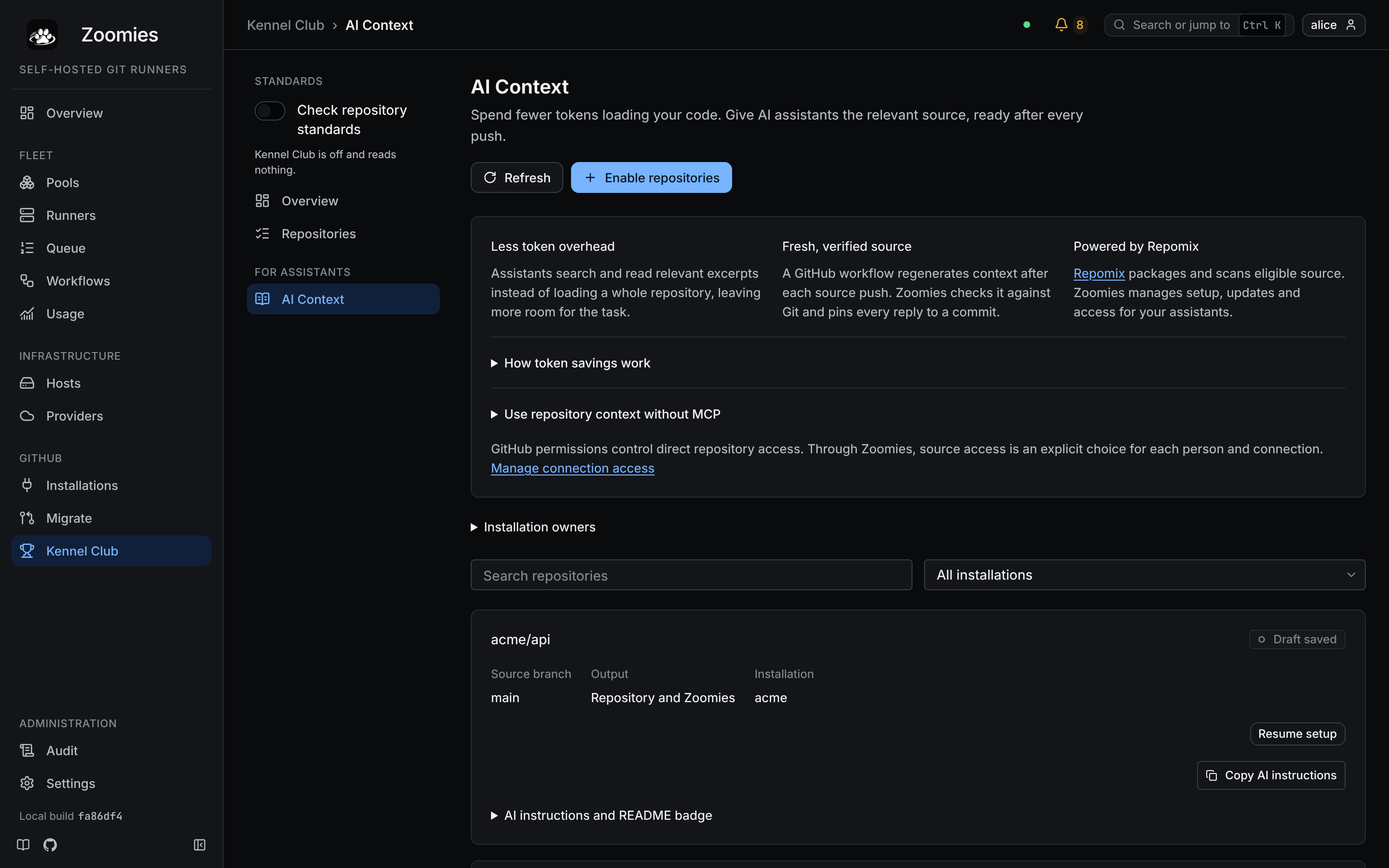
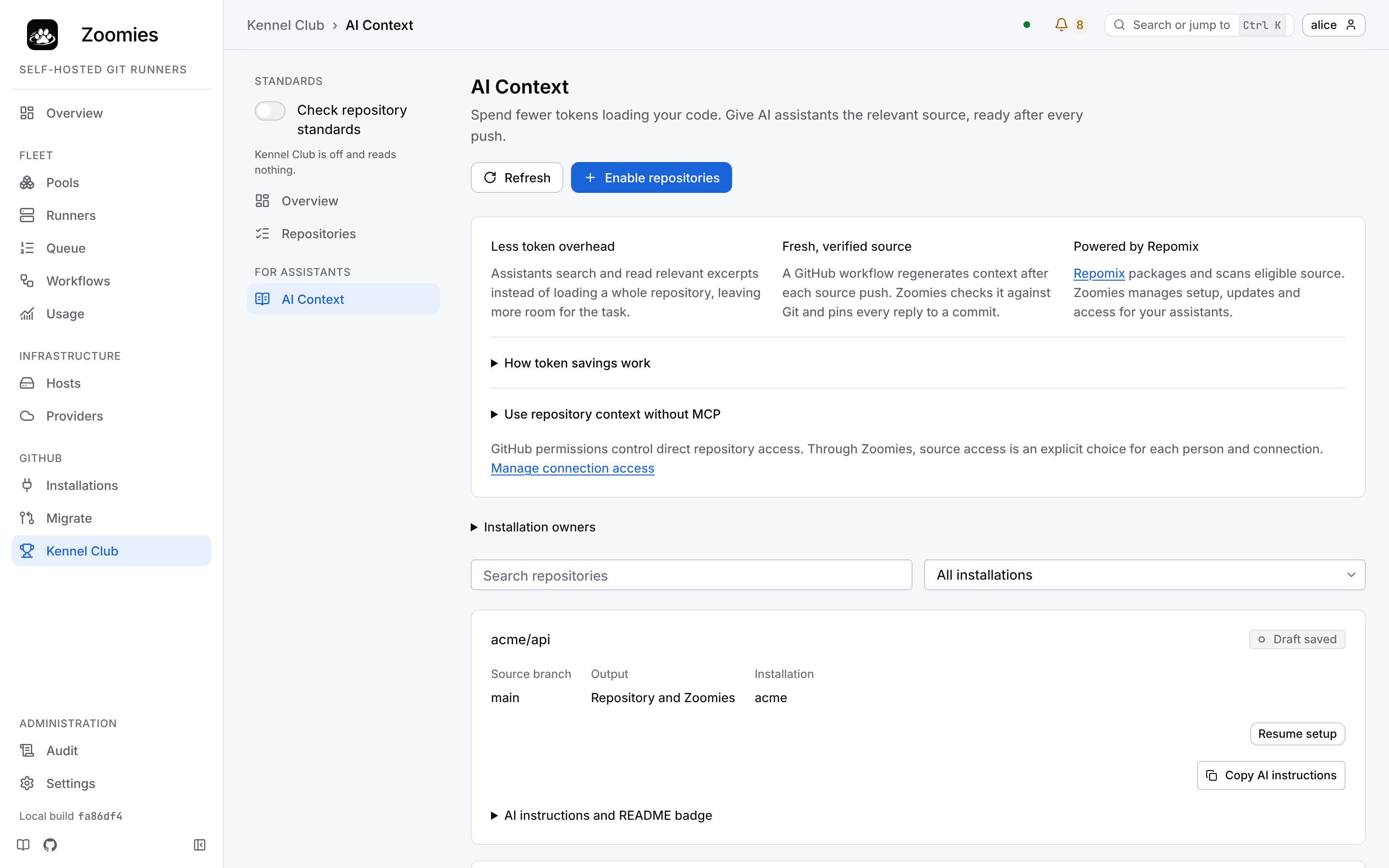
AI Context walks through setting it up and using it.
Audit
Every change made through this controller and who made it (users, API tokens and the system itself) with the target and the source address. Open an event to see exactly what changed. Secrets were redacted when the row was written, so nothing here can leak one.
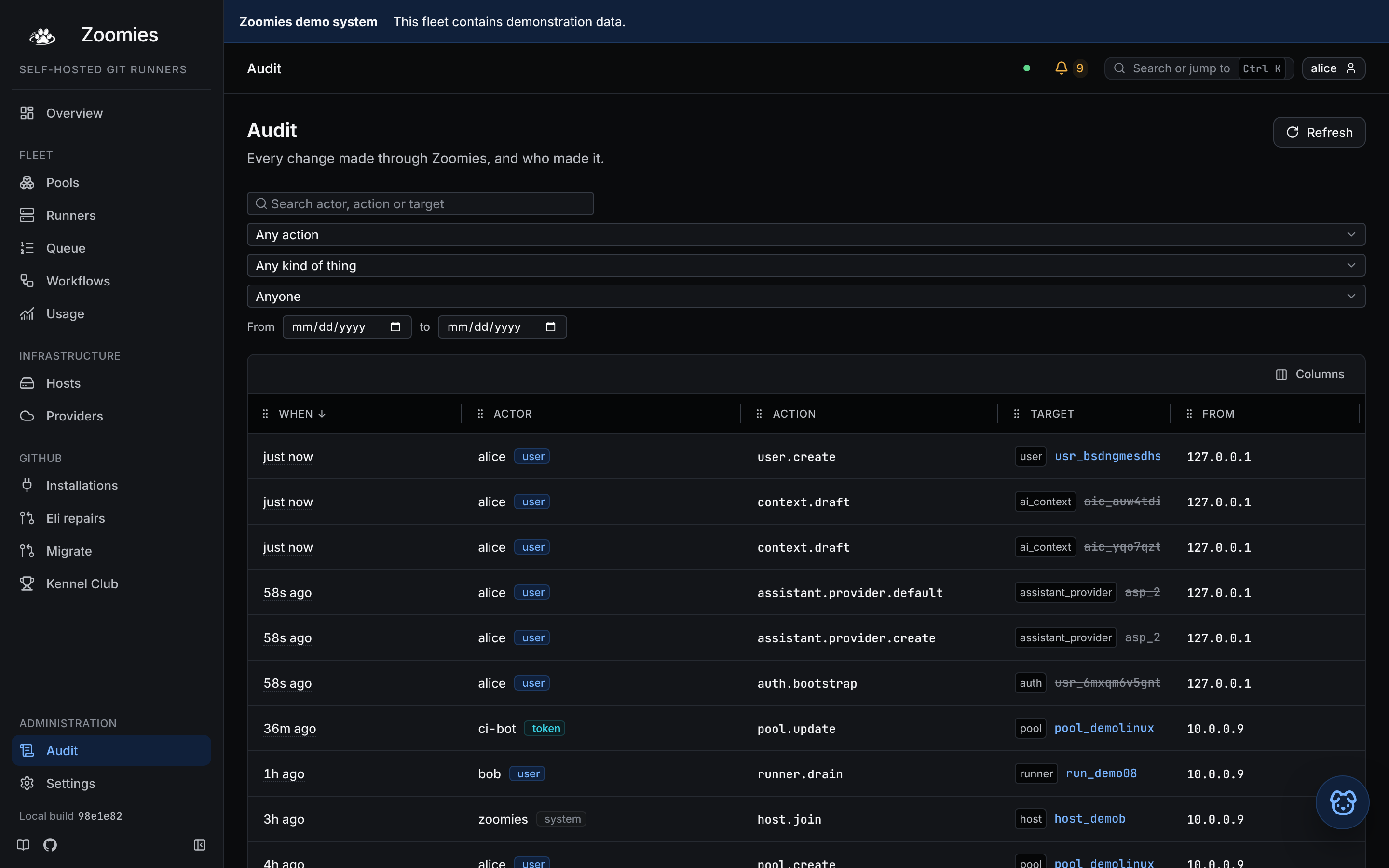
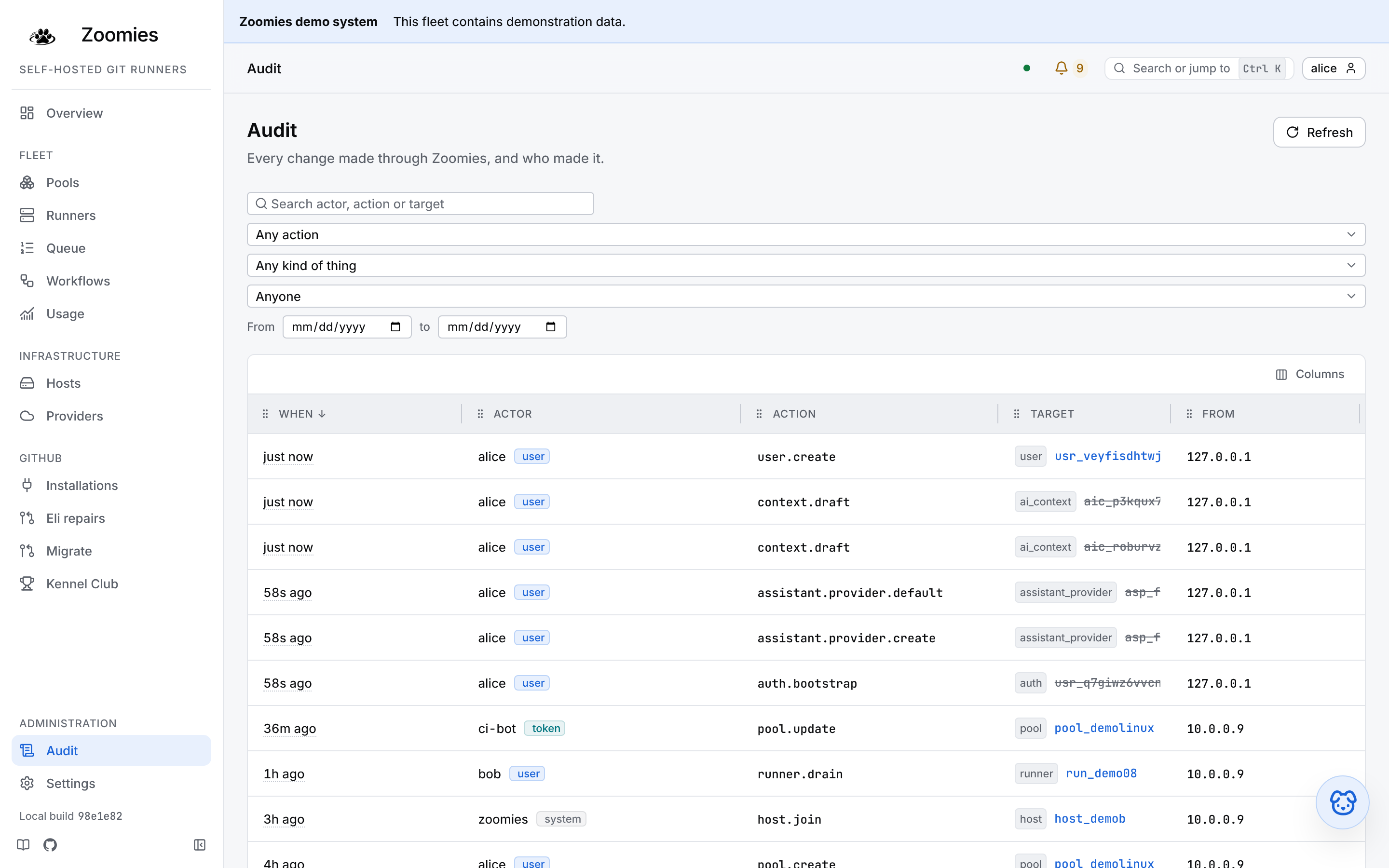
Settings
A section of pages rather than a page of tabs, with its own rail beside them: your account, appearance and which events the Overview's feed shows; the accounts that can sign in and their roles, and the API tokens; the configuration this controller is actually running with, its backups, which release an update would take, and what it is. Each page has an address of its own, so a settings page is a link. Zoomies refuses any change that would leave no enabled administrator, and the pages that need that role are listed for everybody, marked rather than hidden.
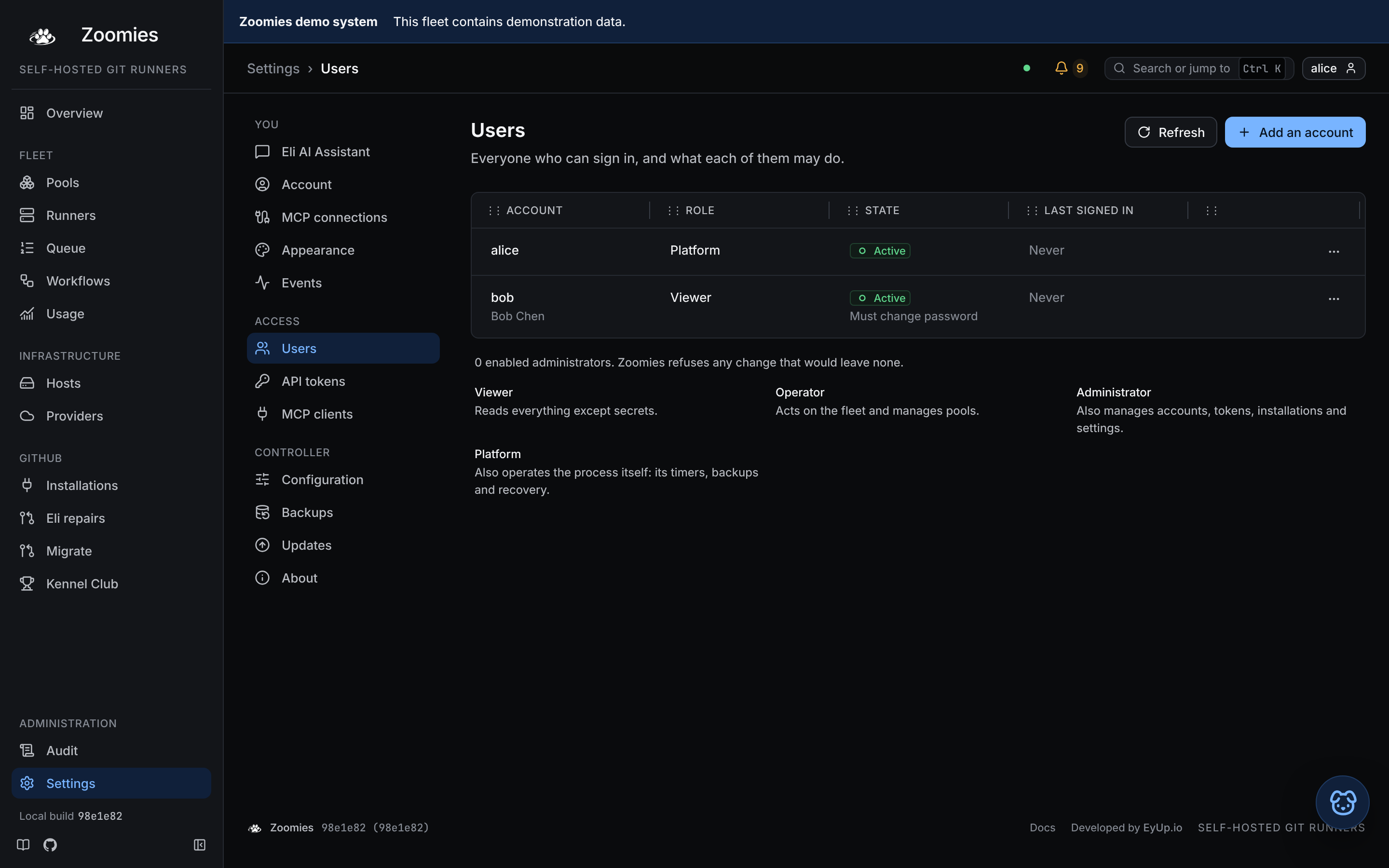
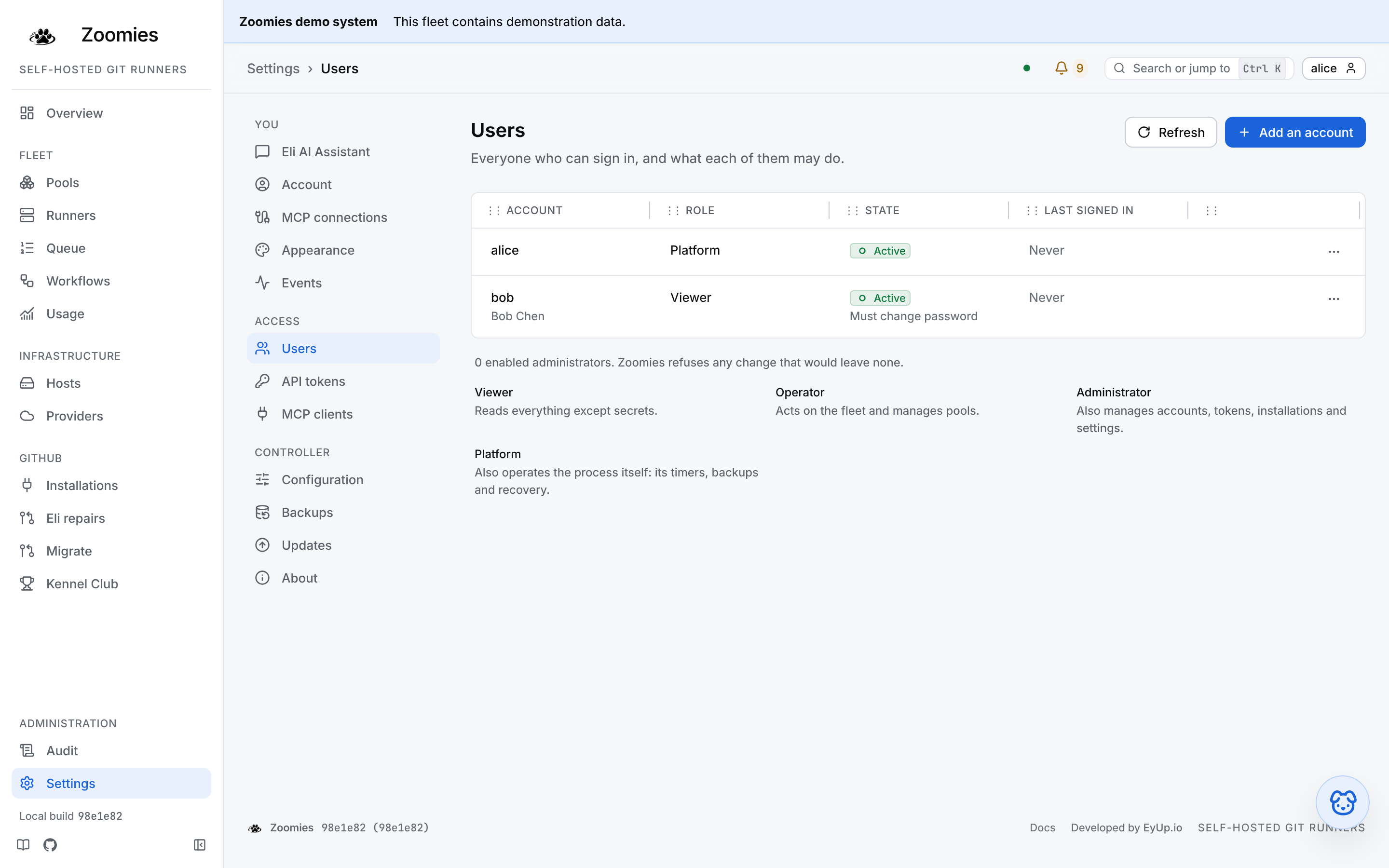
Eli AI Assistant
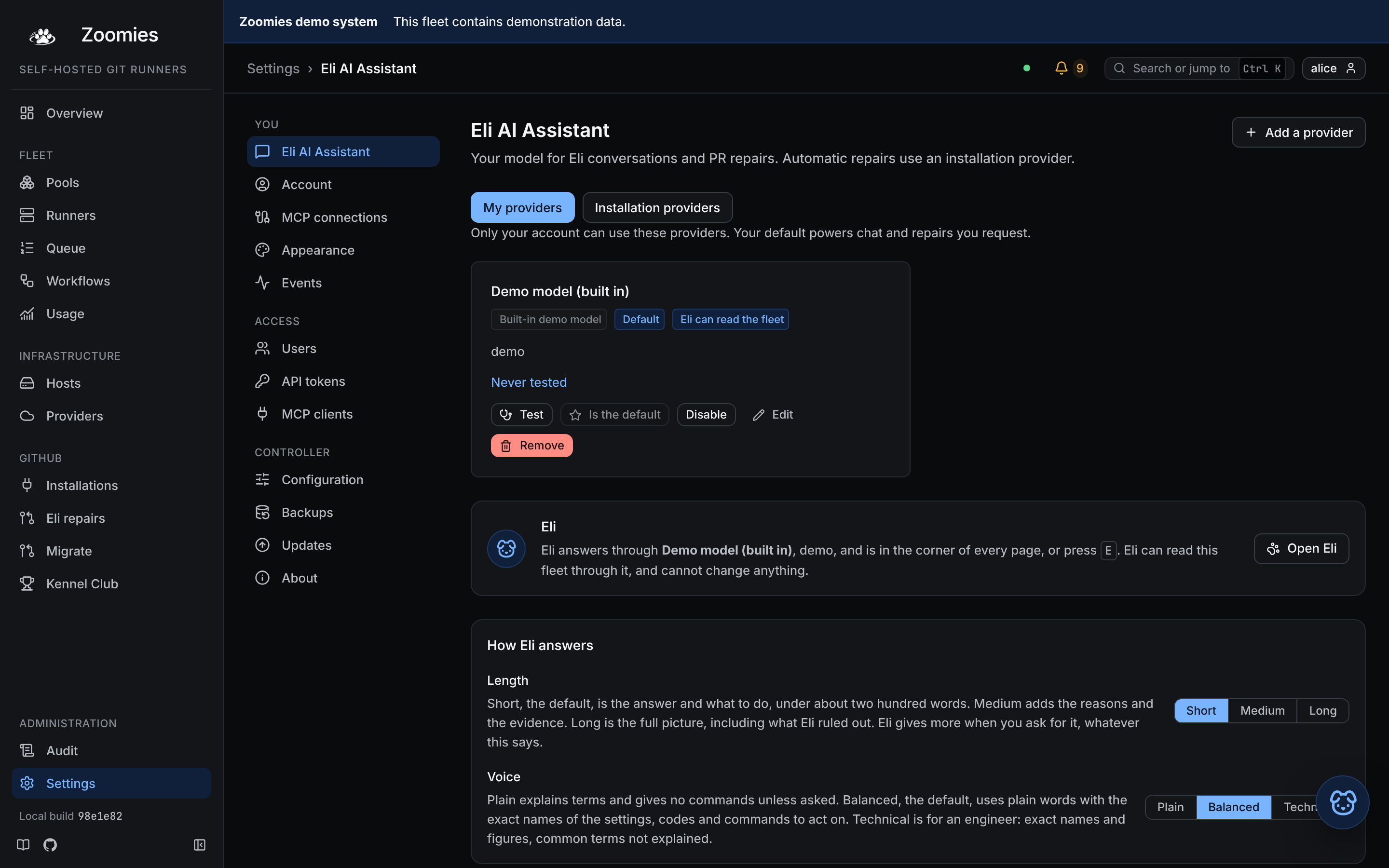
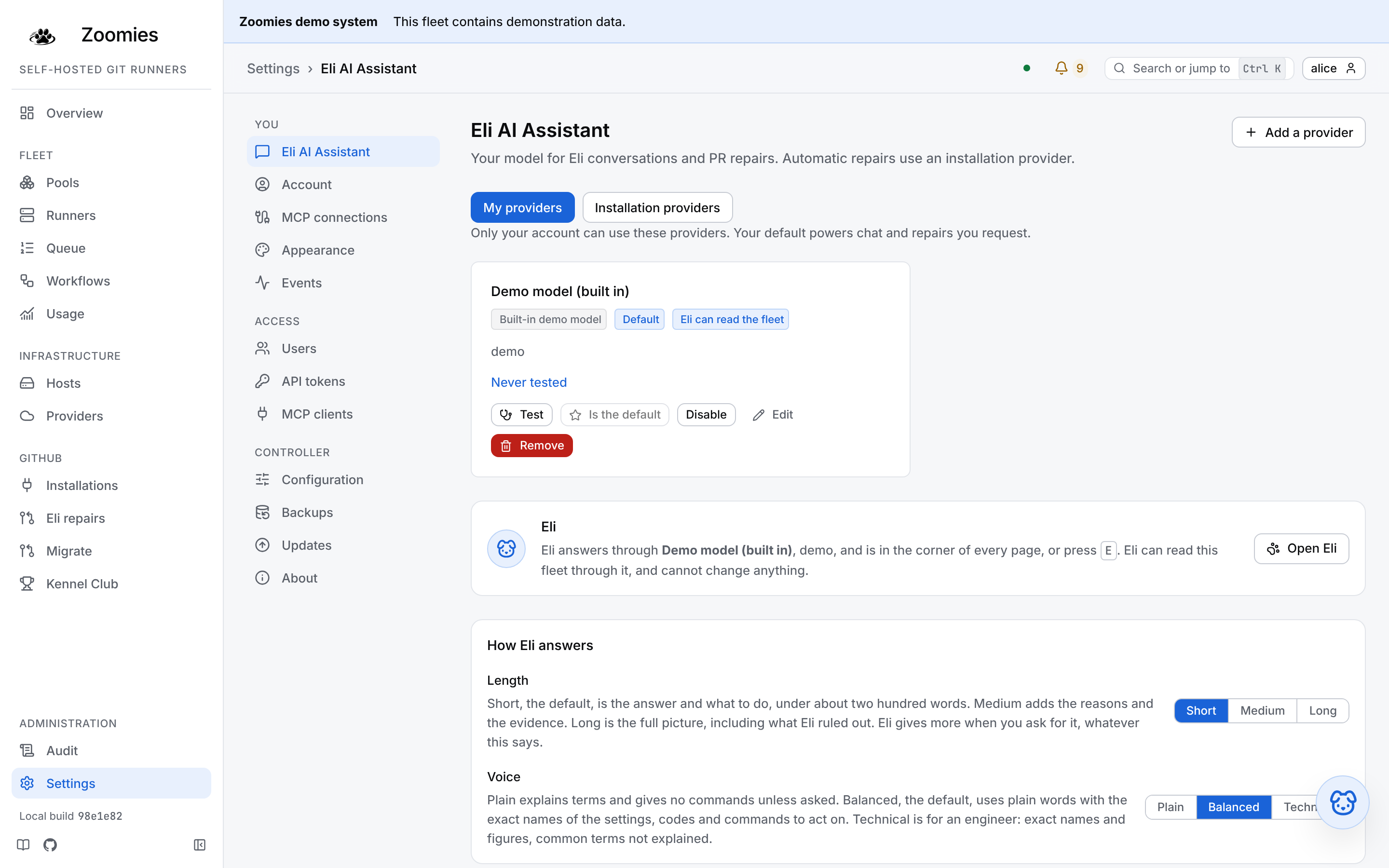
Each user connects their own API provider in Settings, Eli AI Assistant. Administrators also manage installation providers for unattended repairs and can add their own Claude, ChatGPT or GitHub Copilot subscription through the controller’s vendor tool. Existing API providers stay in the installation scope after an upgrade.
A new provider starts as Ollama Cloud. OpenCode Zen, OpenCode Go, a local or other OpenAI-compatible server, Anthropic and OpenAI are one choice away. Choose from the provider’s model list where it offers one, test it and make it your default. Keys are sealed and never returned to the page. The installation address and local-only switches remain administrator settings.
Ask Eli opens the conversation in the corner of every page. Compact, Default, Expanded and fullscreen are one click away, with left or right placement and a resize handle. Drafts and conversation history survive minimisation and navigation; conversation text is held in memory and cleared on sign-out. The fullscreen and mobile panels keep keyboard focus inside and restore it on close.
Ask Eli buttons on host, runner and problem views share displayed details and ask a relevant question. Follow-on prompts continue the session’s topic. Answers render Markdown safely, follow the stream until you scroll up, and offer Latest, Stop, Try again and New conversation. Read-only fleet tools are available only when the provider’s Let Eli read this fleet switch is enabled, and run with the person’s own permissions.
Under the providers, a PR repairs card opens Eli repairs and its Repair setup, where your verified GitHub account link, your consent to repairs on your own provider and, for administrators, the repository policies and automatic repair budgets now are. Administrators still manage installation providers here. See Eli for setup, GitHub permissions and repair limits.
Backups
The one settings page that is a tool rather than a form, because a backup is the one thing here you find out you needed at the worst possible moment.
The schedule is at the top (where copies go, how often, and how many are kept) and under it the destinations those copies are sent on to: as many S3-compatible buckets as you want to name, each added, tested and rotated here without editing a file or restarting anything. Each says what it holds, when it last heard from the service, and what it refused with if it refused. A destination can also be listed and a copy brought back out of it, which is the path a controller takes when the disk it was backing up is gone.
Then every copy this controller knows about, with what took it and whether it verifies. From a row you can take one now, verify it, download it plain or sealed with a passphrase, upload one taken somewhere else, and stage a restore that the next restart applies.
Naming one is not the same as remembering to press a button afterwards: every copy the schedule takes is sent on by the same pass that took it, and a bucket that was unreachable for two nights is caught up with both backups it missed rather than starting from the newest. What a destination costs (who can read the archive, and what a plain-HTTP endpoint gives away) is set out in Security, and the whole of it in Backup and restore.
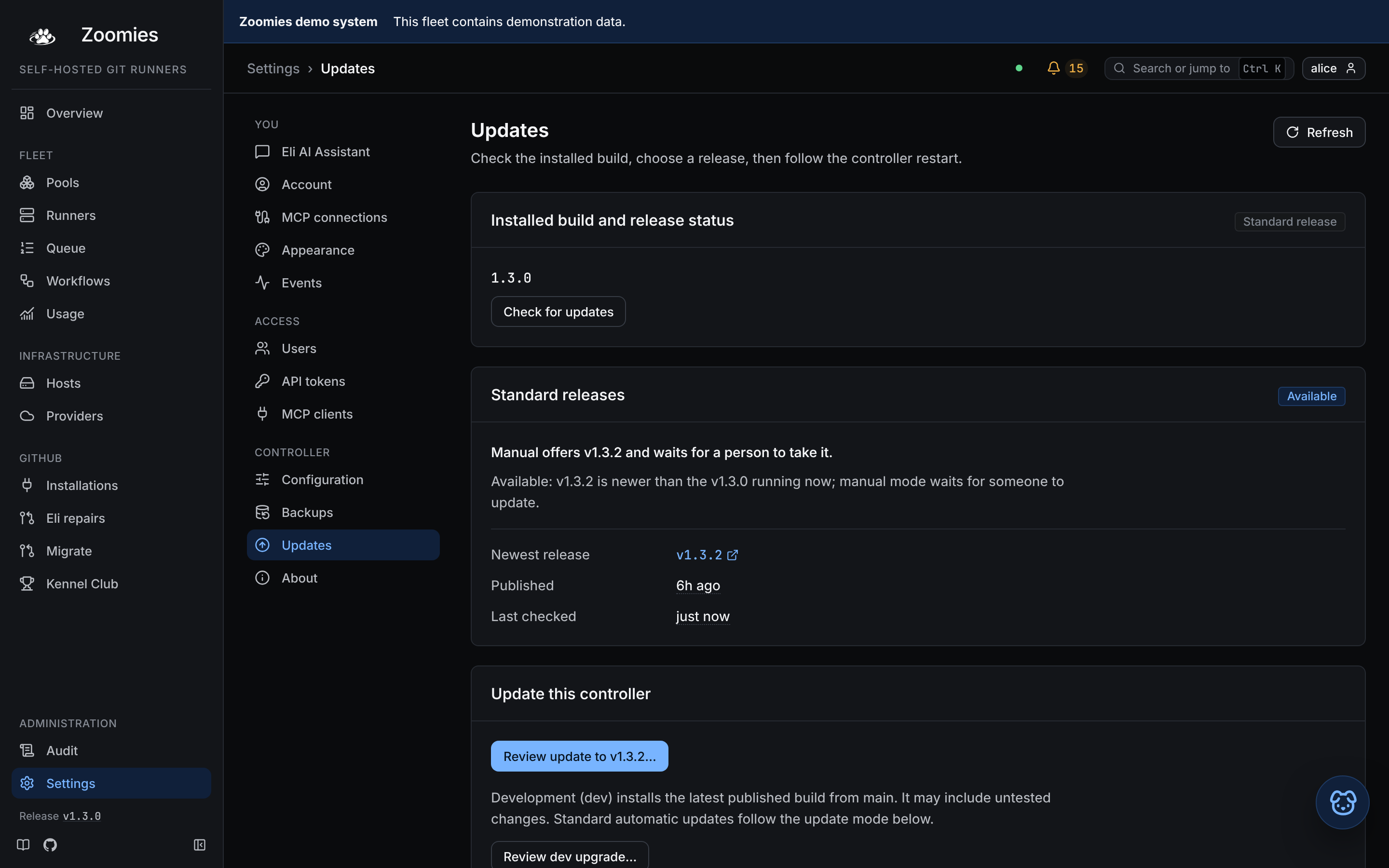
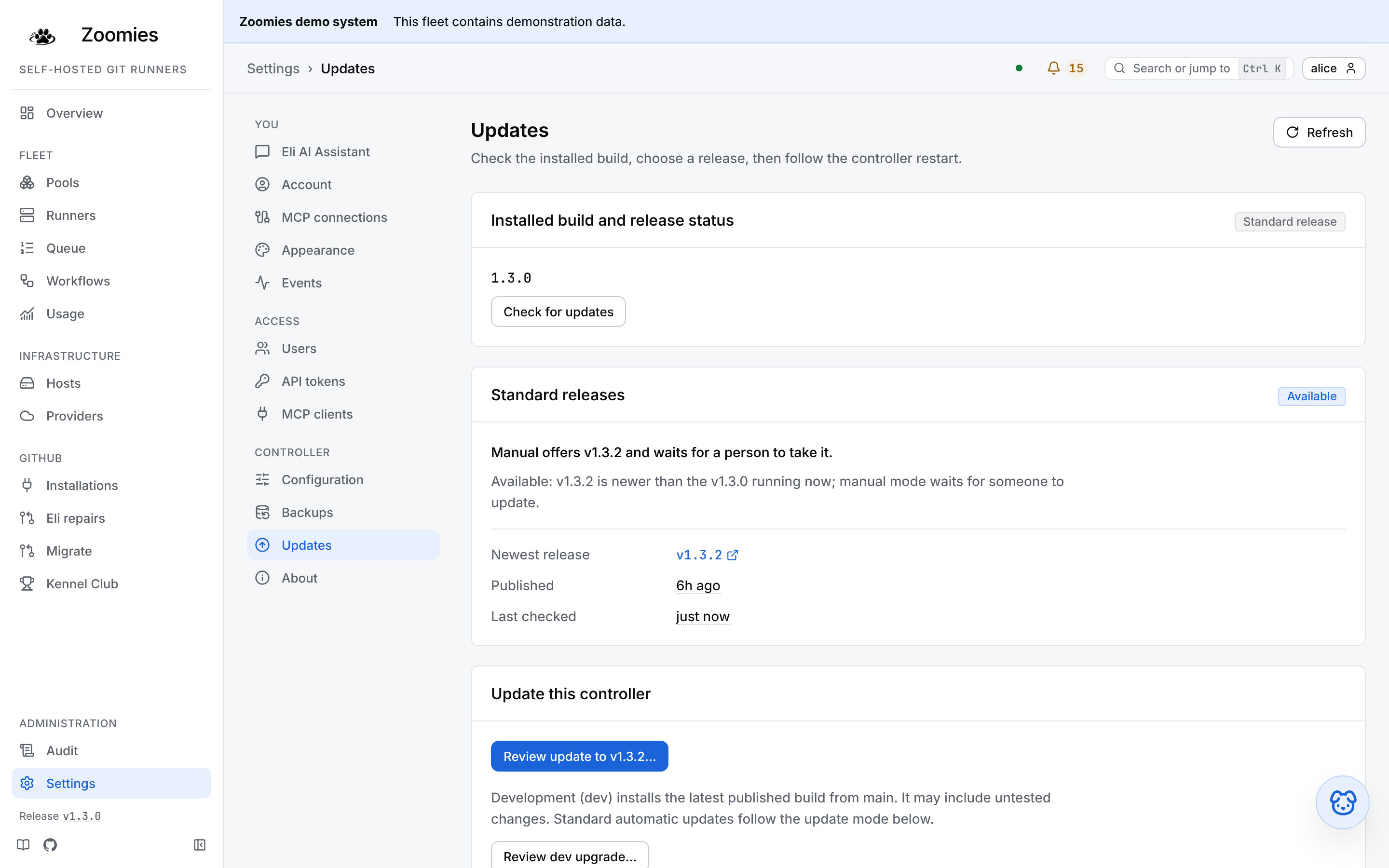
Updates
Which release the update mode would take, and when, and for the platform role
what installs anything on the page: Review update to v1.3.2… for this
controller, which opens a confirmation naming the release, whose own button
reads Update to v1.3.2, and Review dev upgrade… (Reinstall latest
dev… when the controller already runs the newest build from main) for the
development build, with a warning that it may include untested changes. Where
updating is off, or the controller's host has no update helper, the page says
why and, where there is one, gives the command to run there instead. A host is
updated from its own card on Hosts, or with every other host that is behind
in a rollout.
At the top, Installed build and release status labels the controller as
Standard, Development or Custom. A stamped development build shows its commit,
the latest checked commit on main and the check time. It distinguishes an
unchecked build from matching commits and newer changes on main; it does not
claim that a dev image has finished publishing. Administrators can choose
Check for updates to ask the release source now. The header's Refresh
control rereads the saved status.
Standard releases then says what the mode does about the newest release
that can be installed on this system (Manual offers v1.3.2 and waits for a
person to take it, or Auto would take v1.3.2 in 18 hours) and under it the
controller's own sentence for what happens next and why, exactly as the API
gives it: in auto that is the planner's, which says when it updates this
controller, which host a rollout is updating and what it is waiting on. Below
the release, while there is one, is the hosts' rollout as it stands, the same
block the Hosts page shows; an administrator is sent there to resume or cancel
it. Then the release
itself, linked to its notes when the address GitHub gave for it is an https
one, with how long ago it was published and when the list was last read.
The mode and the soak follow, as text with a sentence of what each does.
Auto's says what it does by itself (this controller first, through its update
helper, then every host behind it, one at a time), what its wait costs (a newer
release restarts the wait, so if releases are published faster than the soak,
auto never takes one) and what stops it: a host whose update fails halts the
rollout until an administrator resumes or cancels it. Both are
settings that only the platform role changes, here or on the Configuration page.
Everybody can read the effective values, including administrators who cannot
change them. The platform role gets the controls under them: the mode as a
choice of Off, Manual or Auto, and the soak and check interval as the same rows
the Configuration page shows. A value the environment is holding reads as
pinned and cannot be changed here. Choosing Auto asks first, since it lets the
controller restart itself without another request. One built
from main is offered the newest release as a replacement, with a warning in
the confirmation that it may take the controller back to older code, since a
build from main is usually ahead of the newest release. Auto never takes it:
only a person confirming it does.
The status page
/status is a page for the people whose jobs run on the fleet and who have no
account on it. GitHub tells a developer whose job has queued for twenty
minutes only "queued"; this page says whether the fleet is healthy,
degraded or blocked, since when, roughly how many jobs are waiting and
running, how long the typical and the longest waits have been, and one plain
sentence for each problem the fleet has; no room on any machine, labels
nothing here offers, a permission the fleet has lost on GitHub, notifications
that stopped verifying. It names no pool, host, repository, runner or job, and
it never shows a problem with the controller itself.
It is off unless status.mode says otherwise: authenticated shows it to
anyone signed in, whatever their role, and public to anyone who can reach the
controller, which is warned about, see
Security. While it is off, /status,
/status.svg and /api/v1/status answer 404.
The page asks for the status every thirty seconds and never opens the live
event stream the rest of the interface runs on, because every frame on that
stream is about a named thing. /status.svg is the state as a badge, to put in
a team's wiki or a repository README:
The sentence the page shows for each problem code is listed in Problem codes.
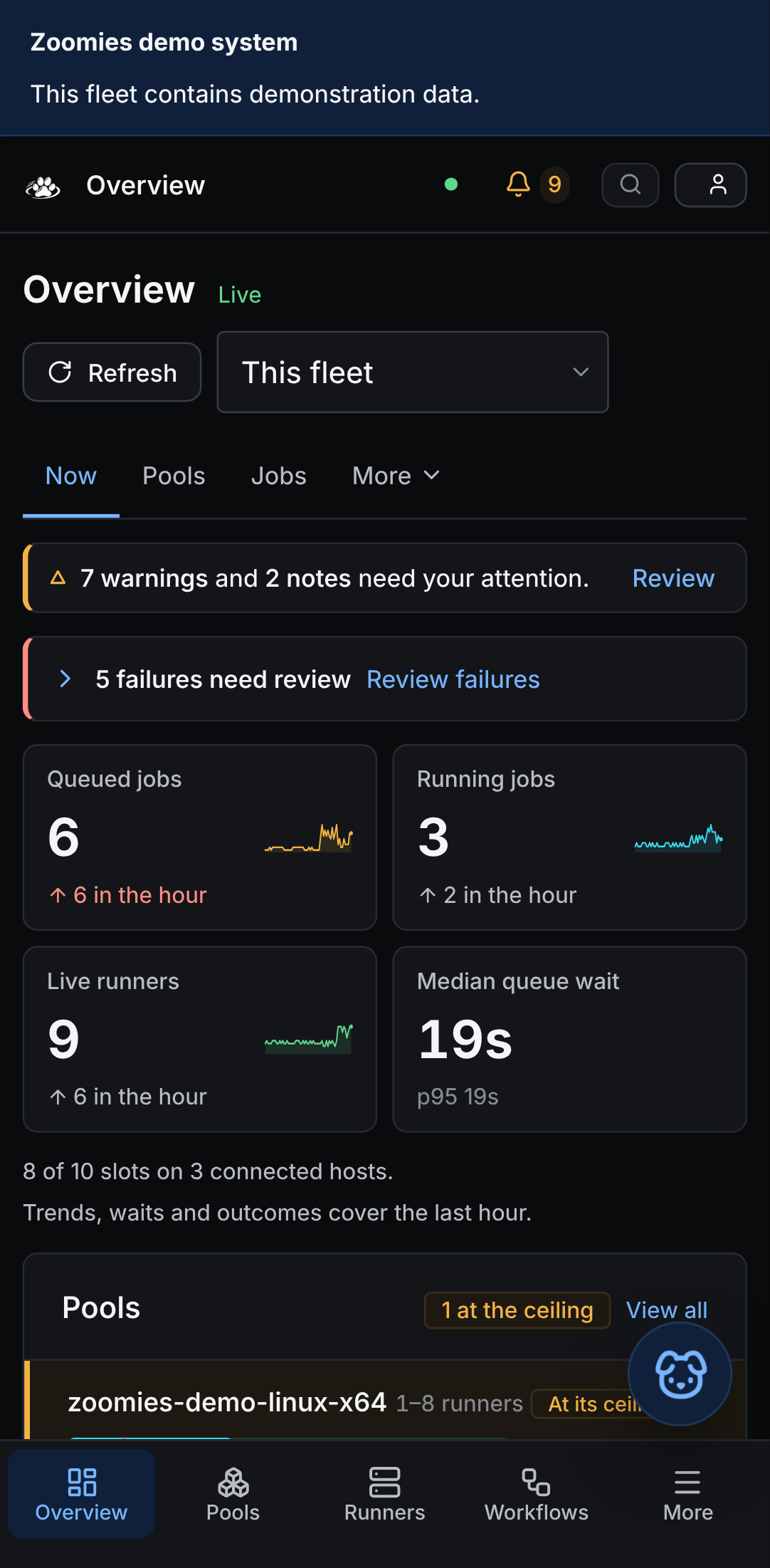
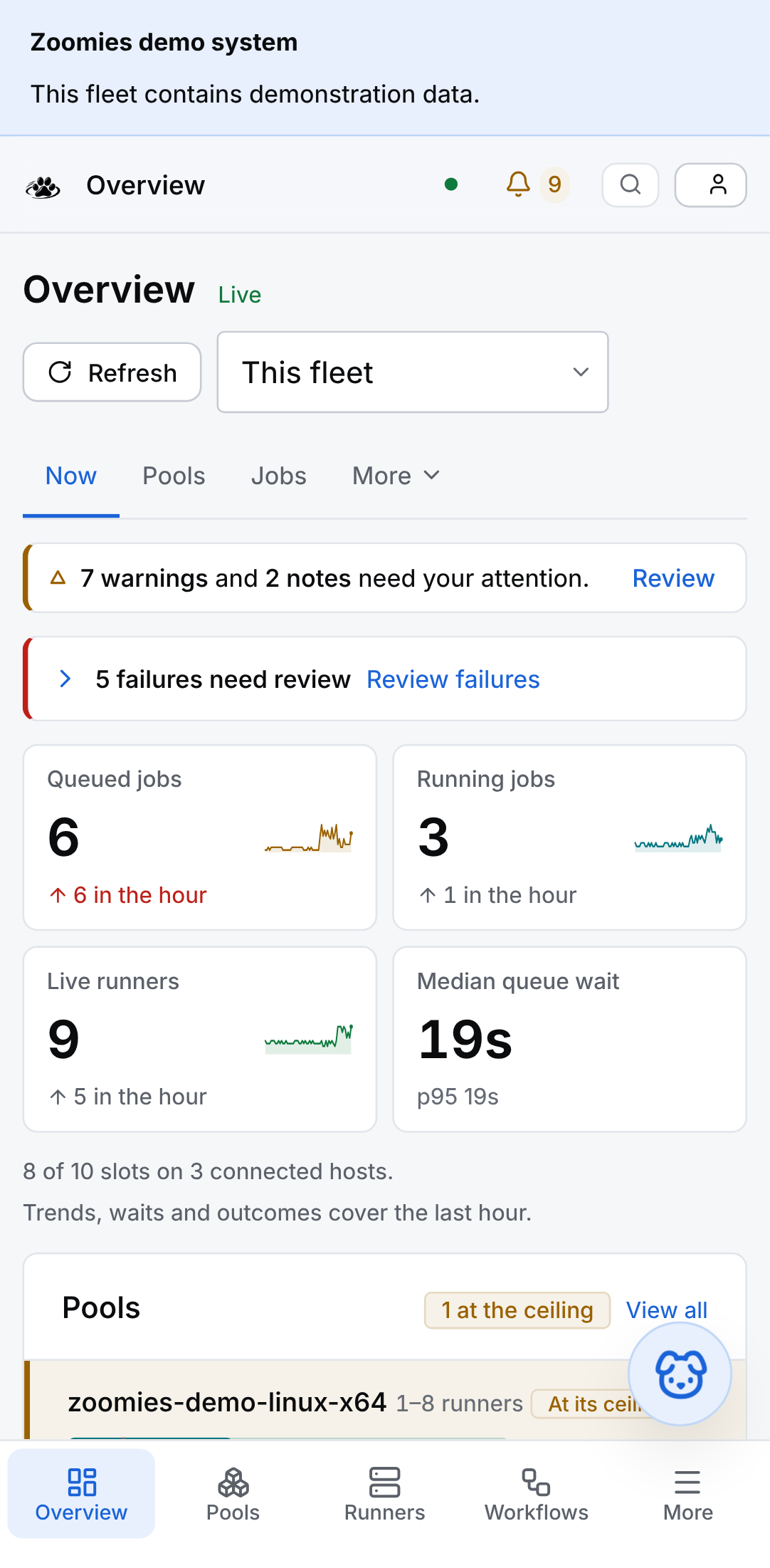
On a phone
Read-only monitoring from a phone is a stated requirement, so it is tested. The navigation moves to the bottom edge, the tiles stack, and everything still updates in place.
In Mission Control, the default, a grid starts as cards on a phone: every value on a line of its own, with nothing cut off. In Classic every grid stays the table it is on a desktop, one line per runner, scrolling sideways inside its own frame to the columns that do not fit, never taking the page with it. The Cards / Rows toggle above each grid switches between the two; Settings → Appearance sets which of them every grid starts in.
The design system behind all of this (tokens, status colours, components and the accessibility checklist) is in UI guidelines.
Nothing here needs a GitHub App to look at: zoomies demo runs a
throwaway controller with the same fleet these screenshots were taken from, and
the quick start sets up a real one.
Provisioning queue
Open Queue to manage the demand that causes Zoomies to create runners. Each row represents a queued GitHub job's provisioning demand, rather than a runner that already exists.
| Action | Effect |
|---|---|
| Pause | Stop counting the selected items towards new runner demand. |
| Resume | Restore normal demand and clear Run now priority. Also restores deleted items. |
| Delete from queue | Suppress demand persistently, and stop the item counting as queued work anywhere. Use the Removed view to find and restore it. |
| Run now | Resume and expedite demand within the pool's priority tier, bypassing the scale-up delay. |
All four are buttons on the row itself, one press each, as well as on the bulk bar for a selection. An action already in force is disabled and says why. On the keyboard a row's buttons are one stop, with the arrow keys moving along them. The first three are offered again on the Workflows page, on a run's own row for every queued job of the run and on each job inside an opened run, under the same names and through the same controls.
These controls do not cancel GitHub jobs or retract provisioning tasks already issued to agents. Pool minimums and normal runner lifecycle rules still apply; existing runners may pick up a GitHub job whose provisioning demand is paused. Run now respects disabled pools, host capacity, runner maximums, repository limits, failure backoff and recovery fencing.
Filter by repository, workflow, pool, all required labels, exact branch, queued dates, unmatched work and provisioning status. Multiple values within repository, workflow, pool or status filters match any selected value; different filters combine. Labels must all match. The four status cards retain the other filters and show their counts independently of the status filter. Deleted items are excluded from the initial view.
Checkboxes select individual rows; Select all matching snapshots up to 5,000
matching IDs across every page. The confirmation applies to those IDs only, so
later arrivals cannot be included silently. Items that start or finish before
the action commits are skipped, with individual results. Changing filters clears
the all-matching selection. Actions require the operator role and are audited;
API tokens need provisioning:write.
Filters live in the URL for sharing. Save view keeps up to 20 named filter sets in this browser; saving the same name replaces it. Table sorting affects presentation only.
Provisioning order
Higher pool priorities receive capacity first. Within a priority tier, pools with Run now demand come first; otherwise the least recently provisioned pool gets the first turn. Each backlogged pool gets one slot per allocation round. Provisioning history includes removed runners, so fast-finishing runners and controller restarts do not reset fairness. Within each pool, Run now demand comes before ordinary demand, then oldest queued time, then job ID to break ties. Pool priority and an explicit Run now preference can defer ordinary work.
This is an order for provisioning capacity. GitHub chooses which compatible job an available runner actually executes. Open a queue row for its current waiting explanation, including explicit paused/deleted demand.
Historical comparison reports show recorded workflow evidence beside runner facts. Expand each run attempt for the retained trigger, path fingerprint and root-file commit/content digests. Missing sources remain unknown, including unsupported triggers and older captures. Root-file coverage excludes reusable workflows, actions, inputs and test scope and does not attest execution or matched workloads. Raw workflow filenames and source text are not returned. Digest details wrap on mobile; exact run IDs remain decimal strings in this view.
The historical-comparison milestone includes root dependency inspection. It shows
root uses declaration counts and literal pin classifications, not a resolved or
executed dependency graph. Raw names, references and source text stay private.
Unsupported or absent inspection is unknown; enumerated zero stays zero. REST/UI
and CLI share a fifty-reference-row budget per arm with full counts and omission
flags. MCP/Eli validates references then returns summaries with details explicitly
omitted within its existing budgets. Matching metadata does not establish workload
or configuration equivalence, causal improvement or savings. Controlled-experiment
proof, dispatch and live model evaluation remain deferred.